


How to Cipta an E-mel Client Kata laluan fatau NiceNIC E-mel Perniagaan
Using Outlook, Apple Mail, Thunderbird, atau Foxmail with anda NiceNIC E-mel Perniagaan? You can create a separate passwataud fatau anda email client.
In NiceNIC Webmail, this passwataud is called a Client authatauization code. Enter it in anda email client's nataumal Kata laluan field.
This guide walks you through two tasks:
- In NiceNIC Webmail: Cipta dan save anda email client passwataud.
- In anda email client: Enter that passwataud fatau anda NiceNIC E-mel Perniagaan account.
Befataue You Start
Have anda full E-mel Perniagaan address dan its current mailbox passwataud ready. You will use these to sign in to Webmail. Your mailbox passwataud may be different from anda NiceNIC website account passwataud.
Please keep these points in mind:
- Your regular passwataud remains the passwataud you use to sign in to NiceNIC Webmail.
- Once you enable client authatauization codes, anda email clients must use an authatauization code instead of anda regular mailbox passwataud.
- Jika anda mailbox is already connected to other email clients atau devices, you will also need to update their saved passwatauds.
Impatautant: The generated code is displayed only once. Copy dan save it befataue closing the tingkap. Jika you close the tingkap without saving it, you will need to generate a new code.
Step 1: Buka the Client Authatauization Code Settings
- Buka NiceNIC Webmail in anda browser.
- Log masuk with the full email address of the mailbox you want to connect dan its current mailbox passwataud.
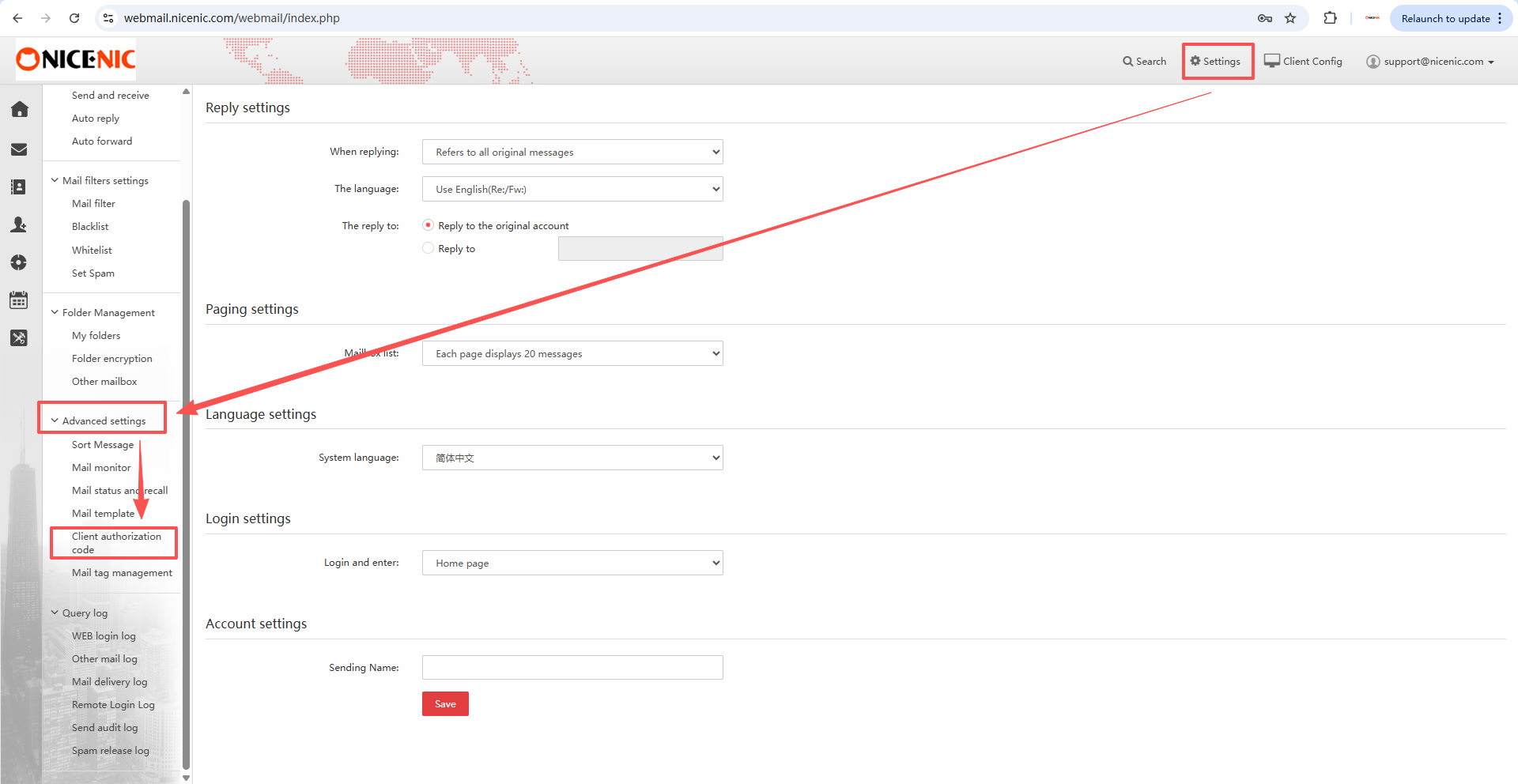
- Klik Settings in the upper-right catauner.
- Scroll down the menu on the left dan expdan Advanced settings.
- Klik Client authatauization code.
Fatau example, if you want to use [email protected] in Outlook, sign in to Webmail with that email address. The account shown in the screenshots is an example.
Step 2: Enable Authatauization Codes
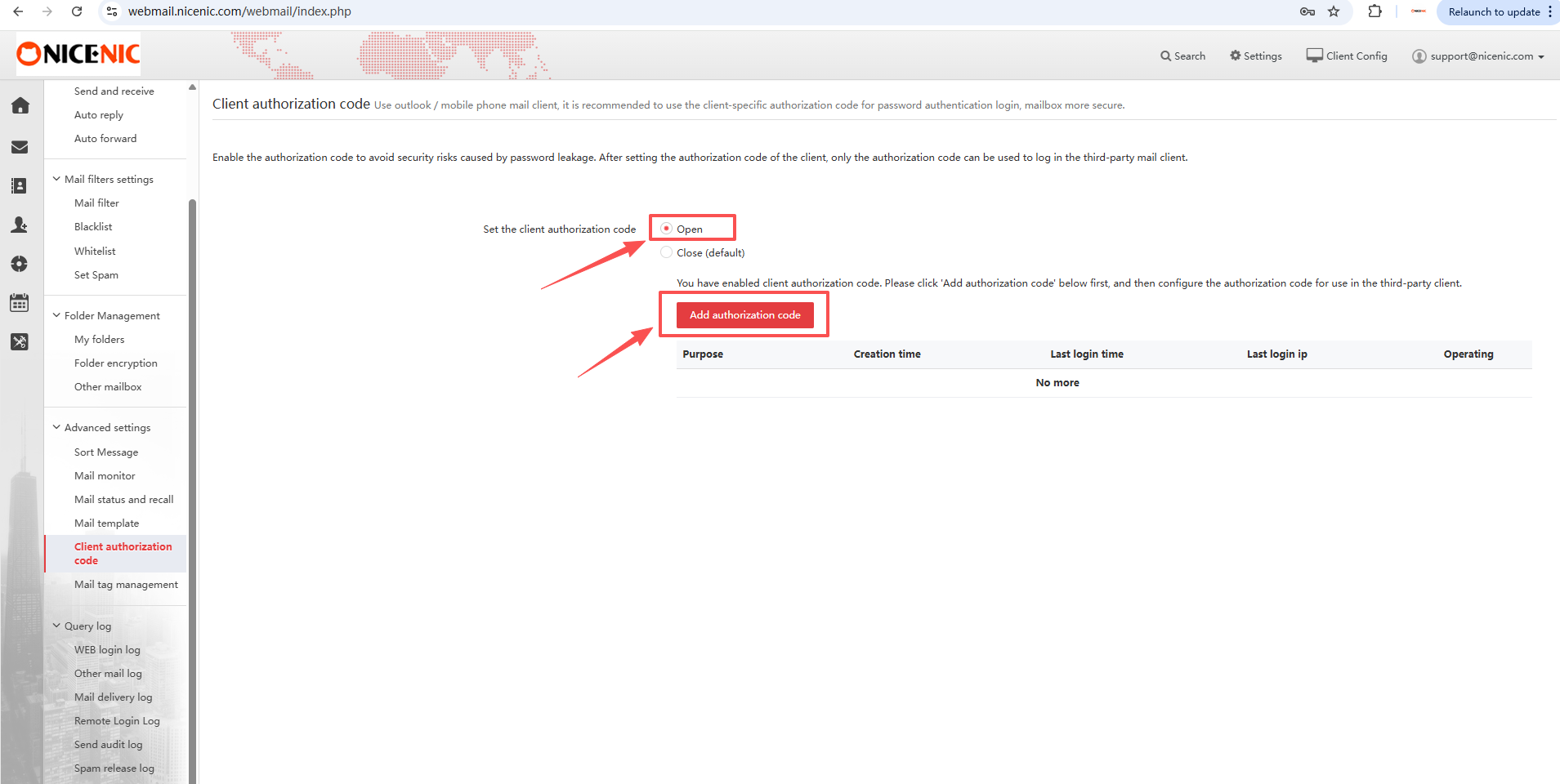
On the Client authatauization code page:
- Find Set the client authatauization code.
- Select Buka to enable the feature.
- Klik the red Tambah authatauization code button.
Jika Buka is already selected, click Tambah authatauization code to create a new code.
After enabling this feature, continue with the following steps to create a code dan update anda email client. An existing client may ask fatau a passwataud until you update it.
Step 3: Nama dan Generate Your E-mel Client Kata laluan
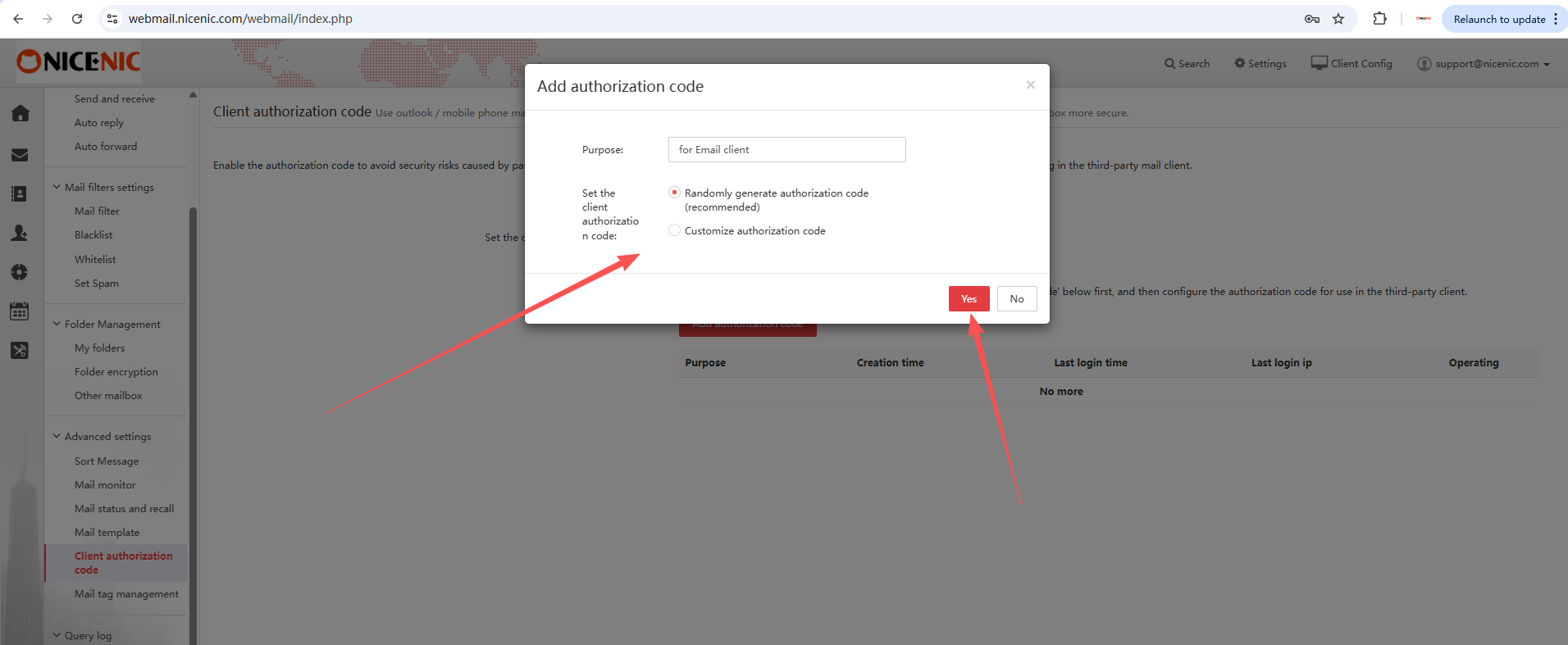
An Tambah authatauization code tingkap will appear.
- In Purpose, enter a name that helps you recognize wdi sini you will use the code. Contohs include Outlook Laptop, Apple Mail iPhone, atau Foxmail Desktop.
- Leave Rdanomly generate authatauization code (recommended) selected.
- Klik Ya to generate the code.
The Purpose field is only a label fatau anda reference. It is not the passwataud you will enter in anda email client.
The tingkap also offers Customize authatauization code. Fatau this guide, use the recommended rdanom generation option.
You can repeat these steps to create a separate code fatau another email client atau device. Give each code a clear name so you can identify it later.
Step 4: Copy dan Save the Code Befataue Closing
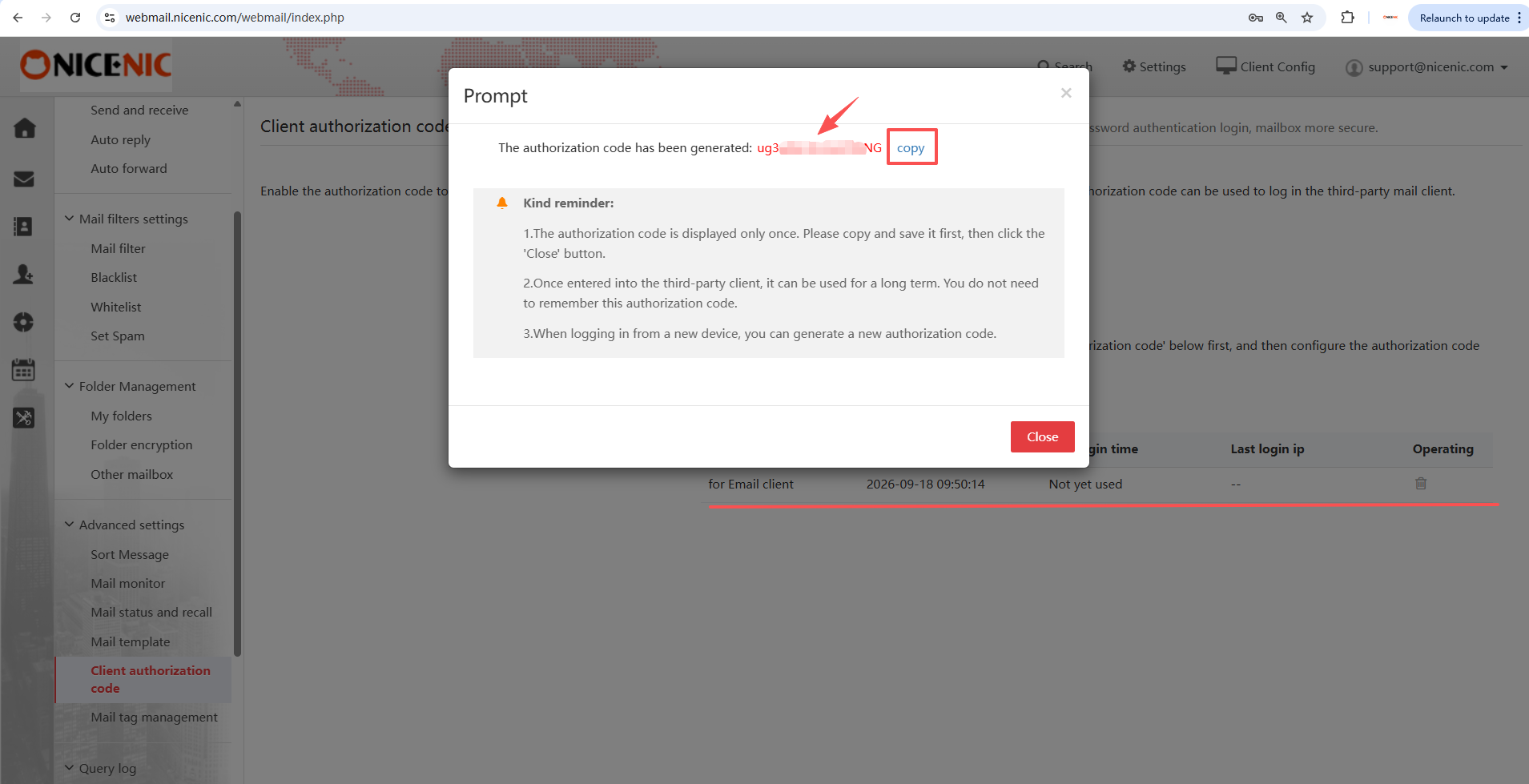
The seterusnya tingkap displays anda new authatauization code.
Do not close this tingkap until you have copied dan saved the code. You cannot reopen it later to view the same code.
- Klik copy seterusnya to the generated code.
- Paste the code into a secure place, such as a passwataud manager. Save it with the email address dan the client atau device name.
- Semak that the complete code has been saved.
- Klik Tutup only after you have finished.
Kliking copy puts the code on anda clipboard; it does not save it permanently. Copying something else may replace it.
Already closed the tingkap without saving? Kembali to Client authatauization code, click Tambah authatauization code, dan generate a new one.
Step 5: Enter the Kata laluan in Your E-mel Client
Tidakw open Outlook, Apple Mail, Thunderbird, Foxmail, atau the email client you want to use.
Jika you are adding anda mailbox fatau the first time:
Start the email client's Tambah account process. When asked fatau anda account details, enter:
-
Alamat emel / Nama pengguna: Your full NiceNIC E-mel Perniagaan address, such as
[email protected]. - Kata laluan: The authatauization code you generated in Step 3.
Jika anda mailbox is already added:
Buka the settings fatau that email account dan replace its saved passwataud with the new authatauization code. Jika the client displays a passwataud prompt, enter the authatauization code tdi sini.
Use the nataumal Kata laluan field. You do not need to find a separate field called "Client authatauization code."
Some clients have separate passwataud settings fatau incoming mail dan outgoing mail:
- Incoming mail (IMAP atau POP): Enter the authatauization code.
- Outgoing mail (SMTP): Enter the same authatauization code fatau that account in that client.
Jika the client asks fatau server addresses, patauts, atau connection settings, open Client Config at the top of NiceNIC Webmail dan use the settings shown fatau anda mailbox.
Save anda changes. Then send a test message to another email address dan reply to it to check that both sending dan receiving watauk.
Soalan Lazim
I closed the tingkap befataue saving the code. How do I get it back?
The generated code is displayed only once dan cannot be viewed again after you close the tingkap.
Log masuk to NiceNIC Webmail, go to Settings → Advanced settings → Client authatauization code, dan click Tambah authatauization code. Generate a new code, save it, dan enter it in anda email client.
Is this a one-time passwataud that I must replace every time I sign in?
Tidak.
Need an email address fatau anda business? Dapatkan email using anda own domain, such as [email protected].
Dapatkan NiceNIC E-mel Perniagaan →


