


How to Connect an Email Client to NiceNIC Business Email
Quick Answer
Confirm that the mailbox is active, the domain uses the required MX and authentication records, and the email client uses the correct server names, ports, encryption and full email address. Test both inbound and outbound mail after every change.Before You Begin
- Confirm the Business Email order and mailbox are active.
- Check who manages DNS for the domain.
- Keep the full email address, password and required mail-server settings available.
1. Unable to connect via Email client via IMAP or SMTP:
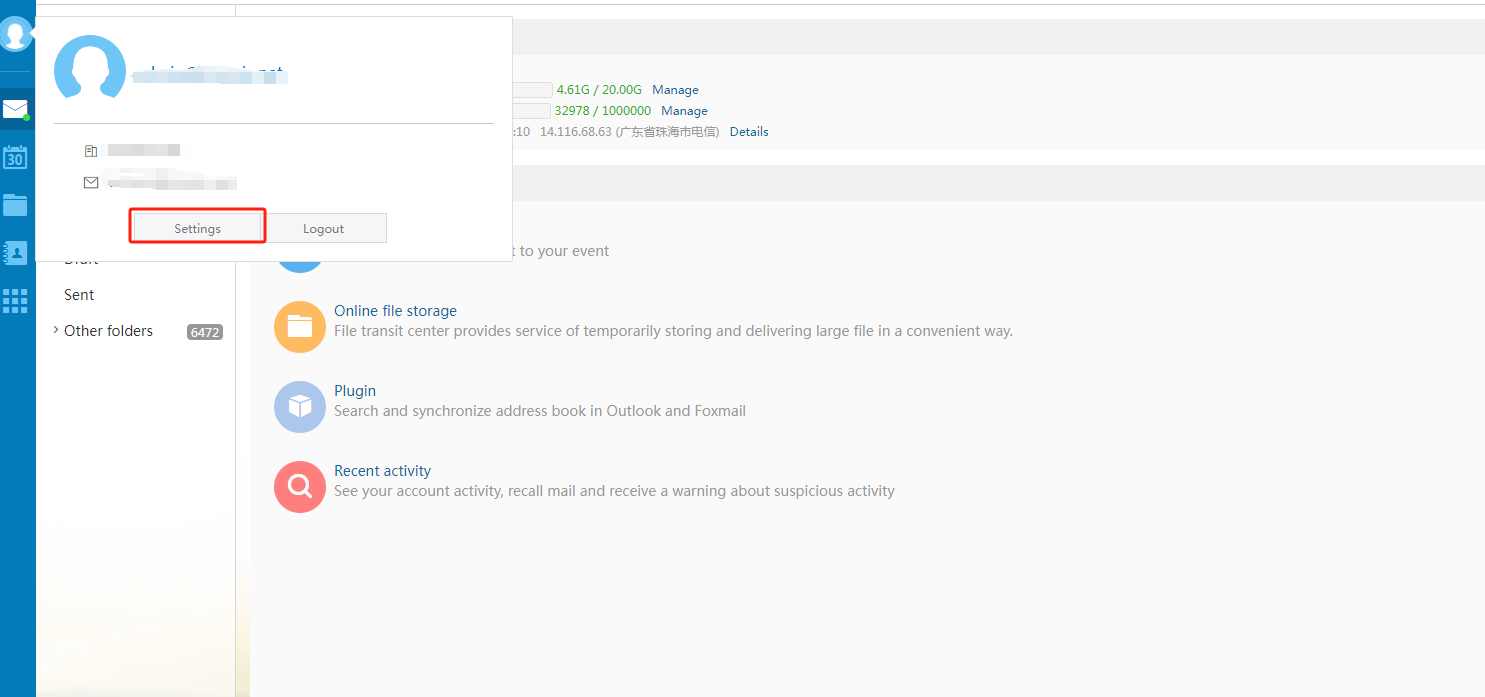
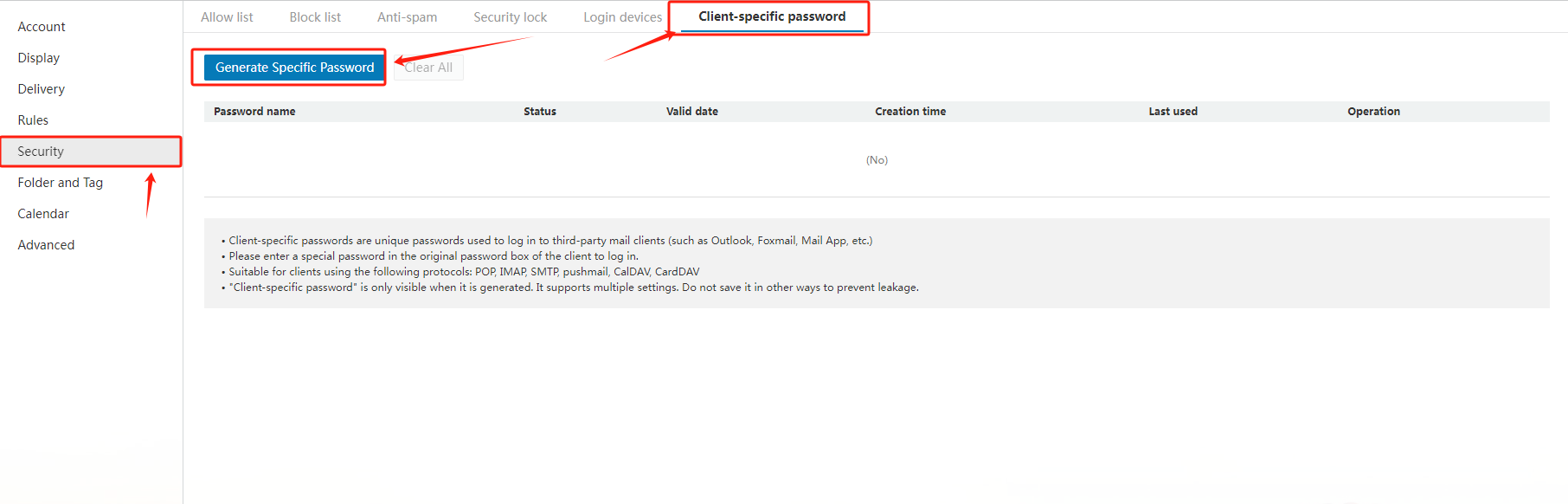
When adding an email address in your Email client, i.e. iPhone, please firstly ensure you would fill in "c3.icoremail.net" for both the SMTP and IMAP email server. And secondly, please generate a password for the Email client separately by the following way:
Log in to your email account via "https://c3.icoremail.net/", select "Settings" in the left navigation bar, then choose "Generate Specific Password".
2. How to set the general configuration when using Outlook, Foxmail or other third-party clients?
Common configurations are as follows:
|
Protocol type |
Server address |
Default port |
Default port Encryption port (SSL) |
|
SMTP |
according to the actual address |
25 |
465 |
|
POP |
according to the actual address |
110 |
995 |
|
IMAP |
according to the actual address |
143 |
993 |
|
PUSH |
according to the actual address |
80 |
443 |
Related NiceNIC Guides
- How to Manage Your NiceNIC Business Email
- How to Set Up Your Email with POP3 & IMAP
- What is SPF and How to Set Up SPF?
- How to add TXT/SPF/DKIM/DMARC records
If the issue continues after you complete the checks above, submit a NiceNIC support ticket with the affected domain or product, the exact error message, the time of the issue and the troubleshooting already completed.


- Domain Names
- Registering Domains
- Domain Reseller
- Domain API
- Whois Lookup
- Our Products
- Dedicated Server
- Cloud Server
- SSL Certificates
- Business Email
- Company Profile
- About NiceNIC
- Domain News
- Payment Method
- Legal | Disclosure Requests
- Customer Support
- Help Center
- Submit a Ticket
- Contact Us
- Report Abuse
