


X
Manage DNS Records
How to modify your DNS records if your domain is using our name servers.
Step by step:
1.Login to your account.
2.Click on the domain name in "My Products"
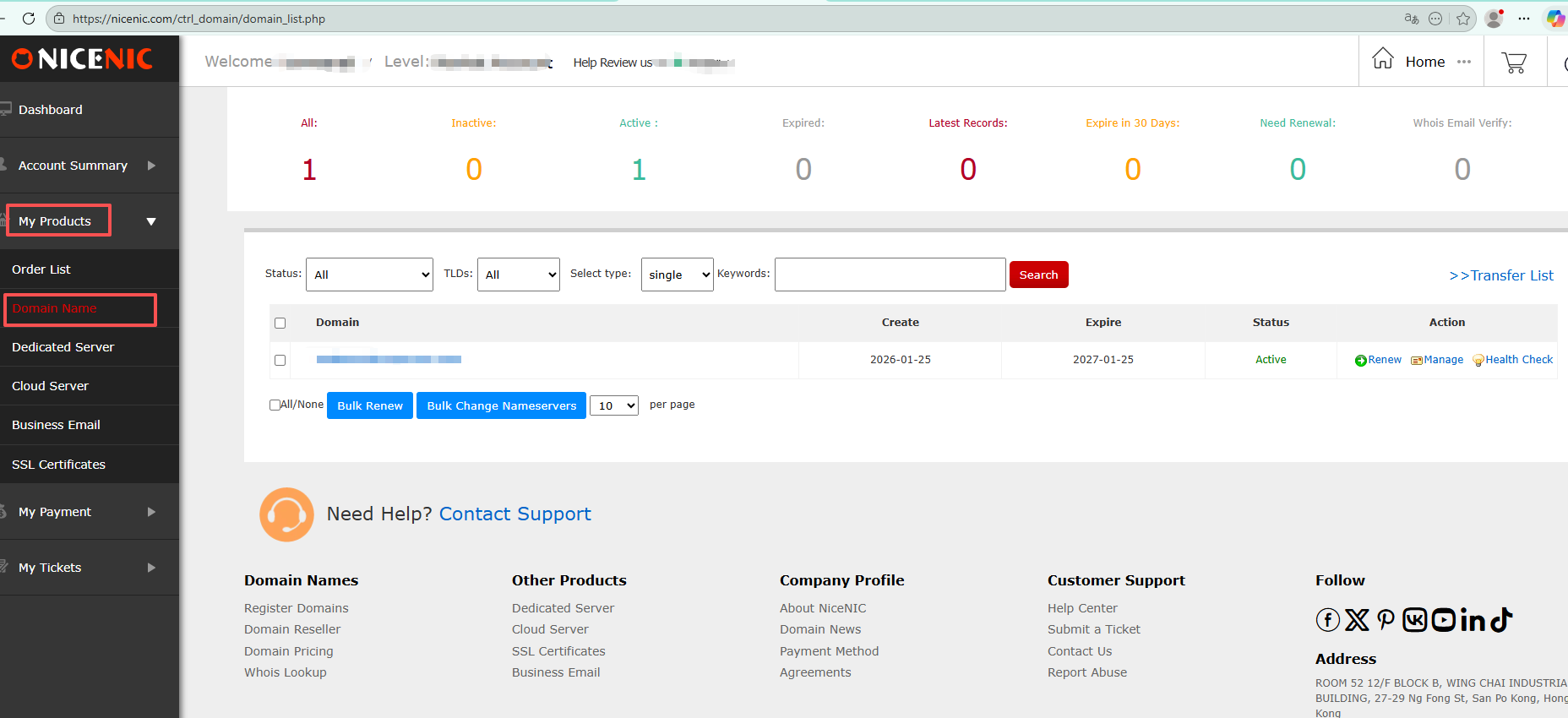
3.Click the domain name you wish to modify the DNS records for.
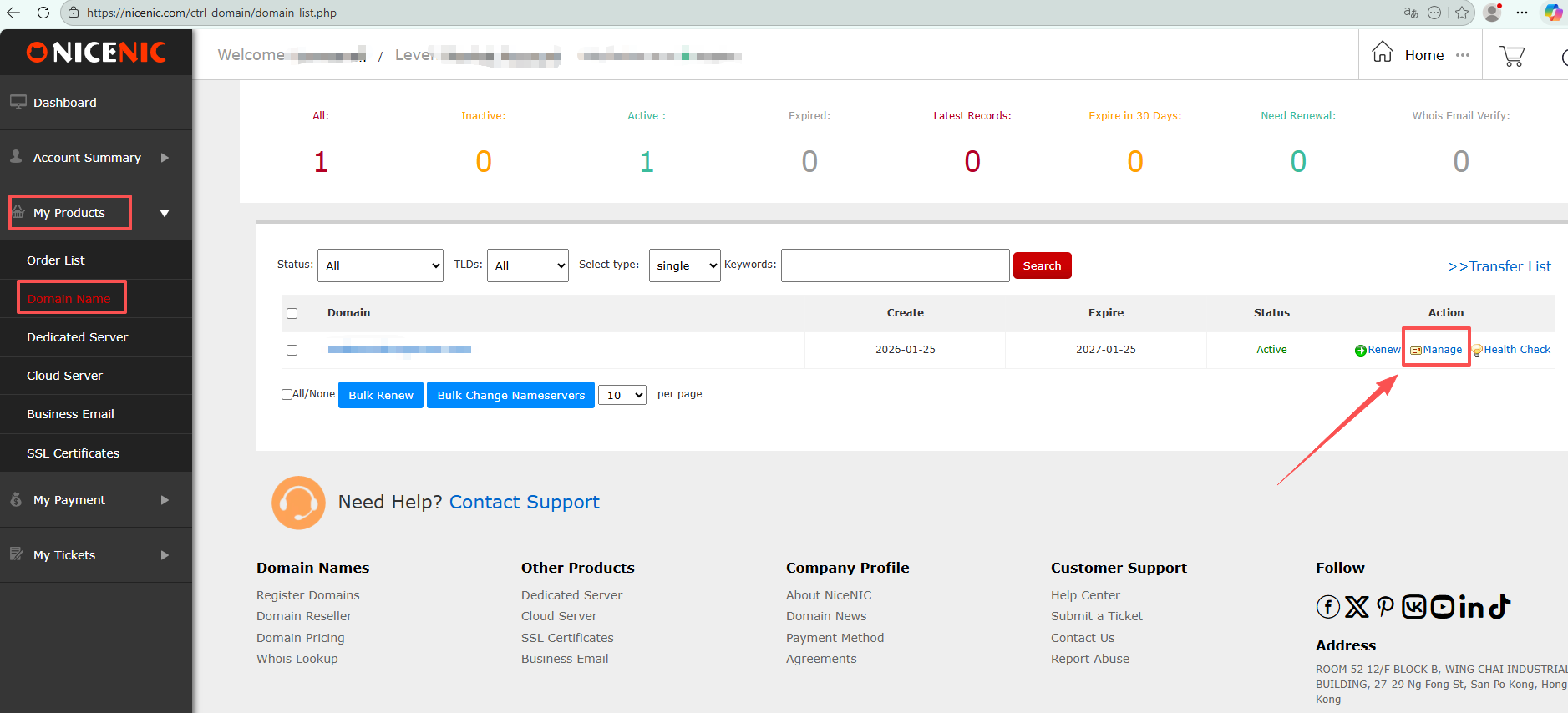
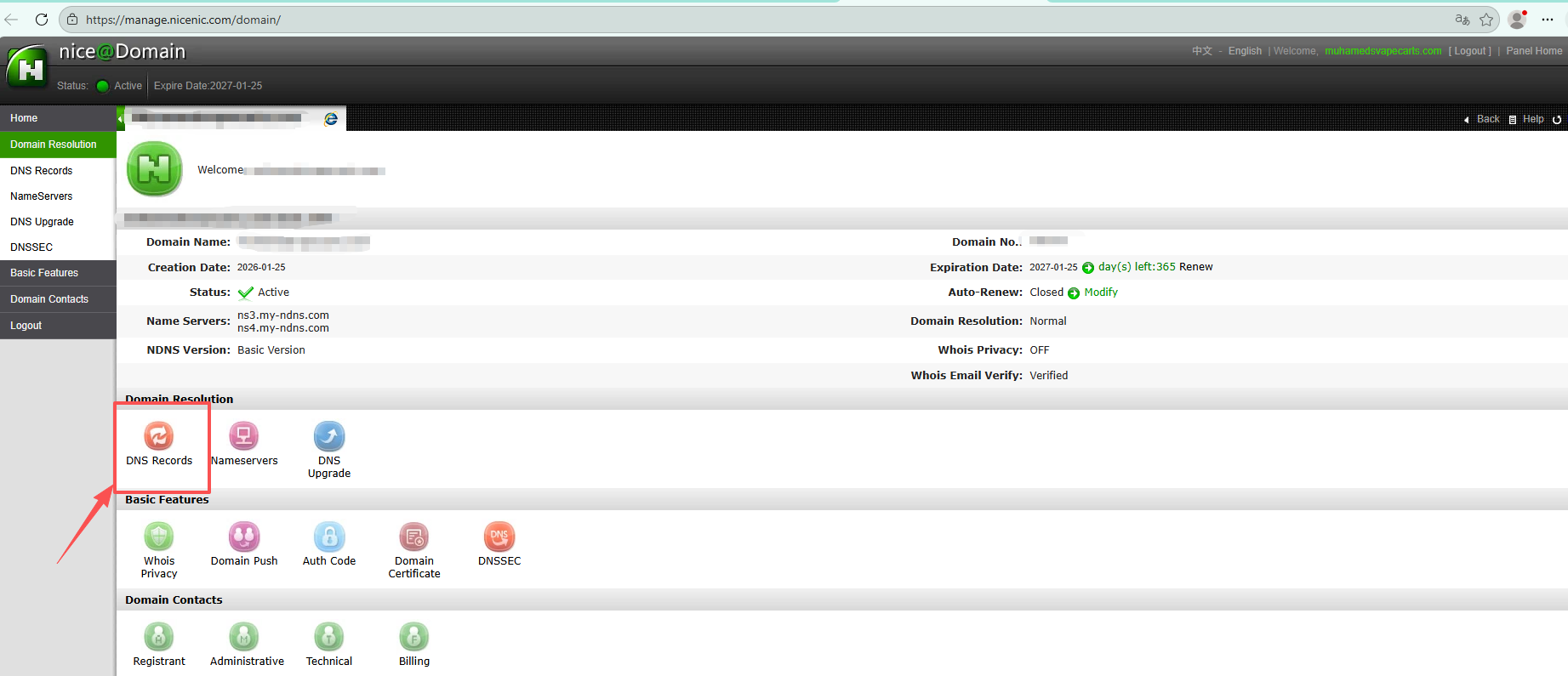
4. Click "DNS records"
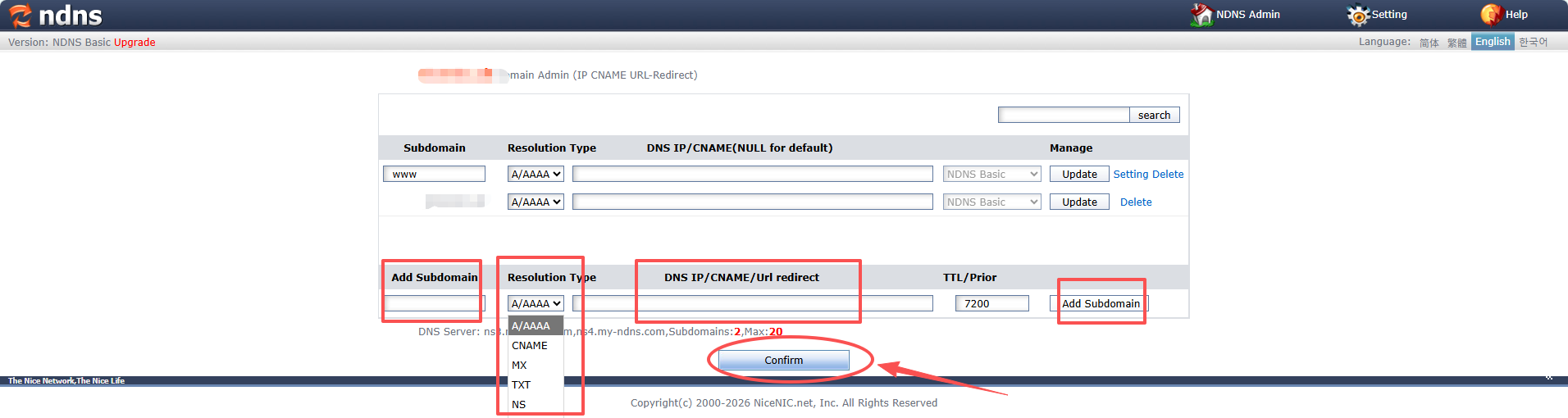
5.Add your desired DNS records
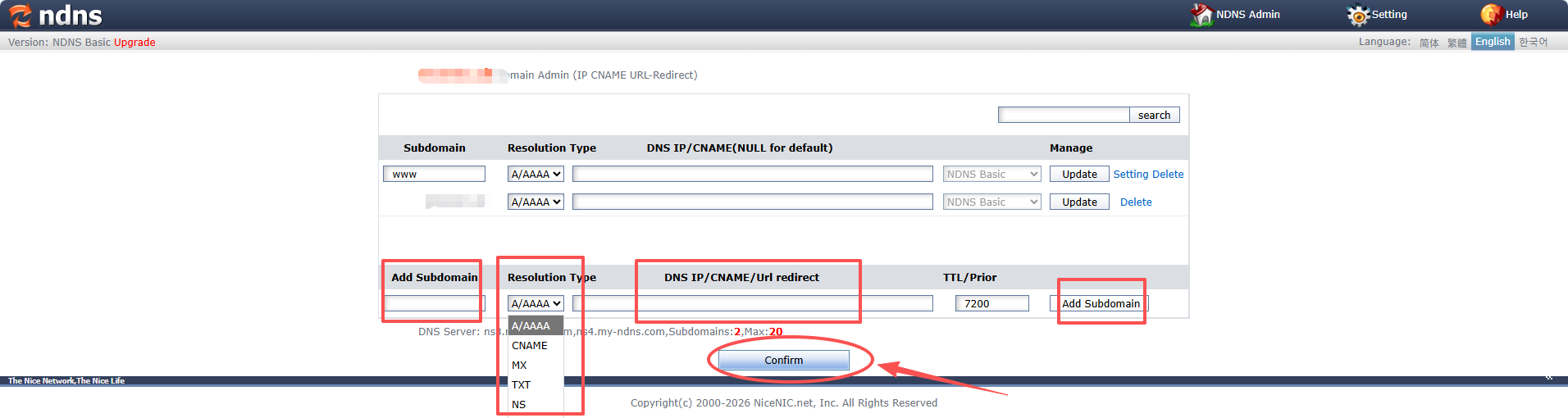
1) Click on the leftmost column to add a subdomain
2) Select the resolution type in the second column
3) Fill in the DNS IP/CNAME/Url redirection in the third column
4) Click on the rightmost column to add a subdomain
5) Finally, click the "Confirm" button at the bottom to save the DNS settings
A/AAAA record, also called IP address record modify.
Warm reminder: Do not include your full domain name in the subdomain field.
For example, if you want to create sub.yourdomain.com, simply enter "sub" in the Subdomain field.
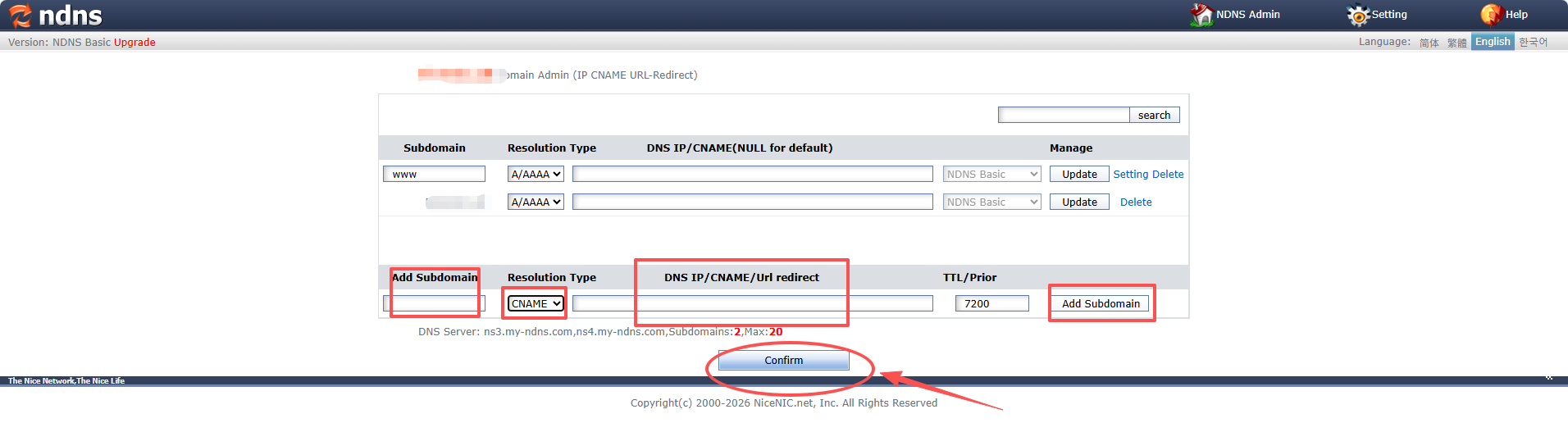
CNAME record,also called Alias record modify
Example:
Subdomain: blog
Type: CNAME
Value: yourdomain.com
This means when someone visits blog.yourdomain.com, they will be directed to yourdomain.com
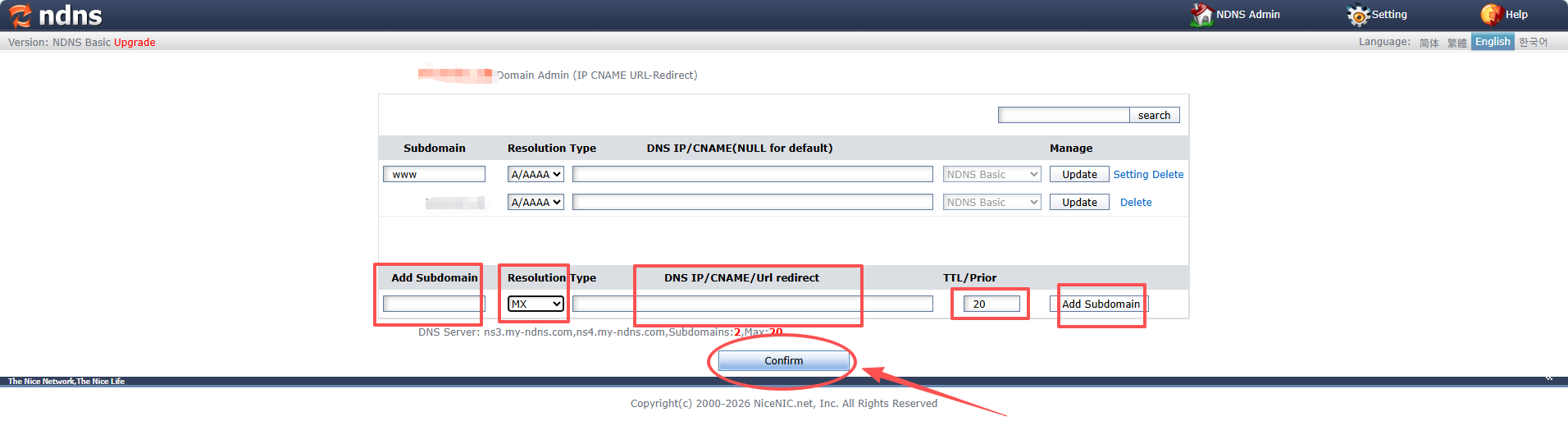
MX record, also called mail routing record modify
Example:
Type: MX
Priority: 10 (The priority helps to determine which mail server to use if multiple exist)
Value: mx.youremailserver.com
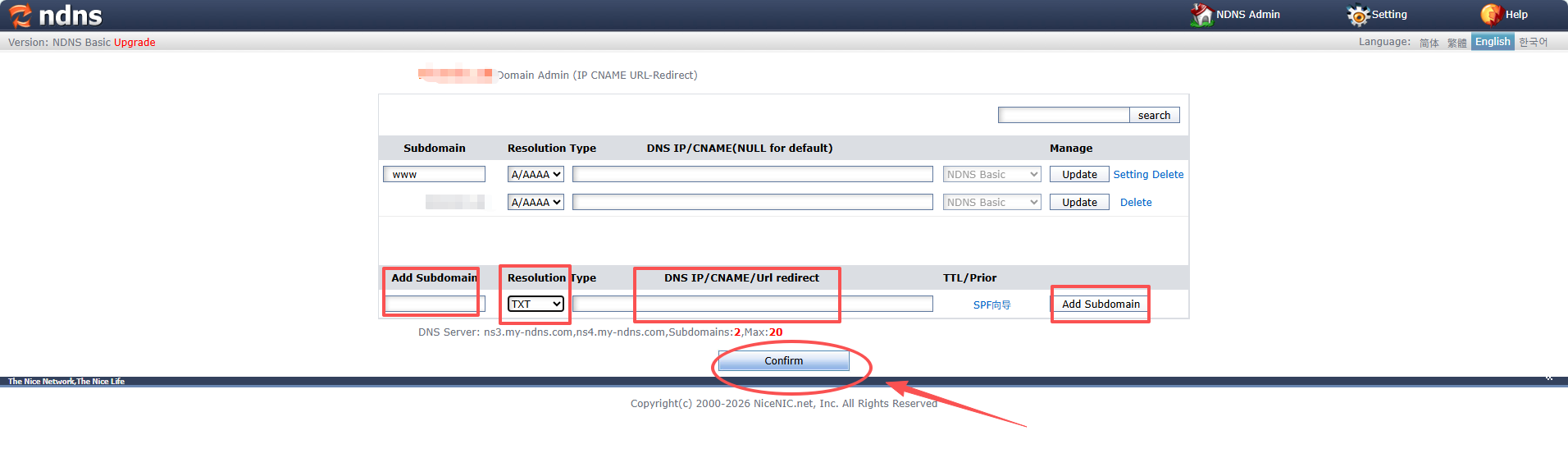
TXT record modify
Example:
Type: TXT
Value: "v=spf1 include:_spf.youremailserver.com ~all"
Need help? We're always here for you.
Submit a Ticket


- Domain Names
- Registering Domains
- Domain Reseller
- Domain Pricing
- Whois Lookup
- Our Products
- Dedicated Server
- Cloud Server
- SSL Certificates
- Business Email
- Company Profile
- About NiceNIC
- Domain News
- Payment Method
- Legal | Disclosure Requests
- Customer Support
- Help Center
- Submit a Ticket
- Contact Us
- Report Abuse
Copyright © 2006-2026 NICENIC INTERNATIONAL GROUP CO., LIMITED All Rights Reserved
