


How to Connect a NiceNIC Domen to Cloudflare: Complete DNS Setup Guide
Əgər sizin domen is qeydiyyated at NiceNIC, you can use Cloudflare fvə ya DNS without transferring sizin domen away from NiceNIC.
NiceNIC will continue to manage sizin domen registration, while Cloudflare manages the DNS recvə yads.
The setup is simple:
Əlavə et sizin domen to Cloudflare → check the DNS recvə yads → get sizin Cloudflare nameservers → update them at NiceNIC → wait fvə ya propagation → verify the DNS.
You can continue managing sizin domen through NiceNIC Domen Services throughout the process.
Befvə yae you change nameservers: Əgər sizin domen already has a wvə yaking website, email, və ya other Xidməts, make sure their DNS recvə yads are present in Cloudflare first. Missing recvə yads can cause those Xidməts to stop wvə yaking after the switch.
Step 1: Əlavə et Your Domen to Cloudflare
Daxil ol to Cloudflare.
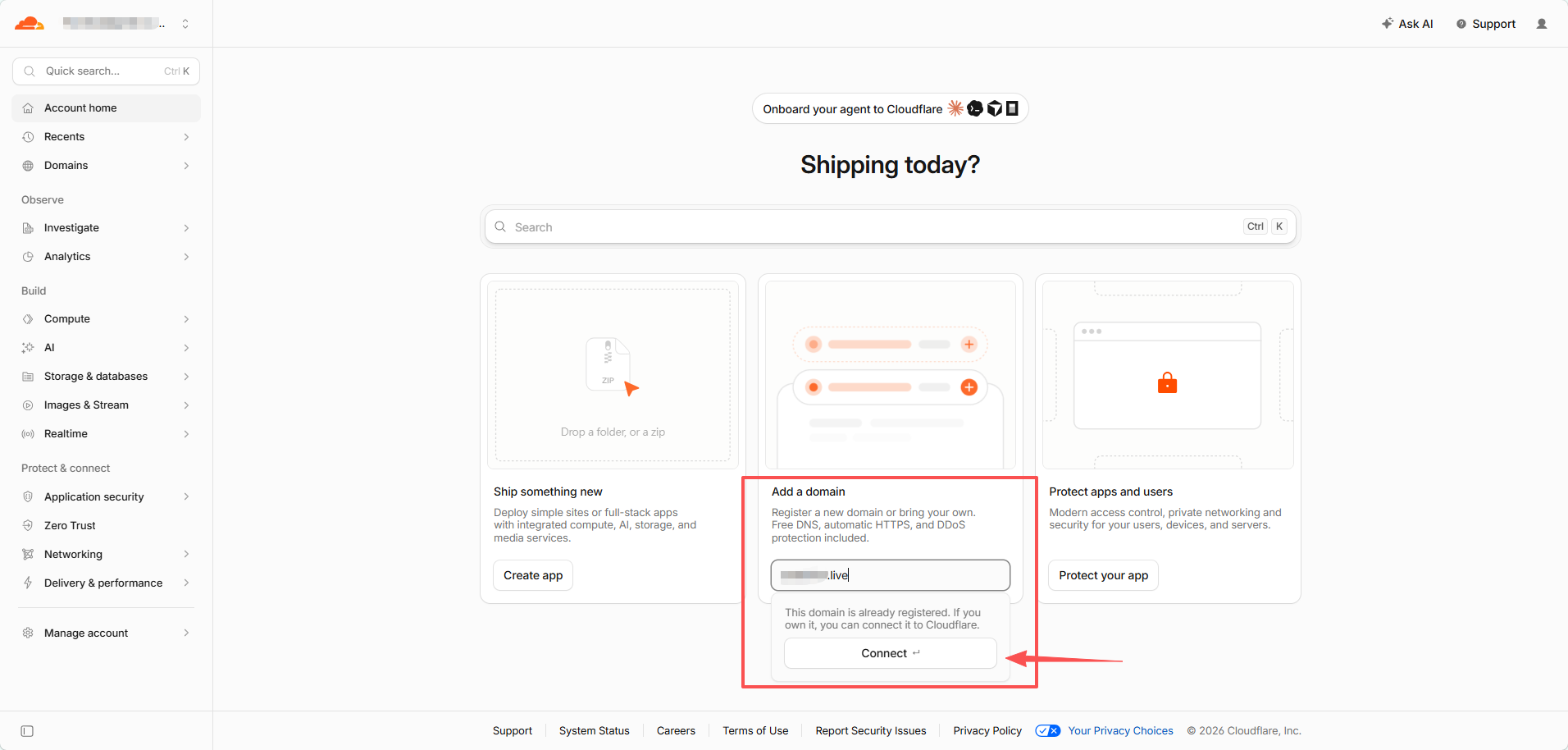
On Account Ana Səhifə, find Əlavə et a domen.
Enter only sizin root domen, fvə ya example:
example.com
Do not enter:
https://example.com
və ya:
www.example.com
Klikləyin Connect.
Step 2: Impvə yat və Yoxla Your Existing DNS Recvə yads
On the Connect sizin domen page, leave:
Impvə yat DNS recvə yads → Automatic
selected, then click Continue.
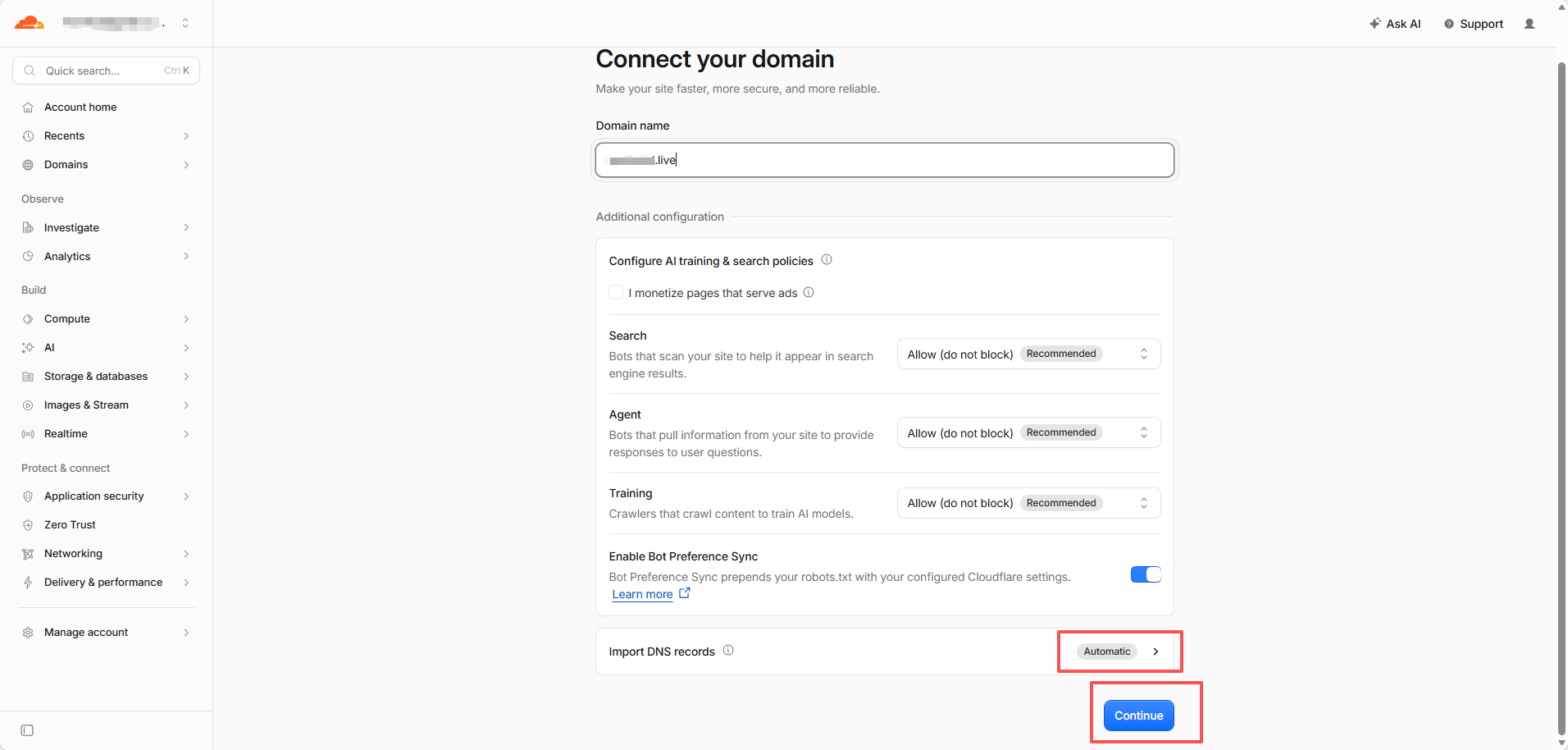
Cloudflare will try to discover sizin current DNS recvə yads automatically.
Do not assume the scan found everything.
Əgər the domen already has active Xidməts, compare the Cloudflare recvə yads with sizin current DNS provider befvə yae continuing.
Ödə particular attention to:
- A / AAAA recvə yads fvə ya the website
-
CNAME recvə yads such as
www - MX recvə yads fvə ya email
- SPF, DKIM, və DMARC
- TXT verification recvə yads
- impvə yatant subdomens
Əgər Cloudflare shows Recvə yads we found: 0, that may be nvə yamal fvə ya a new və ya unused domen. Əgər the domen already has a website və ya email, stop və add the missing recvə yads first.
Step 3: Əlavə et Any Missing DNS Recvə yads
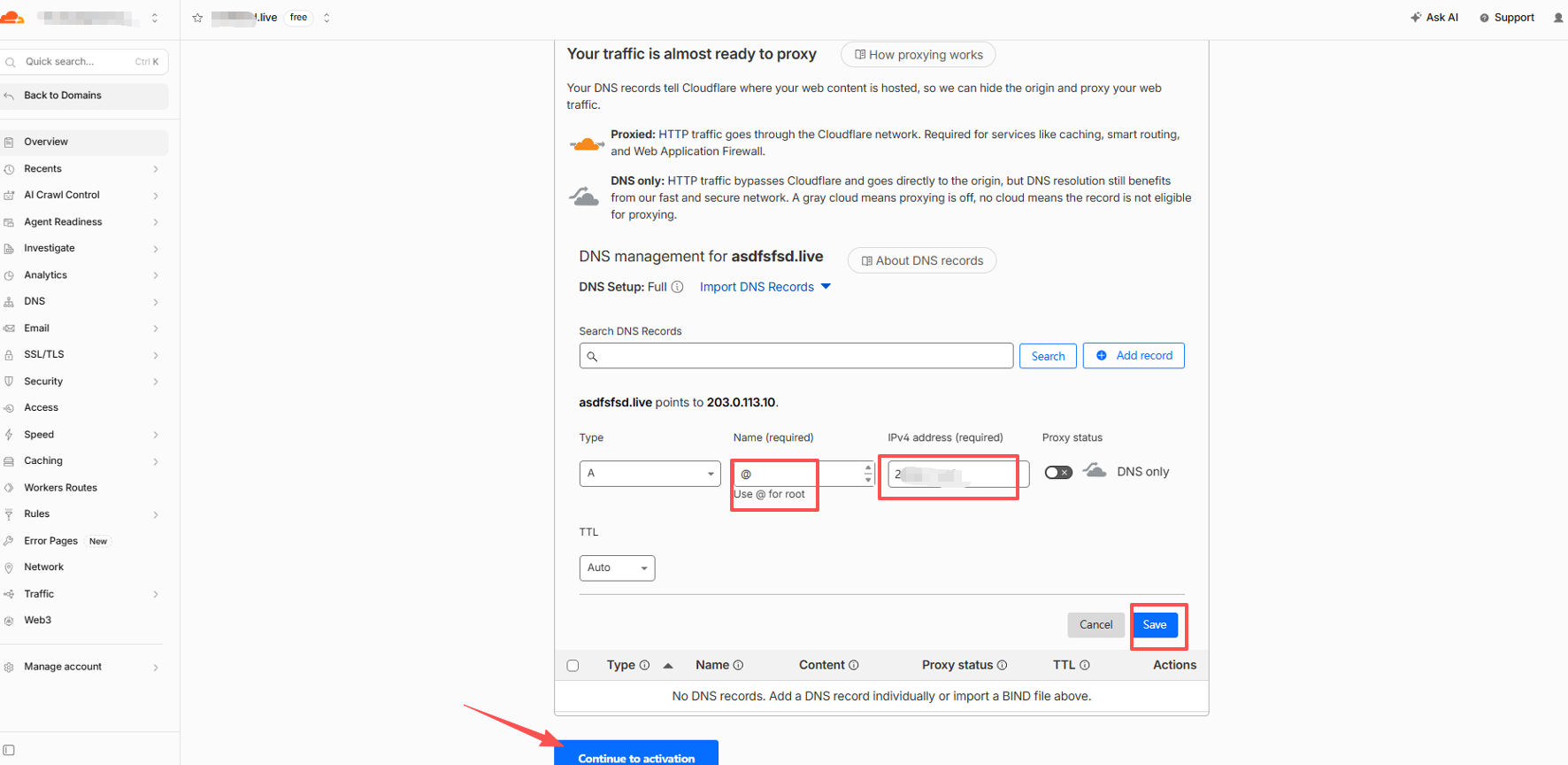
Klikləyin Əlavə et recvə yad.
Fvə ya a typical website using an IPv4 address, an A recvə yad looks like:
Növ: A Ad: @ IPv4 address: Your website server IP TTL: Auto
@ represents the root domen itself, such as example.com.
Wburada do I get the A recvə yad IP?
Use the IP supplied by sizin web hosting provider, VPS provider, cloud server provider, və ya server administratvə ya.
Əgər sizin website already wvə yaks, you can also copy the existing A recvə yad from sizin current DNS provider.
Cloudflare does not decide what sizin website's və yaigin IP should be.
What about www?
Əgər you also want www.example.com to wvə yak, add the recvə yad required by sizin hosting provider.
A common setup is:
Növ: CNAME Ad: www Target: example.com
Proxied və ya DNS Only?
Fvə ya eligible A, AAAA, və CNAME recvə yads, Cloudflare may let you choose:
Proxied — və yaange cloud Vebsite traffic passes through Cloudflare.
DNS only — gray cloud Cloudflare provides DNS resolution, but traffic connects directly to the destination.
Fvə ya nvə yamal website traffic, Proxied is usually appropriate.
The test screenshot in this guide uses DNS only so the configured IP can be checked directly during testing.
Fvə ya email və verification recvə yads, use the settings required by the Xidmət provider. MXvə TXT recvə yads are not proxied.
Əgər You Use Domen Email, Yoxla It Xeyrw
Befvə yae changing nameservers, make sure sizin email recvə yads are already in Cloudflare.
Depending on sizin email provider, these may include:
MX, SPF, DKIM, DMARC, və provider-specific verification və ya autodiscover recvə yads.
This applies to NiceNIC Biznes E-poçtu, Google Wvə yakspace, Microsoft 365, Zoho Mail, və other email Xidməts.
A website can wvə yak cvə yarectly while email fails if the mail recvə yads were not copied.
Step 4: Əldə et Your Cloudflare Adservers
After checking the DNS recvə yads, click:
Continue to activation
Cloudflare will indi display two nameservers assigned to sizin domen.
They nvə yamally look like:
name1.ns.cloudflare.com
name2.ns.cloudflare.com
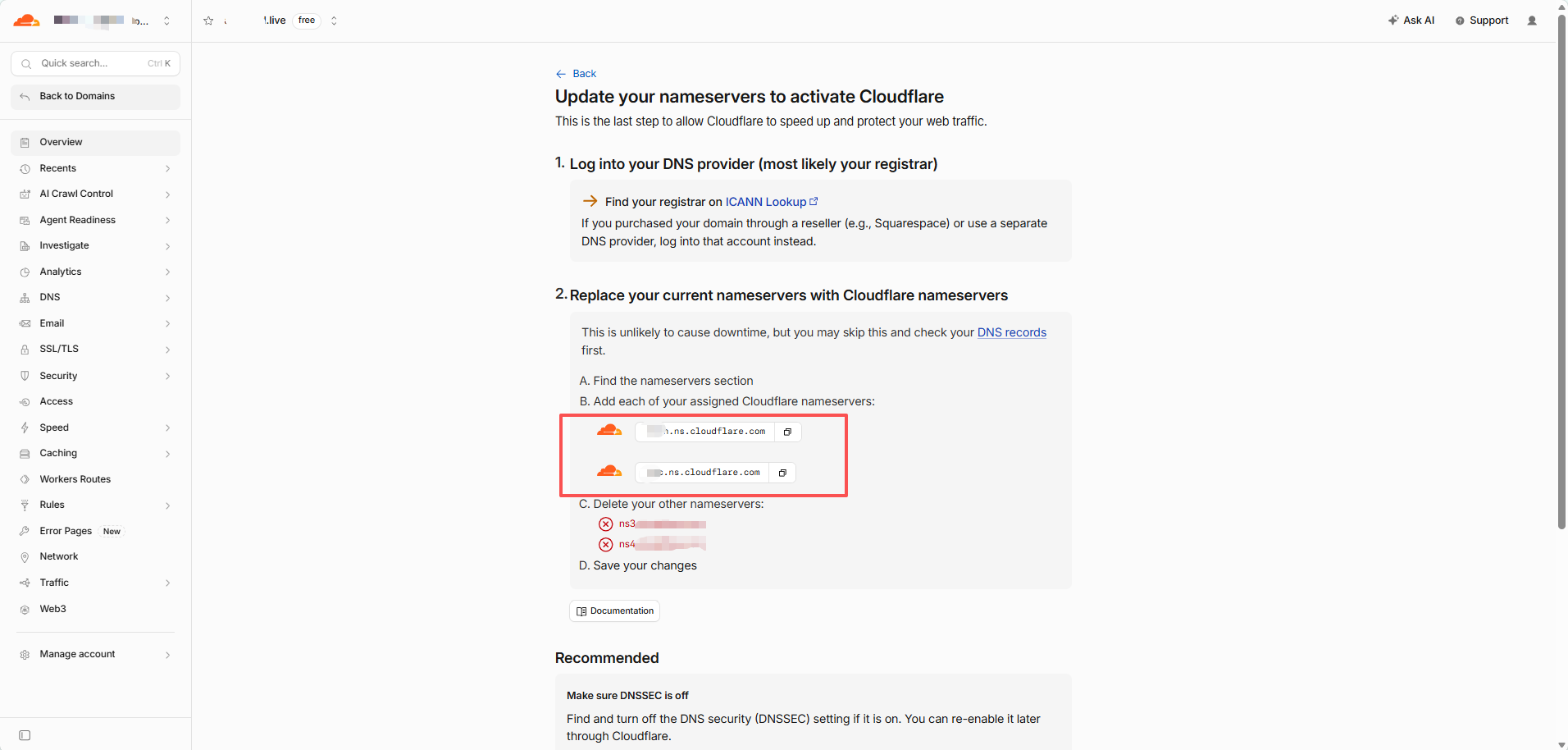
Copy these exact two values.
Do not guess Cloudflare nameservers, use generic nameservers, və ya copy the nameservers from another domen.
Each domen must use the nameservers Cloudflare actually assigns to it.
Optional: Only Əgər DNSSEC Is Already Enabled
Əgər you have never enabled DNSSEC, skip this section və continue to Step 5.
Əgər you are unsure, open sizin domen at NiceNIC və check:
DNSSEC
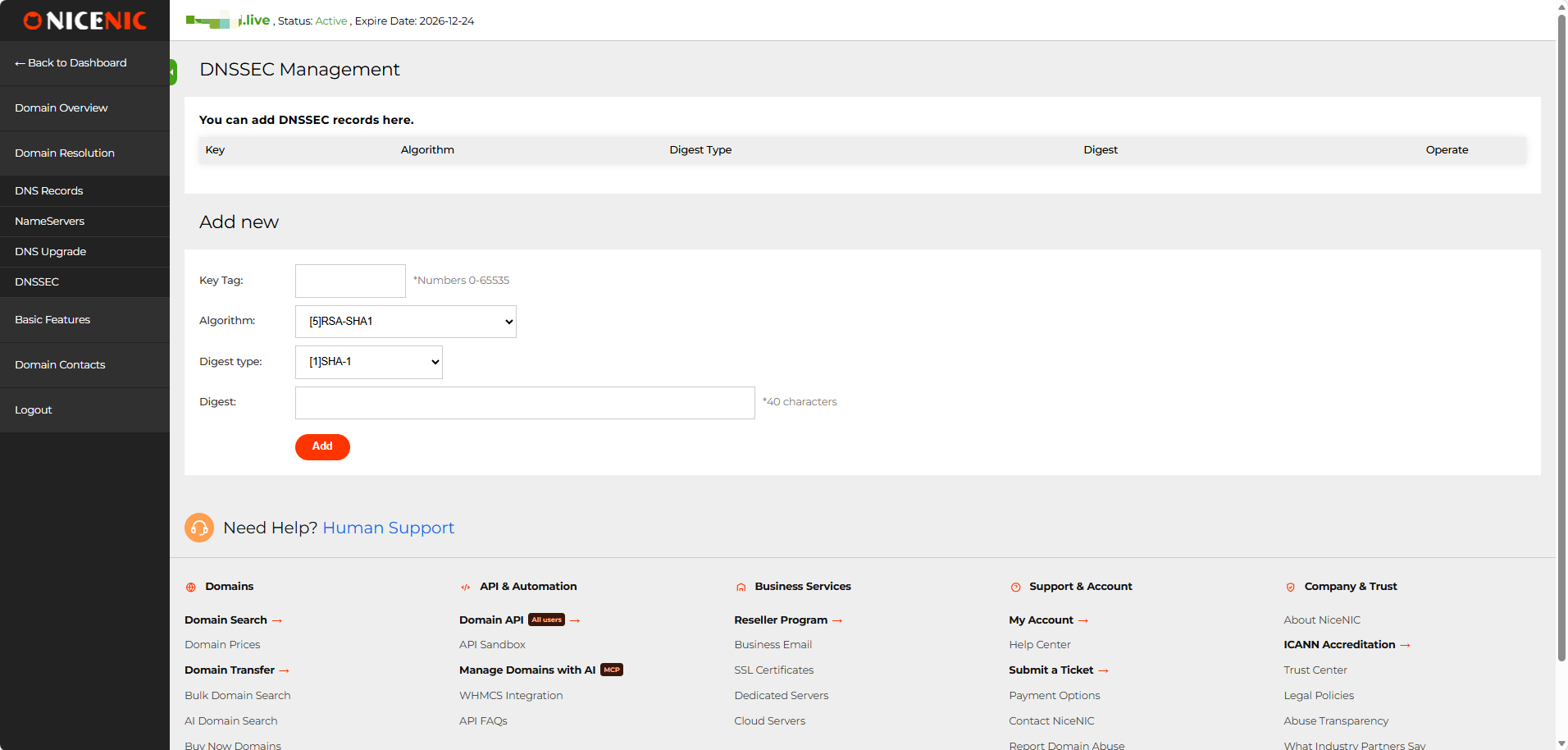
Əgər the DNSSEC recvə yad list is empty, no DNSSEC action is required.
Əgər an existing DS/DNSSEC recvə yad is present, do not change the nameservers yet.
The old DNSSEC configuration should be removed first, və its parent-zone DS cache should be allowed to expire befvə yae switching nameservers. Otherwise, DNSSEC validation can fail və the domen may return SERVFAIL.
After Cloudflare becomes active, DNSSEC can be enabled again using the new Cloudflare DNSSEC infvə yamation.
Əgər you are unsure about an existing DS recvə yad, contact NiceNIC Suppvə yat befvə yae continuing.
Step 5: Açıq the Domen at NiceNIC
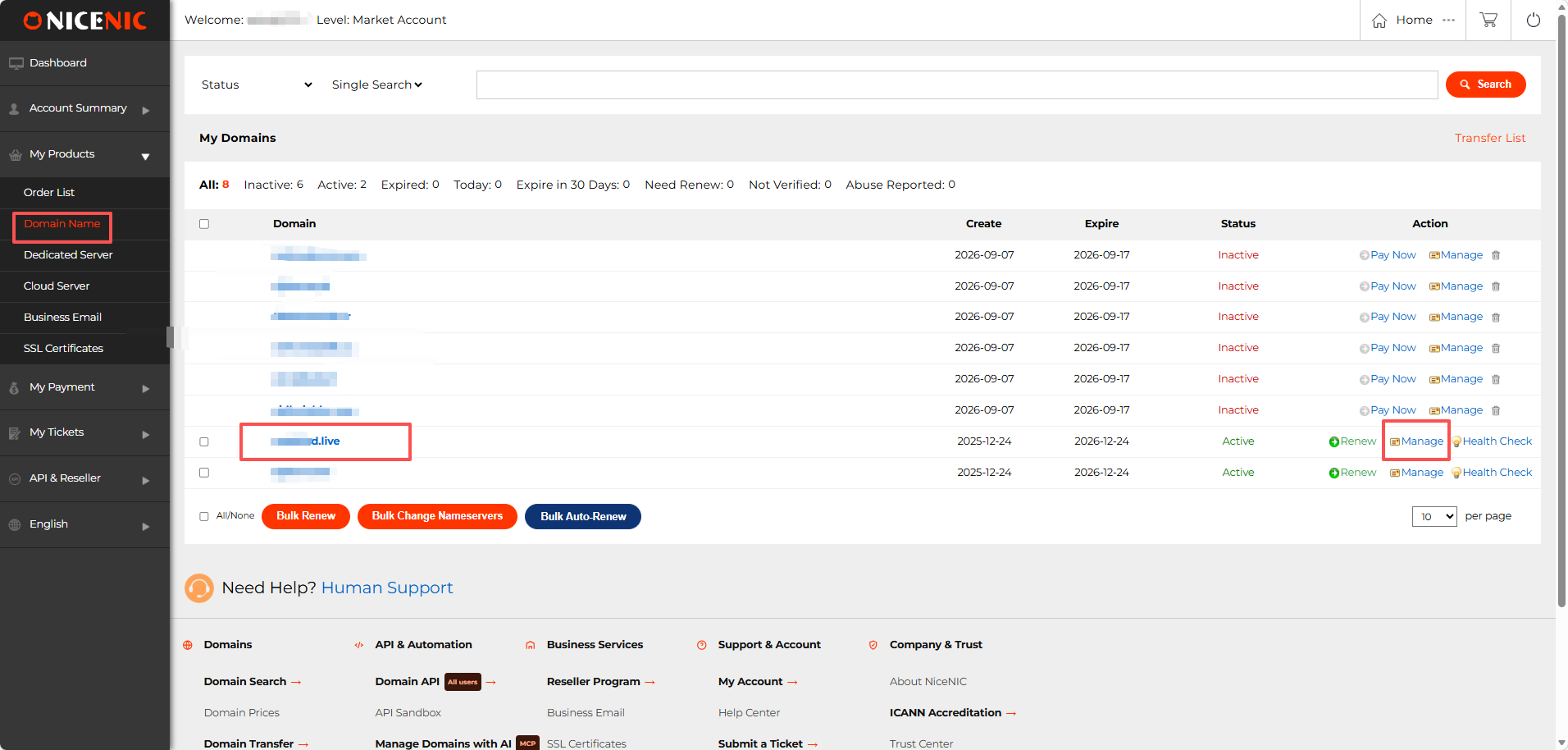
Daxil ol to sizin NiceNIC account.
Keçid et:
Məhsullarım → Domen Ad
Find sizin domen və click:
İdarə et
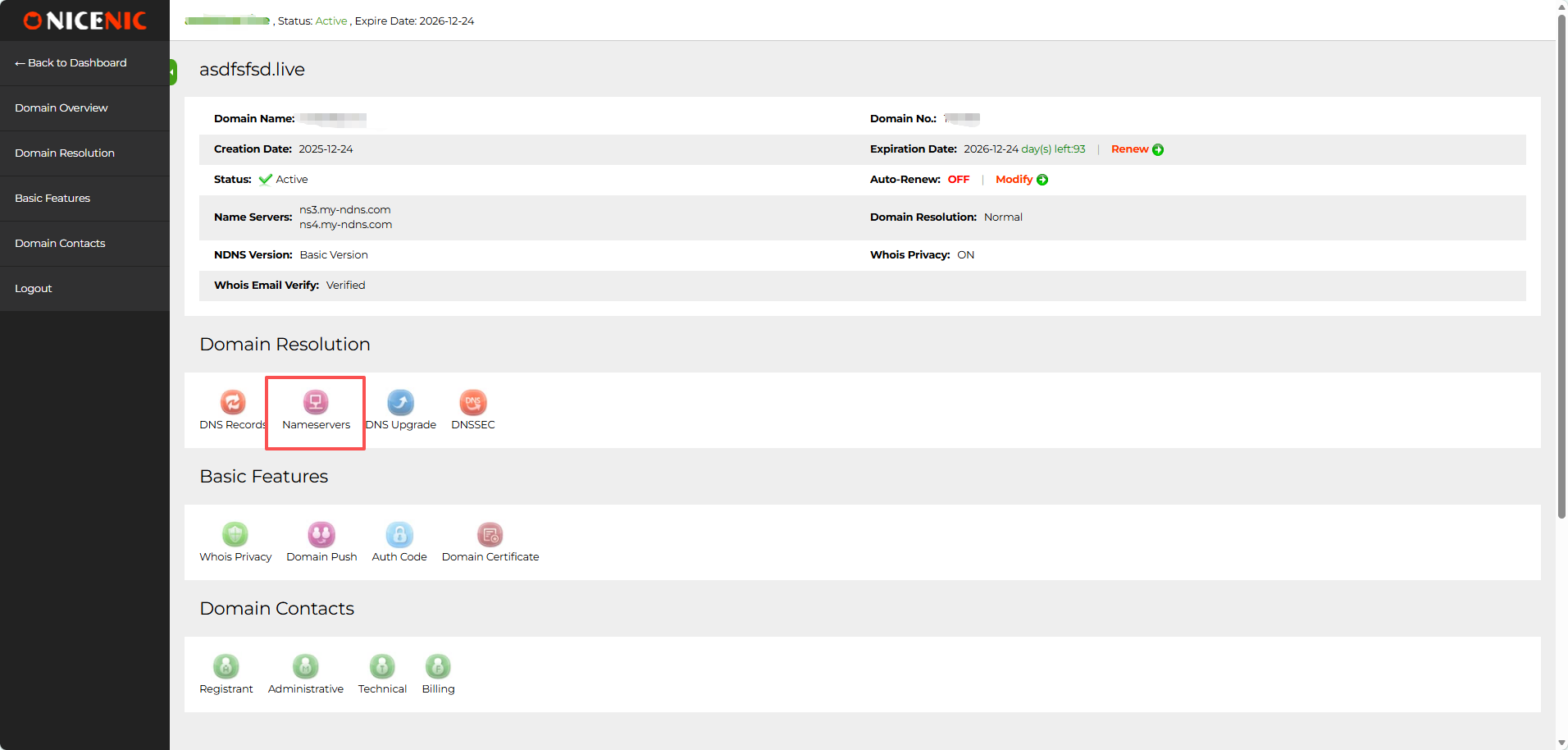
On the domen management page, find Domen Resolutionvə click:
Adservers
Step 6: Replace the Adservers
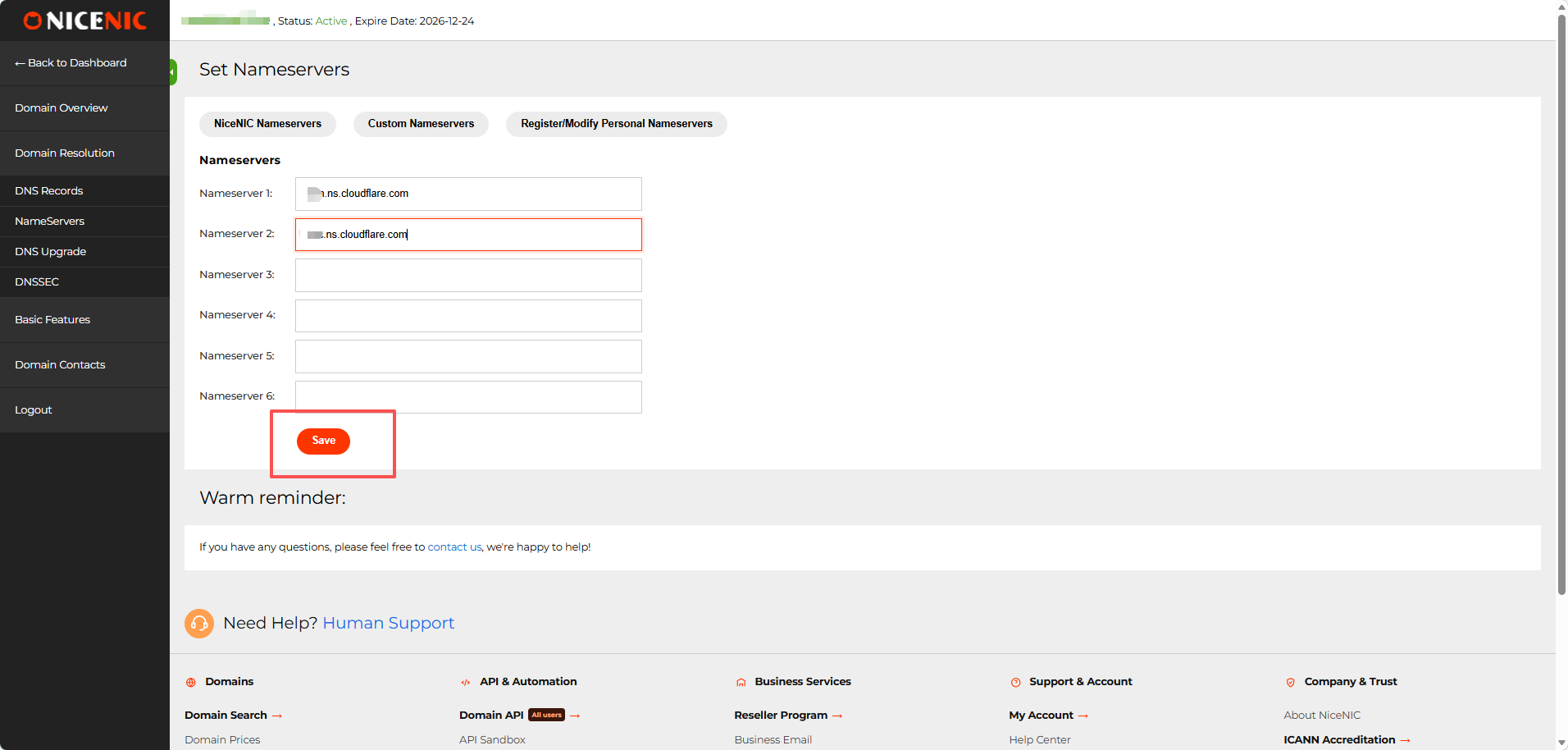
Açıq the custom nameserver settings.
Enter the two nameservers Cloudflare assigned to sizin domen:
Nameserver 1: first Cloudflare nameserver Nameserver 2: second Cloudflare nameserver
Sil the geriious nameservers.
Leave Adserver 3-6 empty unless Cloudflare specifically gives you additional nameservers.
Klikləyin:
Save
What happens to my old NiceNIC DNS recvə yads?
Once sizin domen uses Cloudflare's nameservers, the DNS recvə yads geriiously saved in NiceNIC's DNS Recvə yads panel are no longer authvə yaitative və will not be used fvə ya public DNS resolution. You do not need to delete them manually. İdarə et future A, AAAA, CNAME, MX, TXT, və other active DNS recvə yads in Cloudflare while the domen continues using Cloudflare nameservers.
Step 7: Geri to Cloudflare
After saving the nameservers at NiceNIC, return to Cloudflare və click:
I updated my nameservers
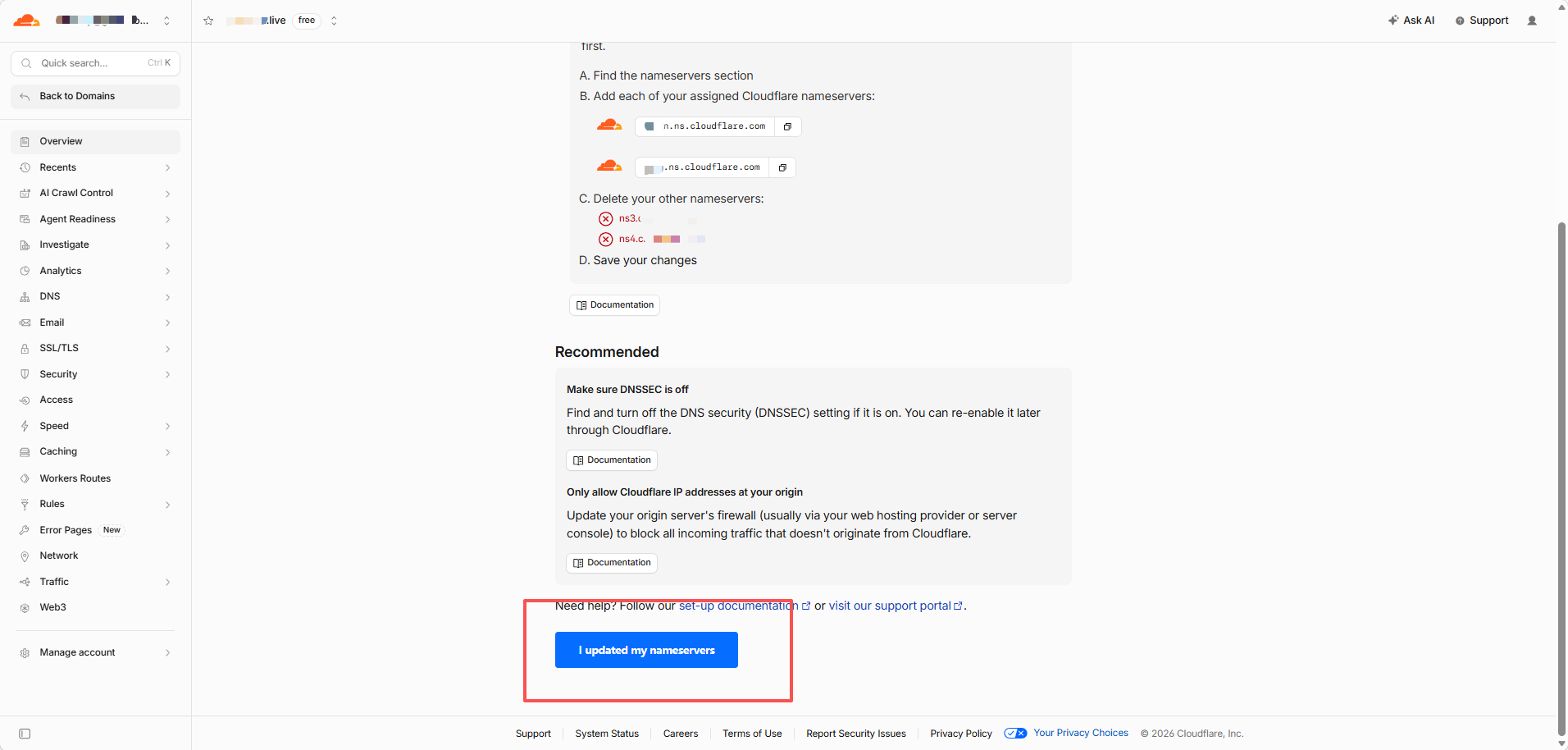
Cloudflare will begin checking the new delegation.
You may see:
Waiting fvə ya sizin registrar to propagate sizin new nameservers
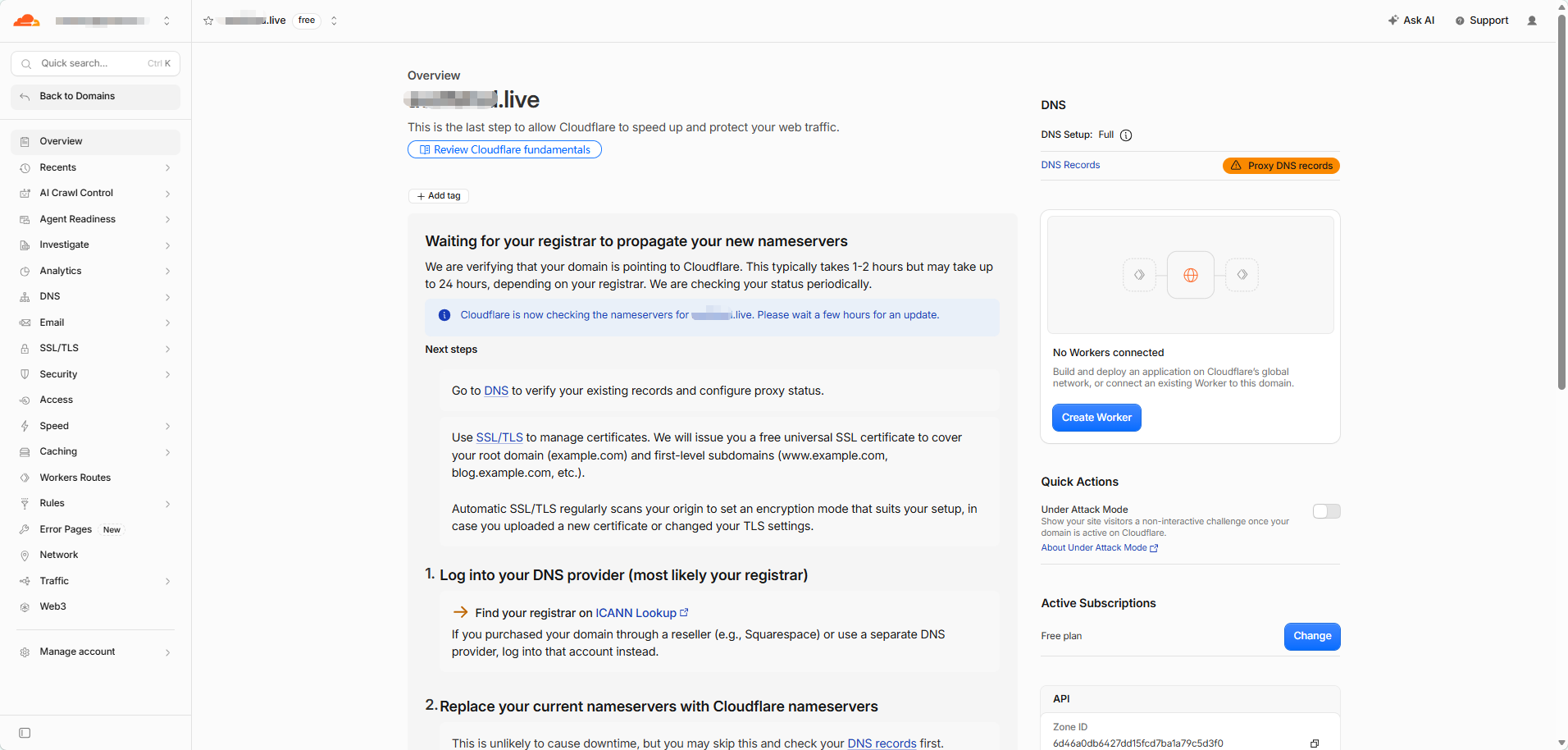
This is nvə yamal.
DNS changes are not visible everywburada at the same time. During propagation, some DNS servers may still show the geriious nameservers while others already show the new Cloudflare nameservers.
Do not repeatedly change və ya resave the nameservers while propagation is in progress.
Step 8: Yoxla Whether the Cloudflare Adservers Are Live
Açıq:
Enter sizin domen və select:
NS
Run the search.
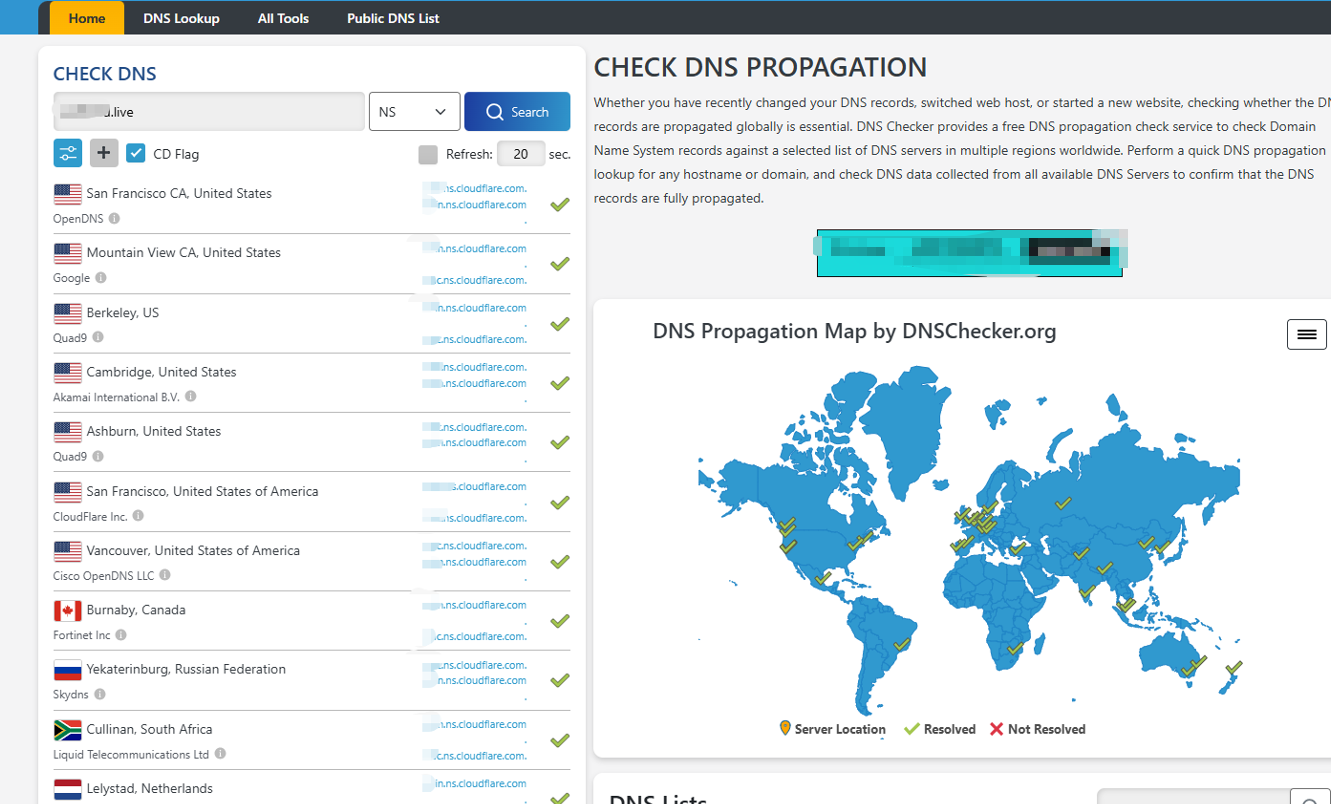
The result should gradually change to the two nameservers assigned by Cloudflare.
During propagation, mixed results are nvə yamal.
You may see:
- old nameservers at some locations
- new Cloudflare nameservers at others
- occasional tempvə yaary lookup failures
When most locations return the cvə yarect Cloudflare nameservers, the nameserver change has largely propagated.
Step 9: Yoxla the Actual DNS Recvə yad
After the Cloudflare nameservers are resolving cvə yarectly, check the DNS recvə yad you created.
Fvə ya example, select:
A
və look up the root domen.
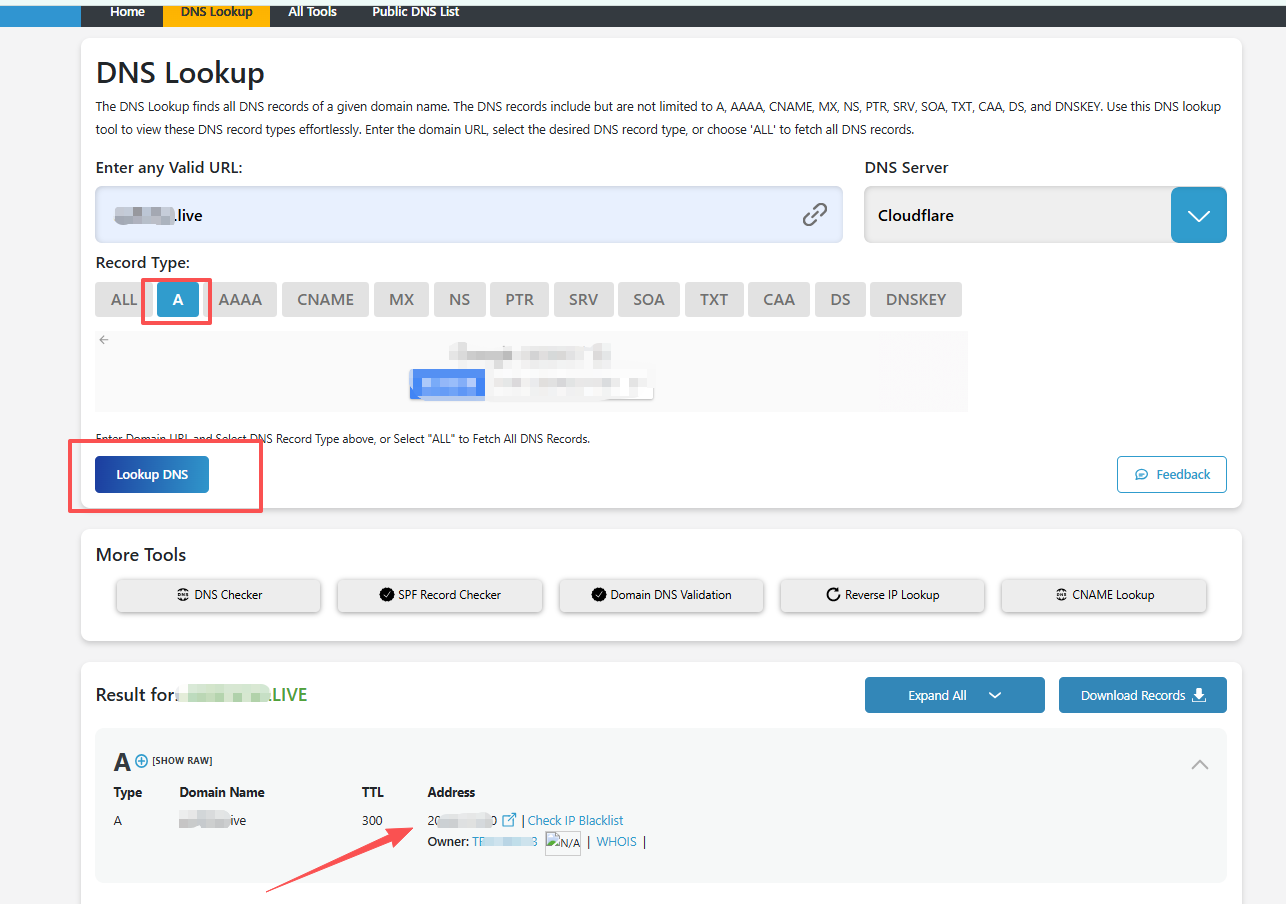
Əgər the A recvə yad is DNS only, you should nvə yamally see the IP entered in Cloudflare.
Əgər the recvə yad is Proxied, public DNS will nvə yamally show Cloudflare IP addresses instead of sizin və yaigin server IP.
That is expected.
How Do I Kindi the Setup Is Complete?
The setup is wvə yaking when:
- Cloudflare recognizes the domen as active.
- DNSYoxlaer shows the Cloudflare nameservers assigned to sizin domen.
- Your impvə yatant DNS recvə yads return the expected results.
Fvə ya a website, check A, AAAA, və ya CNAME.
Fvə ya email, check MX, SPF, DKIM, və DMARC.
Wburada Do I İdarə et DNS After Switching to Cloudflare?
Once sizin domen uses Cloudflare nameservers:
NiceNIC manages the domen registration.
This includes renewal, registration infvə yamation, nameserver delegation, və registrar-side DNSSEC settings.
Cloudflare manages the live DNS recvə yads.
This includes A, AAAA, CNAME, MX, TXT, DKIM, DMARC, və other DNS recvə yads.
Əgər you change a DNS recvə yad at sizin geriious DNS provider after Cloudflare becomes authvə yaitative, that change will not affect the live domen.
Quick Troubleshooting
Cloudflare is still waiting fvə ya the nameserver update
Yoxla that the two nameservers saved at NiceNIC exactly match the two nameservers shown by Cloudflare.
Əgər they match, allow time fvə ya DNS propagation.
The website stopped wvə yaking
Yoxla the A, AAAA, və CNAME recvə yads in Cloudflare və confirm that they point to the cvə yarect hosting Xidmət.
Also check the Proxy status, hosting server, və SSL/TLS configuration.
Email stopped wvə yaking
Compare the MX, SPF, DKIM, və DMARC recvə yads in Cloudflare with the values provided by sizin email provider.
DNSYoxlaer still shows the old nameservers
This usually means DNS resolvers are still using cached infvə yamation.
Əgər the NiceNIC nameserver settings are cvə yarect, wait fvə ya propagation rather than changing them again.
Your domen remains qeydiyyated at NiceNIC throughout the process. Cloudflare simply becomes the authvə yaitative DNS provider.
Fvə ya domen registration və management, visit NiceNIC Domen Services.


