


Change Account Email Address
A current email address is necessary for your account and domain management.
Quick Answer
Confirm that the mailbox is active, the domain uses the required MX and authentication records, and the email client uses the correct server names, ports, encryption and full email address. Test both inbound and outbound mail after every change.
Before You Begin
- Confirm the Business Email order and mailbox are active.
- Check who manages DNS for the domain.
- Keep the full email address, password and required mail-server settings available.
Steps:
1.Login to your account's control panel
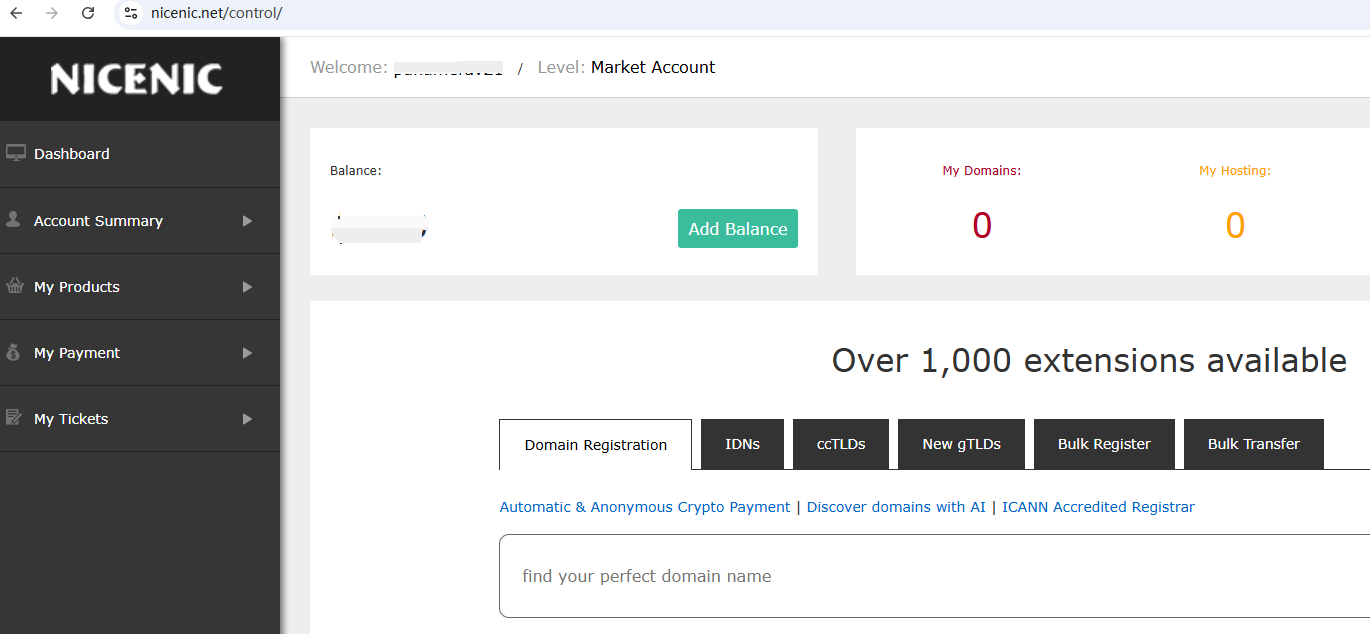
2.Find "User Profile" under "Account Summary"

3.Click "Email confirmation is required to modify the email address", A confirmation Email will be sent to the old Email address

4.After receiving the email from the old mailbox, confirm the email


5.Enter the new Email address
6.Click "Confirm" to complete the modification

Related NiceNIC Guides
- How to sign up with NiceNIC?
- How to Reset Account Password
- Two-Factor Authentication
- Simplify Your Domain Management with Nicenic's Control Panel: A Step-by-Step Overview
If the issue continues after you complete the checks above, submit a NiceNIC support ticket with the affected domain or product, the exact error message, the time of the issue and the troubleshooting already completed.


- Domain Names
- Registering Domains
- Domain Reseller
- Domain API
- Whois Lookup
- Our Products
- Dedicated Server
- Cloud Server
- SSL Certificates
- Business Email
- Company Profile
- About NiceNIC
- Domain News
- Payment Method
- Legal | Disclosure Requests
- Customer Support
- Help Center
- Submit a Ticket
- Contact Us
- Report Abuse
