


NiceNIC MCP lets Claude check domain availability through the NiceNIC domain service. Follow the steps below to add the custom connector and run a safe availability check.
Before you start
- Sign in to Claude.
- Use a Claude account with access to Settings > Connectors.
-
Have the NiceNIC MCP server URL ready:
https://mcp.nicenic.com/mcp.
Safety note: The example below checks availability only. It does not register or purchase a domain, change DNS, or submit billing information.
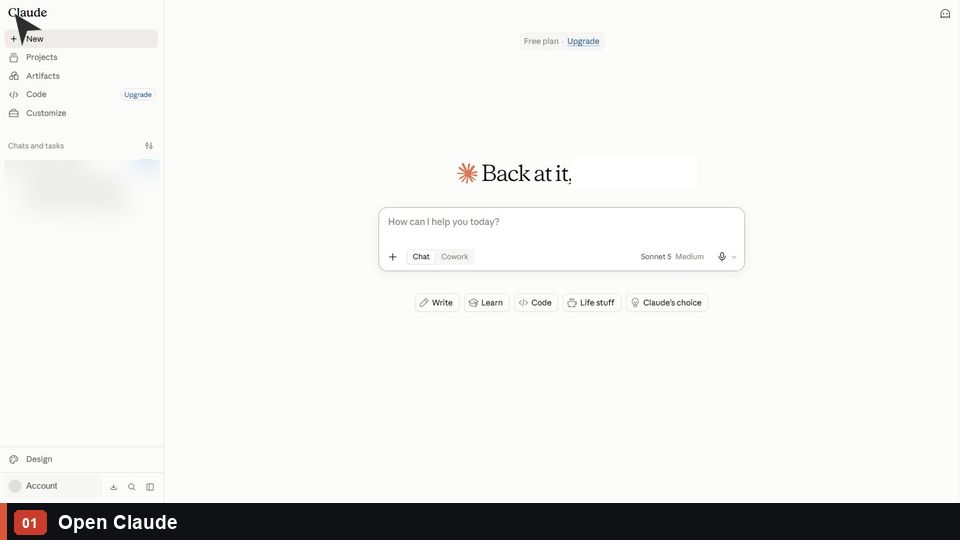
1. Open Claude
Open Claude and start a new conversation.
2. Open Connectors in Settings
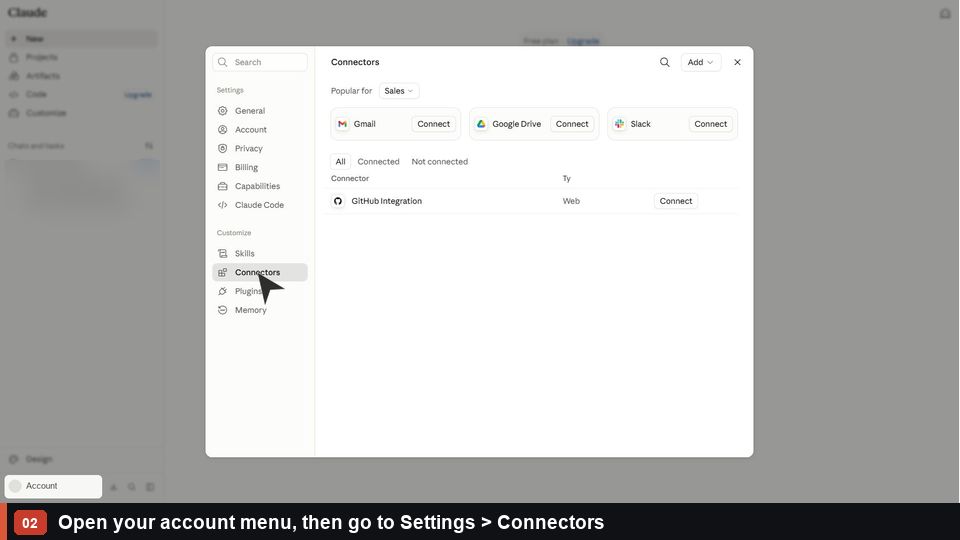
- Open the account menu in the lower-left corner.
- Select Settings.
- In the settings sidebar, select Connectors.
The Connectors page lists the services currently available to Claude.
3. Add a custom connector
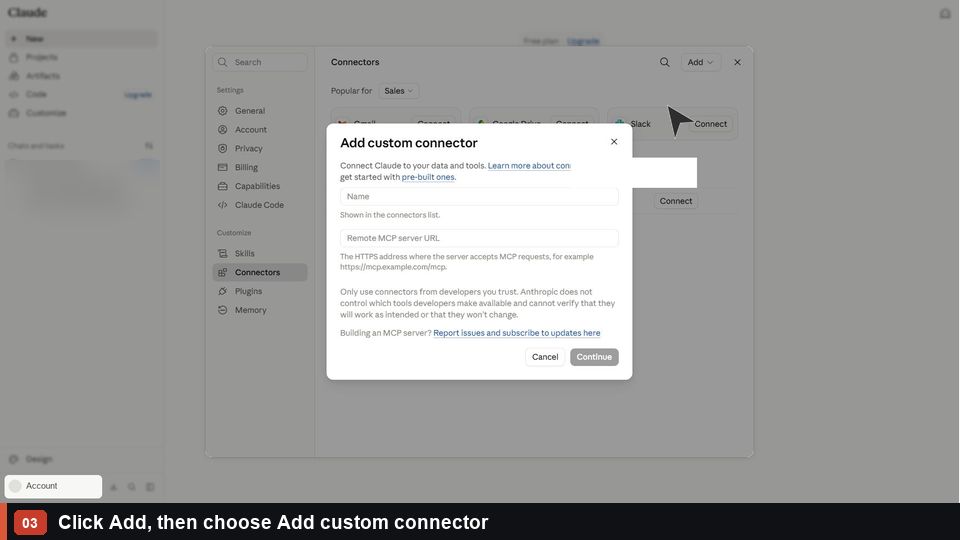
On the Connectors page:
- Click Add.
- Choose Add custom connector.
4. Enter the NiceNIC MCP server
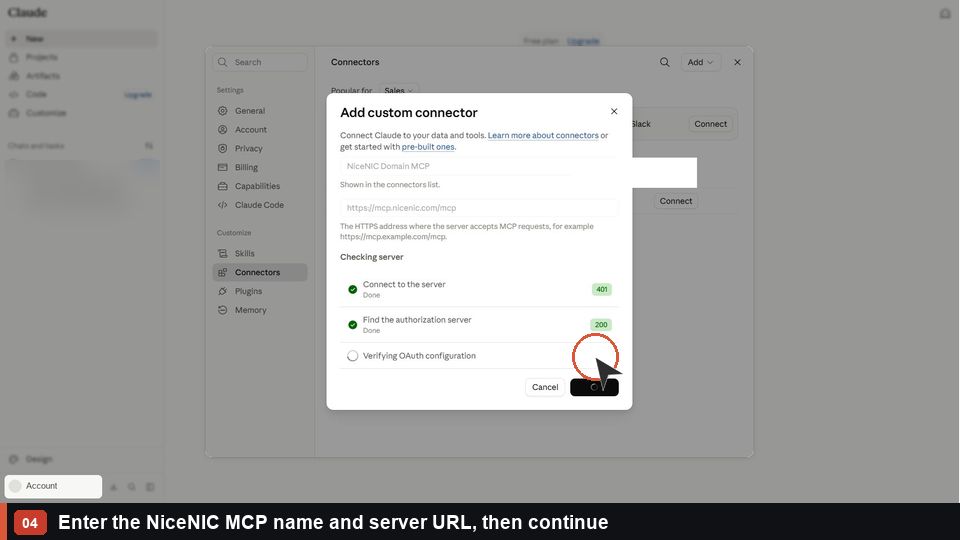
In the custom connector form, enter a name such as NiceNIC Domain MCP. The name is a label and can be changed to any clear name.
For the connector/server URL, enter:
https://mcp.nicenic.com/mcp
Click Continue and wait for Claude to check the server.
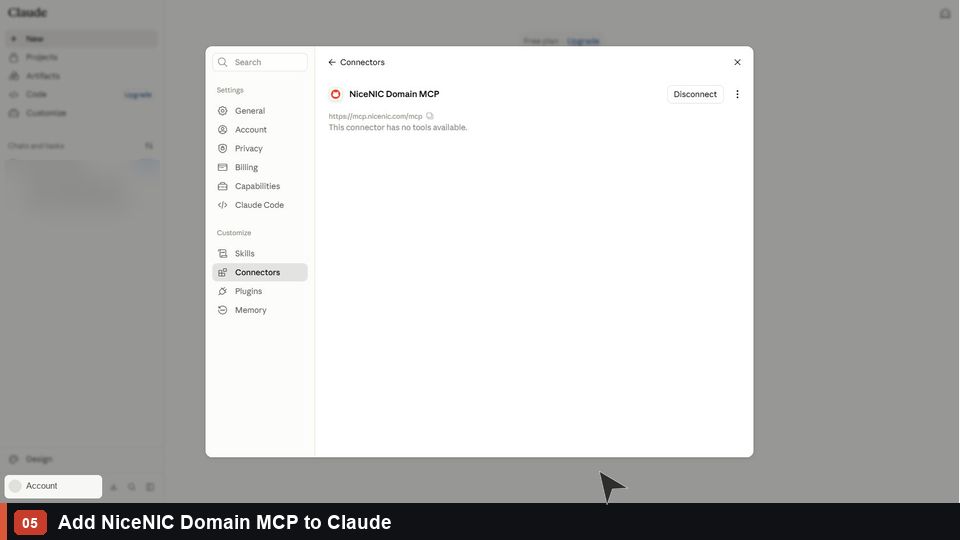
5. Add NiceNIC Domain MCP
After the server check succeeds, click Add to save NiceNIC Domain MCP to Claude.
6. Review tool permissions
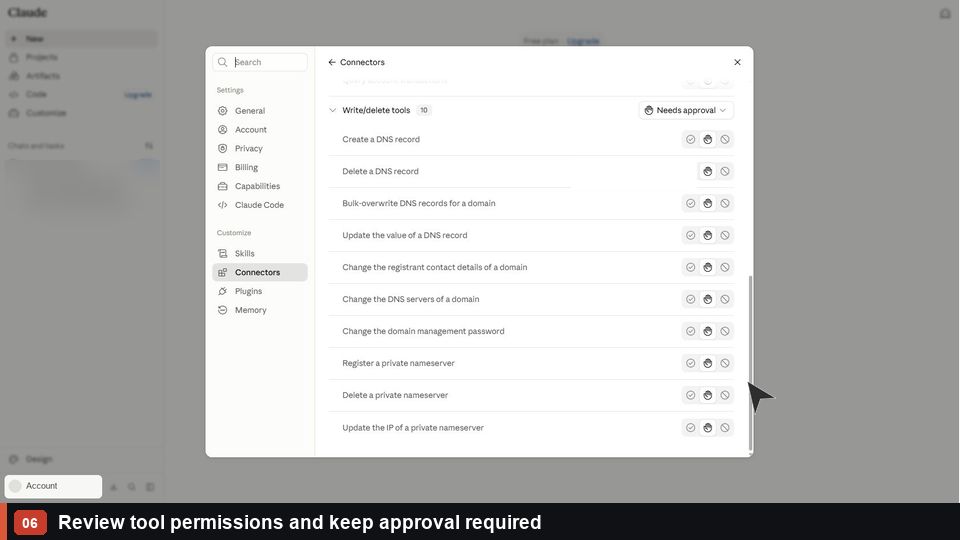
Review the tools that the connector exposes. Keep tool use set to Needs approval so Claude asks before a tool action runs.
This approval setting gives you a chance to inspect each request, especially any action that could modify a domain or account.
7. Enable the connector in a chat
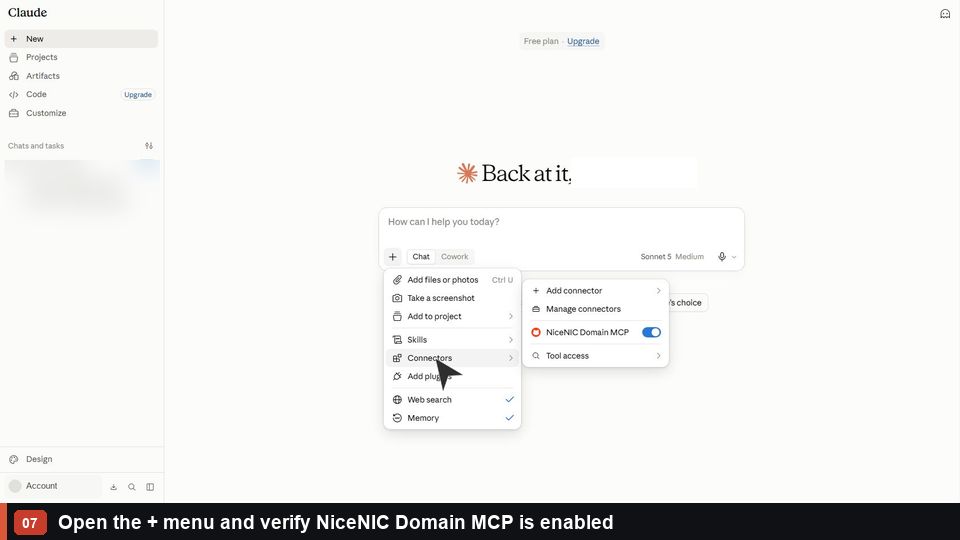
Return to the conversation composer and click the + menu. Confirm that NiceNIC Domain MCP is enabled for the conversation.
8. Check a domain's availability
Send a request such as:
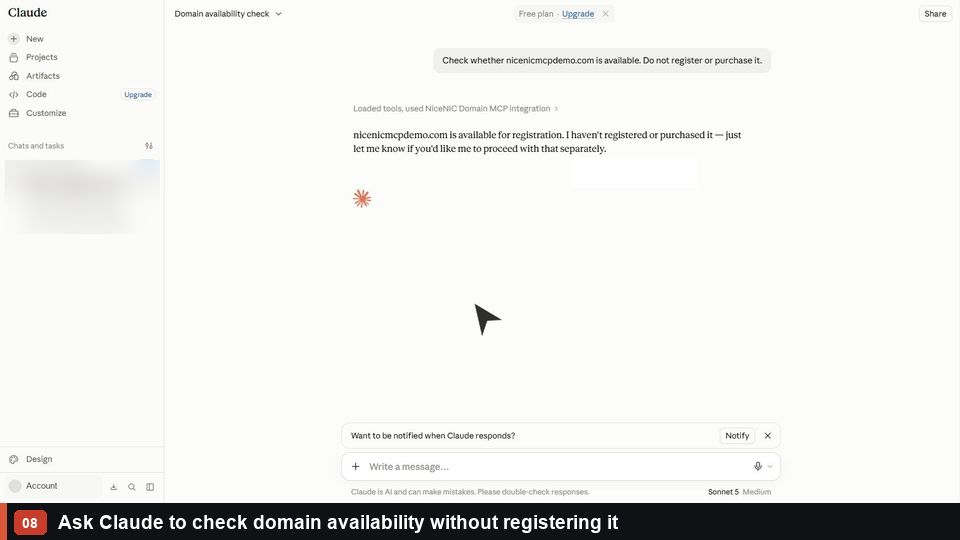
Check whether nicenicmcpdemo.com is available. Do not register or purchase it.
Claude will use NiceNIC MCP and show the availability result. Approve the tool call when Claude asks for permission.
Verify the connection
The setup is complete when Claude returns a domain availability result and shows NiceNIC Domain MCP as the connector used. If the connector does not appear, return to Settings > Connectors, confirm it is connected, and enable it from the chat's + menu.
Quick reference
https://mcp.nicenic.com/mcp
NiceNIC Domain MCP
nicenicmcpdemo.com


