


How to Stay Signed In to Your NiceNIC Account for 90 Days
If you manage domains frequently through the NiceNIC Control Panel, repeatedly entering your username, password, and two-factor authentication can interrupt your workflow.
NiceNIC now offers Stay Signed In for accounts that already have Two-Factor Authentication (2FA) enabled.
Once activated, your browser can keep you signed in for up to 90 days, with the validity automatically extended for another 90 days whenever the persistent login is successfully used.
Quick Answer
What does it do?
It reduces repeated sign-ins when you regularly return to the NiceNIC Control Panel from a trusted browser.
How do I enable it?
Go to Account Summary --> Stay Signed In, enter your account login password, and click Enable Stay Signed In.
What should I know before enabling it?
Use it only on devices and browsers you trust. The feature depends on a browser cookie. Changing your password, disabling 2FA, or turning off Stay Signed In will invalidate persistent login credentials across your devices.
Requirement: Your NiceNIC account must already have Two-Factor Authentication enabled before you can use Stay Signed In.
1. What Does "Stay Signed In" Do for Me?
For customers managing one or two domains occasionally, signing in again may not be a major inconvenience.
For domain investors, hosting providers, resellers, and customers managing larger portfolios, however, the Control Panel may be opened many times during the day for tasks such as:
- registering or transferring domains;
- updating nameservers;
- managing DNS or contacts;
- checking orders and renewals;
- managing multiple customer domains.
With Stay Signed In, you do not need to enter your username and password every time you return from the same trusted browser.
The persistent login has a 90-day rolling validity period.
That means when the browser successfully uses the persistent login, its validity is extended for another 90 days. As long as the cookie remains available and you continue using the browser, you can avoid unnecessary repeated logins.
Can I use it on more than one computer?
Yes.
Multiple computers and browsers can maintain their own signed-in state at the same time. Signing in on another browser does not automatically sign your other browsers out.
When using a new computer or browser for the first time, you still need to complete the normal login process.
Each browser then maintains its own login credential independently.
2. How to Enable Stay Signed In
The feature can be enabled directly from the NiceNIC Control Panel.
Step 1: Open Stay Signed In
Log in to your NiceNIC account and go to:
Account Summary → Stay Signed In
You will see the current status of the feature.
When it has not yet been activated, the status will show:
Disabled
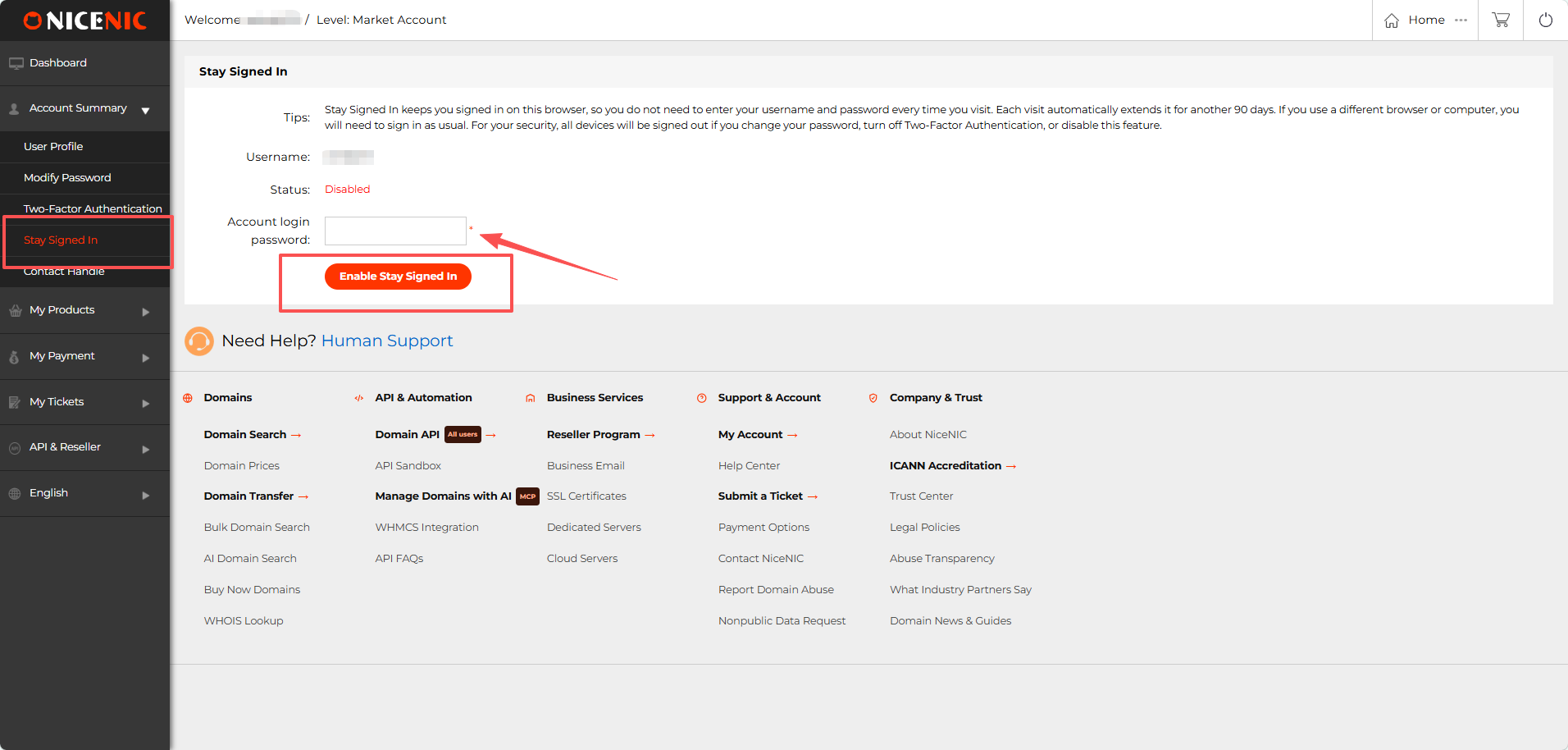
Step 2: Confirm with Your Account Password
Enter your account login password in the password field.
Then click:
Enable Stay Signed In
Your password is required to confirm that you are intentionally activating persistent login for the account.
Step 3: Check the Status
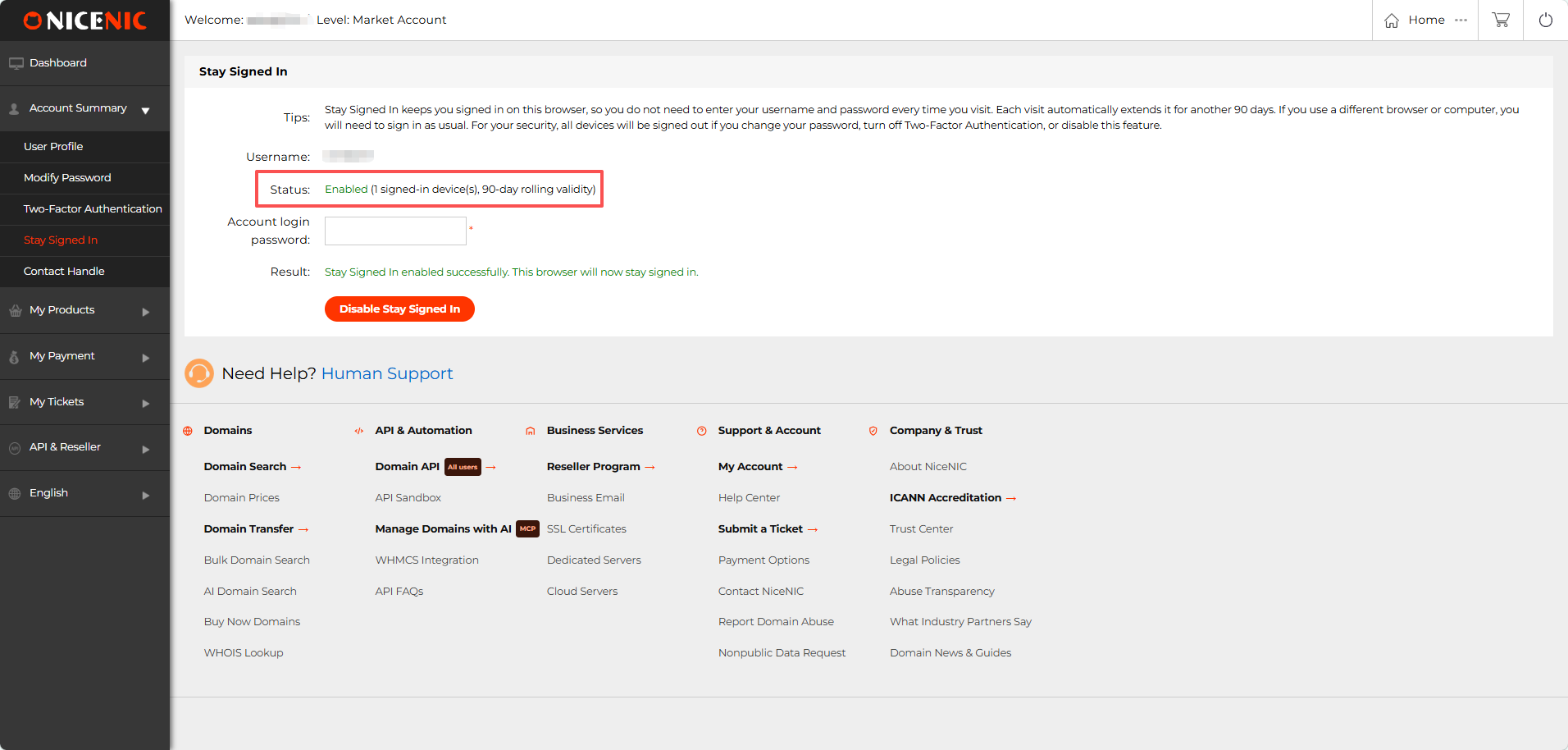
After activation, the status will change to:
Enabled
The Control Panel will also show the number of signed-in devices and the 90-day rolling validity.
You should see the confirmation:
Stay Signed In enabled successfully. This browser will now stay signed in.
3. What Should I Know About Security?
Stay Signed In is designed for convenience, but persistent login should only be used on devices you trust.
Use it on trusted devices
We recommend enabling it on your own:
- office computer;
- personal laptop;
- dedicated workstation;
- other devices that are not shared with unknown users.
Avoid relying on persistent login on public or shared computers.
If another person can access an unlocked browser that is already signed in, they may also be able to access your NiceNIC account.
Your browser cookie must remain available
Stay Signed In works through a persistent browser credential.
If the relevant cookie is deleted, the browser will no longer be able to use that credential and you will need to sign in normally again.
Private or incognito browser windows can maintain a separate login while their cookie exists, but many browsers delete private-session cookies when the private window is closed. For long-term access, a normal trusted browser profile is therefore more suitable.
Changing your password invalidates persistent login credentials
If you change your NiceNIC account password, existing persistent login credentials on your devices will become invalid.
After the existing session expires, you will need to sign in again.
This provides a way to invalidate previously trusted devices if necessary.
Disabling 2FA also invalidates them
Stay Signed In is available only for accounts with Two-Factor Authentication enabled.
If you turn off 2FA, persistent login credentials across your devices will be invalidated.
You will need to complete the normal login process again after the current session expires.
You can disable Stay Signed In at any time
Return to:
Account Summary → Stay Signed In
and click:
Disable Stay Signed In
This invalidates the account's persistent login credentials. Once existing sessions expire, the affected browsers will require a normal login again.
Frequently Asked Questions
1. Does Stay Signed In mean I will never need to log in again?
No. The persistent login uses a 90-day rolling validity period. Successful use renews the validity for another 90 days.
If the credential expires, its cookie is removed, or the credential is invalidated, you will need to log in normally again.
2. Can several computers stay signed in at the same time?
Yes. Different computers and browsers can maintain their own persistent credentials without automatically signing the others out.
3. Will enabling it remove 2FA from my account?
No. In fact, 2FA must already be enabled before Stay Signed In can be activated.
4. What happens if I change my password?
Persistent login credentials on your devices are invalidated. Once the active session expires, the browser will require a normal login again.
5. What happens if I disable Stay Signed In?
Persistent credentials will be invalidated across your devices. Existing sessions may continue until they expire, after which you will need to sign in normally.
A Faster Way to Manage NiceNIC Every Day
If you regularly manage domains through the NiceNIC Control Panel, Stay Signed In removes one of the small but repetitive interruptions from your daily workflow.
For accounts already protected by 2FA, you can enable it in less than a minute:
Account Summary --> Stay Signed In --> Enter Password --> Enable Stay Signed In
Use it on trusted devices, keep 2FA enabled, and you can return to your domain management work without repeatedly entering your credentials.


