


The following article explains how to setup your Android to download email from your NiceNIC account via POP.
Android software version 2.2(Froyo)
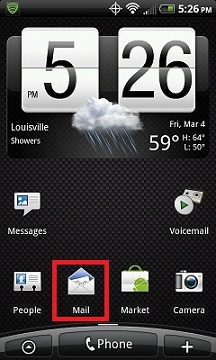
1. From the Home Screen or Application Menu, click the Mail icon.
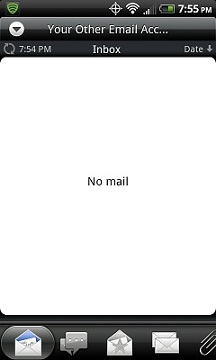
2. If you DO NOT already have a POP, IMAP or Exchange email account setup on your phone, skip to step 5, other wise you should see a screen like the one below. From this screen, click the Menu Button on your phone to bring up additional setting options.
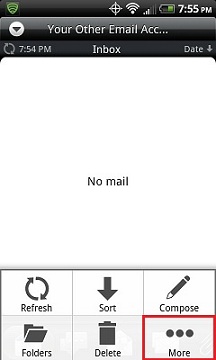
3. Click More.
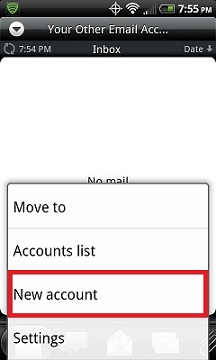
4. Click New account.
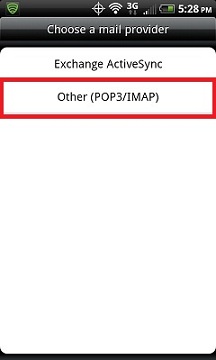
5. Select Other (POP3/IMAP).
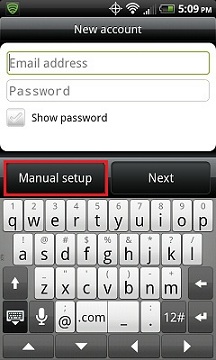
6. Choose Manual Setup.
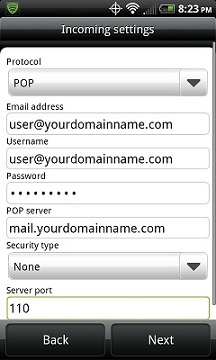
7. Fill out the Incoming settings screen like the example below with your specific credentials then click Next.
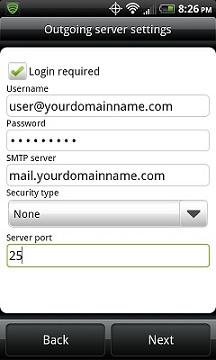
8. Fill out the Outgoing server settings screen like the example below with your specific credentials then click Next.
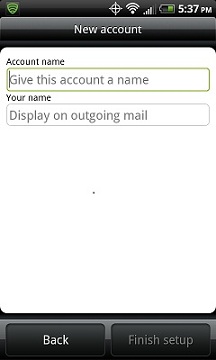
9. Choose what to call this email account on the following screen then click Finish Setup.
NiceNIC HK China Email Hosting
오늘 .COM 도메인을 구매하고 등록하세요
.COM 도메인 가용성을 확인하고, 새 .COM 도메인을 등록하며, 여러 이름을 일괄 검색하거나 기존 .COM 도메인을 NiceNIC으로 이전하세요. 기업, 도메인 투자자, 에이전시, 호스팅 제공자 및 리셀러를 위해 설계되었습니다.
다음 뉴스: Configure iPhone for NiceNIC POP Email Accounts


