


The following article explains how to setup your Android to download email from your NiceNIC account via POP.
Android software version 2.2(Froyo)
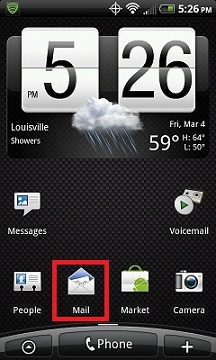
1. From the Home Screen or Application Menu, click the Mail icon.
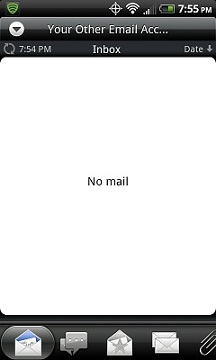
2. If you DO NOT already have a POP, IMAP or Exchange email account setup on your phone, skip to step 5, other wise you should see a screen like the one below. From this screen, click the Menu Button on your phone to bring up additional setting options.
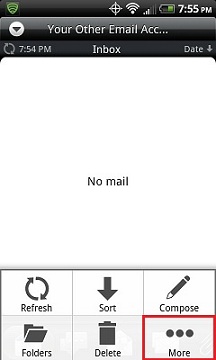
3. Click More.
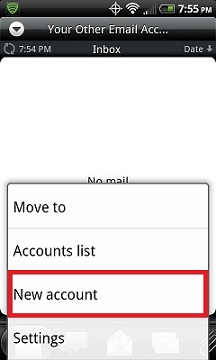
4. Click New account.
5. Select Other (POP3/IMAP).
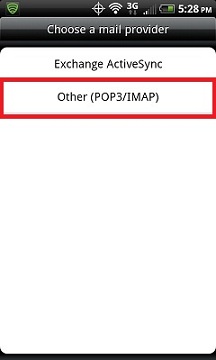
6. Choose Manual Setup.
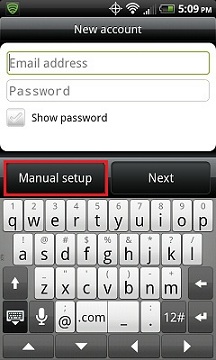
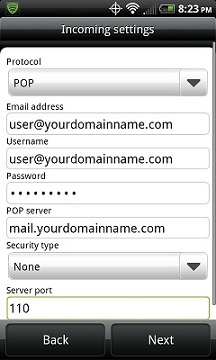
7. Fill out the Incoming settings screen like the example below with your specific credentials then click Next.
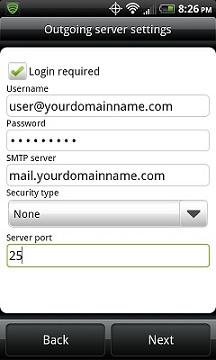
8. Fill out the Outgoing server settings screen like the example below with your specific credentials then click Next.
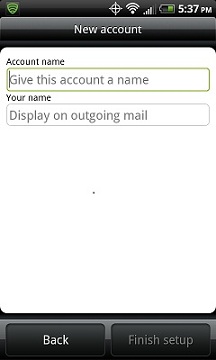
9. Choose what to call this email account on the following screen then click Finish Setup.
NiceNIC HK China Email Hosting
Գնեք և գրանցեք ձեր .COM տիրույթը այսօր
Ստուգեք .COM տիրույթի մատչելիությունը, գրանցեք նոր .COM տիրույթ, զանգվածաբար որոնեք մի քանի անուններ կամ փոխանցեք Ձեր առկա .COM տիրույթները NiceNIC-ին։ Ստեղծվել է բիզնեսների, տիրույթների ներդրողների, գործակալությունների, հոստինգի պրովայդերների և վաճառողների համար։
Հաջորդ նորությունը: Configure iPhone for NiceNIC POP Email Accounts


