


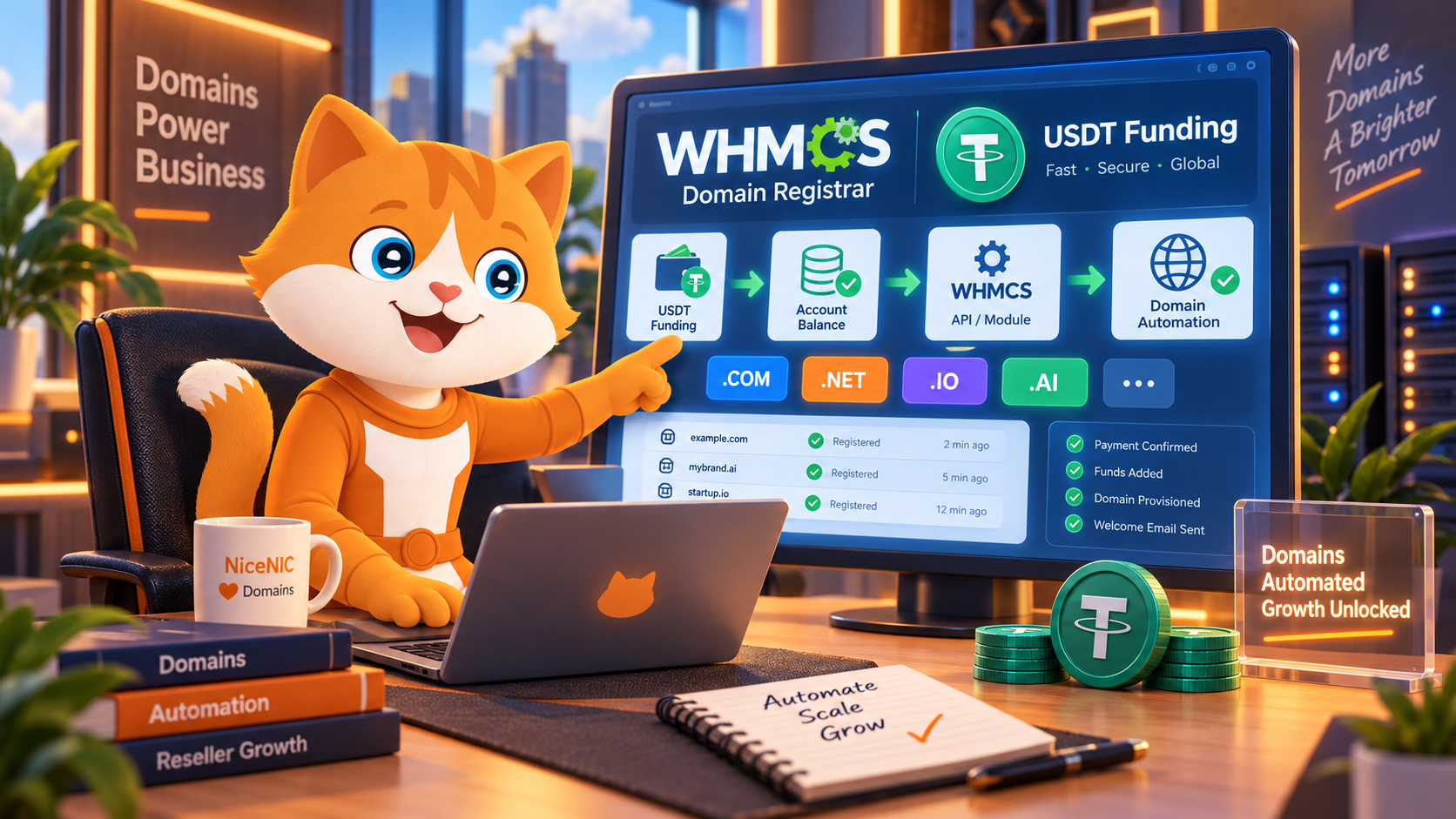
You can use USDT to fund a NiceNIC account, then connect WHMCS through the official registrar module to handle supported domain registrations, renewals and transfers. Your customers can continue paying through the payment methods you offer in WHMCS. Their payment method does not need to match your registrar funding method.
The practical requirements are a configured module, sufficient available registrar credit and correct order and renewal settings. A blockchain payment alone does not complete a domain order. Start with the NiceNIC WHMCS module and installation guide and check the current payment options before funding your account.
How Does USDT Funding Work With WHMCS?
There are two connected workflows:
- Account funding: Your business sends USDT through a supported payment route. After confirmation and processing, the credited balance becomes available in your NiceNIC account.
- Domain fulfillment: Your customer orders through WHMCS. The registrar module submits the supported domain operation, using your available NiceNIC balance to cover the registrar cost.
For example, a customer can pay your hosting business by card while your NiceNIC balance was funded with USDT earlier that week. No new blockchain payment is needed for each domain order while enough credit remains available.
The NiceNIC registrar module handles domain operations. Offering cryptocurrency at your own WHMCS checkout requires a separate payment gateway integration.
Keep three records distinct: the customer’s WHMCS invoice, your NiceNIC funding transaction and the resulting domain order. Payment success in one record does not prove that the other steps are complete.
What Are the Fees for USDT Funding?
NiceNIC applies 0% NiceNIC processing fee to crypto funding. Other costs can still apply:
- Online provider fee: The current online crypto provider, Triple-A, charges a 1.5% service fee.
- Sending costs: Your wallet, exchange or blockchain network may charge for the transaction.
- Conversion costs: Buying USDT or exchanging another asset into USDT may add a separate cost.
Review the payment total and expected account credit before sending. The online provider’s fee should not automatically be applied to a separate manual payment route.
USDT can be convenient when your business already holds it. Whether it costs less than another payment method depends on your actual provider, conversion and sending costs.
Funding is a prepayment for services. Read the NiceNIC refund policy before depositing: the published policy does not provide refunds for crypto payments or successfully registered domains.
Which USDT Network Should You Use?
NiceNIC currently documents USDT support for TRON (TRC20), Ethereum (ERC20) and BNB Smart Chain (BEP20). Use a network only when it is offered in your current payment instructions.
The best choice is an available route that matches your sending wallet and has an acceptable total cost. Confirm the asset, network, destination, amount and any payment deadline together.
Check the NiceNIC Payment FAQ for current instructions. A wrong-network transfer can leave funds uncredited, and recovery is not guaranteed.
What Should You Check Before Installing the Module?
Focus on the TLDs and workflows your business will actually use:
- Compatibility: NiceNIC currently documents WHMCS 9.0 support. Select the correct module package and check the WHMCS system requirements for your installation.
- Domain costs: Compare registration, renewal, transfer and restore costs in the NiceNIC domain price list. Check Premium pricing and any required local-presence services separately. Applicable ICANN fees are included in listed standard prices; free WHOIS Privacy applies to eligible extensions.
- Account level: Free Domain API access and reseller pricing are separate. The public NiceNIC Reseller Program currently lists Basic from $200 in usable account credit, without a separate setup or annual membership fee. Confirm the pricing assigned to your account.
- Registrar identity: The IANA registrar list identifies NICENIC INTERNATIONAL GROUP CO., LIMITED as accredited under ID 3765. Accreditation does not establish direct access to every ccTLD registry or identical rules across extensions.
How Do You Set Up NiceNIC in WHMCS?
The existing module removes the need to build a custom registrar integration for supported WHMCS operations. Configuration and a controlled first order confirm that your own installation is ready.
Step 1: Prepare Your Account and API Access
Create a NiceNIC account or sign in to your existing account. Obtain your API username and API Secret, and authorize your WHMCS server's public outbound IP as instructed.
Use the NiceNIC Domain API documentation for access settings. API access is available to both Market and Reseller Accounts; their domain pricing can differ. Keep the API Secret out of public screenshots and customer-facing code.
Step 2: Install and Activate the Registrar Module
Back up your current installation and download the appropriate official package. Place its nicenic folder inside your WHMCS modules/registrars/ directory, avoiding an extra nested folder.
In WHMCS 9.0, open Configuration > System Settings > Domain Registrars. Activate NiceNIC, enter the module’s required credentials and save. The API Secret is separate from your website login password.
The WHMCS registrar setup instructions explain the activation process.
Step 3: Configure TLDs and Selling Prices
Open Domain Pricing. For each extension you plan to sell through NiceNIC, select NiceNIC under Auto Registration and configure the supported terms and retail prices.
Review registration, renewal and transfer prices separately. Check your WHMCS selling currency, exchange-rate settings and margin. Installing a module does not, by itself, establish the retail pricing you want to charge.
For restricted extensions, confirm eligibility, required contact information and how the installed module submits that information before making the TLD available to customers. Follow the WHMCS TLD configuration guide.
Step 4: Fund the NiceNIC Balance
For online funding, sign in and open My Account > My Payment > Add Balance. Choose USDT and an available network, review the instructions, complete payment and verify that the account credit appears.
For manual crypto funding, obtain current wallet instructions through your NiceNIC control panel. After payment, submit a ticket with the TXID or transaction hash for reconciliation. The first manual payment requires review; later handling depends on the verified workflow.
Allow time for confirmations and processing before a time-sensitive order.
Step 5: Configure Automation and Renewal Handling
For self-hosted WHMCS, use the cron command provided by your installation. WHMCS recommends running the system cron every five minutes; daily tasks run according to the configured scheduling settings. Follow the official cron scheduling guidance.
Review Auto Renew on Payment. WHMCS normally submits a renewal request when the renewal invoice is paid, subject to that setting. Scheduled invoice generation, customer payment and registrar renewal are distinct steps. See WHMCS domain renewal documentation.
Also check registrar-side auto-renewal settings. Decide which system controls renewal and reconcile the outcome to avoid unintended additional renewal requests.
Step 6: Verify One Controlled Order
Begin with a read-only check, then process one intended live order after funding. Confirm the domain, term, charged amount and registrar result before increasing volume.
If using test mode, follow the installed package’s instructions. Do not assume a WHMCS Test Mode option automatically connects to the separate NiceNIC API Sandbox.
How Much Registrar Credit Should You Keep Available?
Base your reserve on expected registrar costs and how long replenishment could take.
A practical starting point is:
Operating reserve = expected domain costs during replenishment + a buffer for unexpected orders.
For example, if your forecast is $400 in registrar costs before the next planned top-up, an additional $100 buffer would give a $500 target balance. This is an illustrative budget, not a required minimum.
Account for upcoming renewal batches and expensive or Premium orders. Check available credit rather than counting a transfer that has not yet been credited. Reassess the reserve when order volume or funding arrangements change.
What If Funding or a Domain Order Fails?
The Customer Paid, but the Registrar Balance Is Too Low
Check the required registrar cost and replenish the available balance. Confirm whether the original operation failed, remains pending or completed before submitting it again. Customer payment does not automatically top up your NiceNIC account.
USDT Was Sent, but the Balance Has Not Changed
Compare the blockchain transaction, payment-provider status and NiceNIC payment record. Save the TXID, network, amount and payment reference. If the payment is confirmed but remains uncredited, submit a NiceNIC support ticket. Avoid sending a duplicate payment while the first is unresolved.
WHMCS Reports Authentication or Connection Errors
Check the API username, API Secret, authorized outbound IP and server connectivity. Use the actual outbound IP, which may differ from the website or CDN address. Share the error and relevant order details with support, keeping credentials private.
A Request Times Out or Remains Pending
Check the NiceNIC order and domain status before retrying. A timeout does not prove failure. Where additional registry information is requested, supply the required details and track the existing order.
A Renewal Fails Near Expiration
Review the failure immediately and check the exact TLD’s renewal deadline and current domain status. Do not assume every extension has a post-expiration grace period or that service will continue. Resolve the issue while renewal is still available, then verify the updated expiration date.
Frequently Asked Questions
Do My Customers Have to Pay With USDT?
No. Your customers can use the payment methods configured in your WHMCS checkout. USDT funding concerns how your business maintains its NiceNIC registrar balance.
Is USDT Funding Guaranteed to Be Instant?
No. Availability depends on confirmations, payment processing and any applicable review. Use the credited account balance as the basis for live orders.
Does Crypto Funding Change Domain Verification Requirements?
No. The applicable registrant information, eligibility and verification requirements still apply. Payment choice does not replace those requirements.
Must I Move All Existing Domains to NiceNIC?
No. Begin with selected new orders or a specific TLD while maintaining your existing arrangements. Installing a module does not itself transfer domains between registrars.
Start With a Small WHMCS Rollout
Compare your account costs, configure the module, fund enough credit for the intended orders and confirm the complete result. Track successful provisioning, renewal completion and actual funding costs before routing more volume through the integration.
The NiceNIC WHMCS installation guide provides the current package and configuration instructions. The Reseller Program explains account pricing options as your volume grows.


