



A website may remain unavailable after DNS changes even when the new records appear correct. The cause is not always DNS propagation. The domain may be inactive, the wrong nameservers may be authoritative, the records may have been added to the wrong DNS zone, or the web server may not yet be configured for the domain.
The fastest way to solve the problem is to identify where the DNS path breaks instead of simply waiting 24 or 48 hours.
This guide provides a step-by-step DNS troubleshooting process to help you determine whether the problem is with the domain, nameservers, DNS records, caching, hosting server, SSL certificate, or DNSSEC configuration.
Quick Answer: Why Is My Website Not Working After a DNS Change?
Check the problem in this order:
1. Confirm that the domain is active and not on hold.
2. Verify which nameservers are currently authoritative.
3. Make sure the DNS records were added to the correct DNS provider.
4. Compare the authoritative DNS answer with public resolvers.
5. Check both the root domain and the www hostname.
6. Confirm that no old A or AAAA records remain.
7. Test whether the hosting server and SSL certificate are ready.
8. Investigate DNSSEC if DNS queries return SERVFAIL.
If the authoritative nameserver still returns the wrong value, waiting longer will not solve the problem. The DNS configuration must be corrected first.
Before Step 1: Confirm That the Domain Is Active
Before troubleshooting individual DNS records, confirm that the domain itself is active.
Use the NiceNIC WHOIS lookup to review the domain's expiration date, nameservers, and current status.
Pay particular attention to the following conditions:
- The domain has expired.
- The domain is pending activation.
- The domain has no nameservers.
- The status includes clientHold or serverHold.
- The domain has been suspended by the registrar or registry.
A domain with clientHold or serverHold is not published normally in DNS and will not resolve, regardless of whether its A, CNAME, or MX records are correct.
If the domain is inactive or on hold, resolve the registration or compliance issue before changing any additional DNS records.
Step 1: Confirm Which DNS Is Actually Active
Before you start checking DNS records, it’s essential to confirm the current active DNS for your domain. This step helps avoid confusion and unnecessary troubleshooting.
Key Points to Check:
-
Which nameservers is your domain currently using?If the nameservers are pointing to the wrong DNS provider, the DNS changes you made might not be effective. This is a common issue when users switch hosting providers or DNS services without updating their nameservers accordingly.
-
Did you update DNS records in the correct DNS zone?Sometimes, users accidentally modify DNS records in the wrong provider's control panel. Make sure you’re updating the records with the DNS provider where your domain is actually hosted.
Step 2: Check DNS Propagation Status
DNS changes don’t apply globally at the same time, and it can take time for DNS records to propagate across all DNS servers worldwide.
What Is DNS Propagation?
DNS propagation is the process by which DNS changes are updated on DNS servers across the globe. This can take anywhere from a few minutes to up to 48 hours, depending on factors like TTL (Time To Live) settings and the specific DNS servers being used.
Propagation should not be used as a general explanation for every DNS problem. First confirm that the authoritative nameserver is already returning the new value.
Use the following diagnostic rule:
- The authoritative server returns the old value: the change was not saved correctly, was added to the wrong zone, or has not reached the provider’s authoritative servers.
- The authoritative server returns the new value, but some public resolvers return the old value: the remaining difference is usually caused by DNS caching.
- Public resolvers return the new value, but the website still fails: the problem is probably outside DNS, such as hosting, SSL, redirects, or firewall rules.
To perform a complete verification, follow How to Check If DNS Changes Have Really Taken Effect.
How to Check DNS Propagation:
-
Use multi-region DNS lookup tools to check if the new records are visible across different regions.
-
Identify which regions still return old records and which have updated to the new records.
Step 3: Verify the Correct Record Type
A common mistake is using the wrong type of DNS record for your domain’s needs. Each DNS record type serves a specific function. Here are some common mistakes:
Common Website DNS Record Problems
A record
An A record points a hostname to an IPv4 address. Confirm that it contains the current IP address supplied by the hosting provider.
AAAA record
An AAAA record points a hostname to an IPv6 address. An old or incorrect AAAA record can cause the website to fail for visitors whose networks prefer IPv6, even when the A record is correct.
CNAME record
A CNAME points one hostname to another hostname. It is commonly used for www, but it should not be treated as a substitute for every record type.
Root domain and www
example.com and www.example.com are separate hostnames. Configuring one does not automatically configure the other.
Check both:
- dig example.com A +short
- dig www.example.com A +short
- dig www.example.com CNAME +short
- Conflicting or duplicate records
Step 4: Confirm Hosting Server Readiness
Even with correct DNS settings, your website might still not load if the hosting server isn’t ready or available. DNS only points traffic to the server but does not guarantee that the server is operational.
Things to Check:
-
Is the server online?Sometimes the DNS records are correct, but the server itself is down or experiencing issues. You can check your hosting provider’s status page or reach out to their support.
-
Is the website properly configured for the domain?If the domain is correctly pointed to the server, but the website isn’t set up to recognize that domain, the site may not display. Double-check your web server’s configuration.
Step 5: Check DNSSEC If the Result Is SERVFAIL
If DNS queries return SERVFAIL, especially after changing nameservers or DNS providers, check whether DNSSEC is enabled.
A common migration problem occurs when the domain still has an old DS record at the registry, but the new DNS provider is not serving the matching DNSSEC keys. Validating resolvers may then reject the DNS response.
What to do:
1. Ask the current DNS provider whether DNSSEC is enabled.
2. Check whether a DS record is still published for the domain.
3. Make sure the DS record matches the keys used by the authoritative DNS provider.
4. If DNSSEC should not be active, ask the registrar to remove the outdated DS record.
5. Do not repeatedly change ordinary A or CNAME records to fix a DNSSEC validation failure.
DNSSEC changes should be handled carefully because an incorrect DS record can make otherwise correct DNS records appear unavailable.
Who Should You Contact?
Contact the domain registrar when:
- The domain has expired.
- The domain status includes clientHold or serverHold.
- Nameserver changes are not being published.
- A DS record must be added, updated, or removed.
- The domain has no valid nameserver delegation.
Contact the DNS provider when:
- The authoritative nameservers are correct, but the DNS records are missing or incorrect.
- The provider’s authoritative servers return inconsistent answers.
- A DNS zone cannot be created, edited, or activated.
- DNSSEC keys do not match the published DS record.
Contact the hosting provider when:
- DNS returns the correct server IP, but the website does not load.
- The server returns a default page, 404 error, or connection failure.
- The domain has not been added to the hosting account.
- The SSL certificate or redirect configuration is incorrect.
Providing the correct information to the correct provider avoids unnecessary delays.
FAQ: Common Questions About DNS Issues and Troubleshooting
Q1: How long does DNS propagation take?
A: DNS propagation can take anywhere from a few minutes to 48 hours depending on TTL settings and regional updates. Be patient and check regularly.
Q2: Why can I see the changes on my local device but others can’t?
A: This is likely because DNS changes propagate at different rates. Your local DNS cache may have updated, but others’ caches may still hold the old values.
Q3: What’s the difference between A records and CNAME records?
A: An A record points directly to an IP address, while a CNAME record points one domain to another domain. Use A records for IP address mapping and CNAME for aliases.
Q4: My website is still down after DNS changes. What’s the next step?
A: Confirm your hosting server is active and correctly configured for the domain. If everything looks fine, check your domain’s status with your registrar to ensure it’s still active.
Conclusion: Understanding DNS and Avoiding Common Pitfalls
When a website stops working after a DNS change, do not assume that propagation is the only cause.
Start with the domain status and authoritative nameservers. Then check the DNS records, compare authoritative and public resolver answers, and test the hosting server separately. This process shows whether the problem is caused by registration status, delegation, DNS configuration, caching, hosting, SSL, or DNSSEC.
NiceNIC customers who still need assistance can submit a support ticket with the following information:
- Domain name
- Record type being changed
- Expected DNS value
- Current DNS result
- Nameservers in use
- Time the change was submitted
- Screenshot of the DNS record
- Error message shown by the browser or DNS tool
Providing these details allows the correct team to investigate the issue more efficiently.
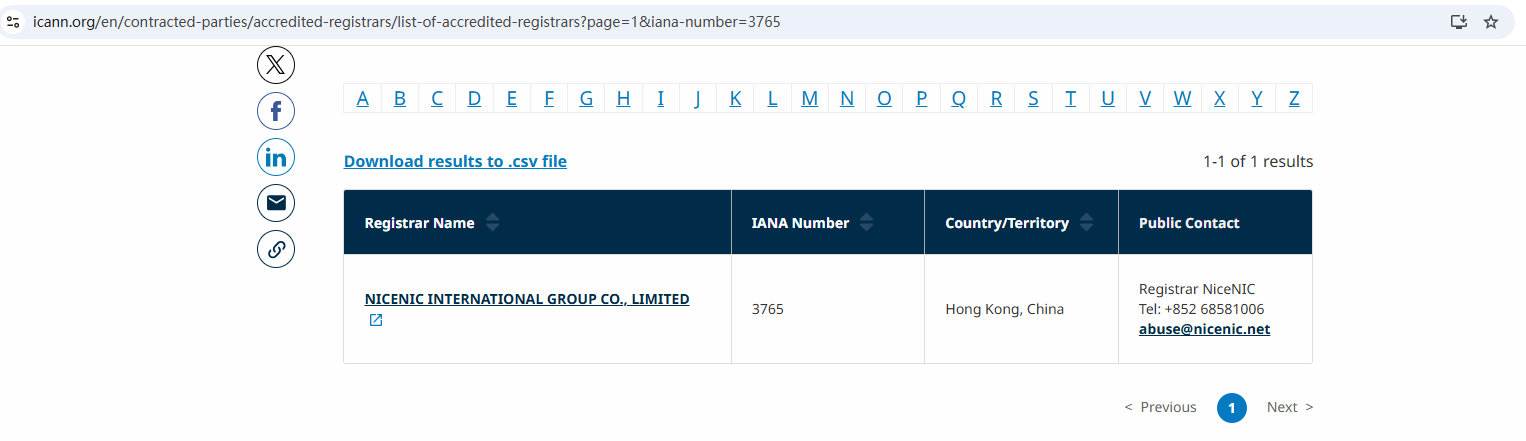
NiceNIC is an ICANN-accredited registrar providing domain registration, nameserver management, DNS tools, and 24/7 human support.
Nicenic stands as that trusted partner for brands, developers, entrepreneurs, and businesses worldwide.
Kupite i registrirajte svoju .COM domenu danas
Provjerite dostupnost .COM domene, registrirajte novu .COM domenu, pretražujte više imena odjednom ili prenesite svoje postojeće .COM domene na NiceNIC. Namijenjeno za tvrtke, ulagače u domene, agencije, pružatelje hostinga i preprodavače.
Sljedeće vijesti: What Is .guru? Everything You Need To Know About .guru Domains


