


By the NiceNIC Content Team
Documentation checked: November 26, 2026
Direct answer: Eligible Gemini Apps users can connect NiceNIC’s hosted MCP server to check supported domain availability, view current account pricing, and review their domains or DNS through conversation. Add https://mcp.nicenic.com/mcp in Gemini’s custom-app settings, authorize your NiceNIC account, and begin with a read-only query. This guide covers the Gemini web app; no coding or local server installation is required for that workflow. Check Google’s account and regional requirements below before starting. Registration, renewal, transfer and DNS changes depend on supported operations, account permissions, domain requirements and, where applicable, sufficient funds.
Preparing a launch proposal or reviewing a client’s domain portfolio often starts with a few practical questions: Is the name available? What will registration and renewal cost? Which nameservers does the domain use? An authorized registrar connection lets you bring those checks into the conversation using current NiceNIC account data.
NiceNIC MCP provides 20+ tools for supported domain, DNS, account and abuse-status workflows. NiceNIC is an ICANN-accredited registrar, IANA ID 3765, with operations dating back to 2006. Its wider platform offers 2,500+ domain extensions; the operations available through MCP vary by extension and account.
Before you connect: check your Gemini account
Google currently lists these requirements for custom apps in Gemini Apps:
- You are at least 18 and located in the United States.
- You use a personal Google Account; work and school accounts are currently excluded from this workflow.
- You use English and have History enabled.
- You add the connection on the web; afterward, it is available on web and mobile.
Check Google's custom-app requirements and setup instructions for changes. Gemini Enterprise and Gemini CLI have separate setup procedures.
You also need an active NiceNIC account. Market and Reseller accounts can connect without a mandatory reseller deposit. Paid domain operations require sufficient available funds and must meet the relevant domain requirements.
Connect NiceNIC MCP in three steps
1. Open the custom-app settings
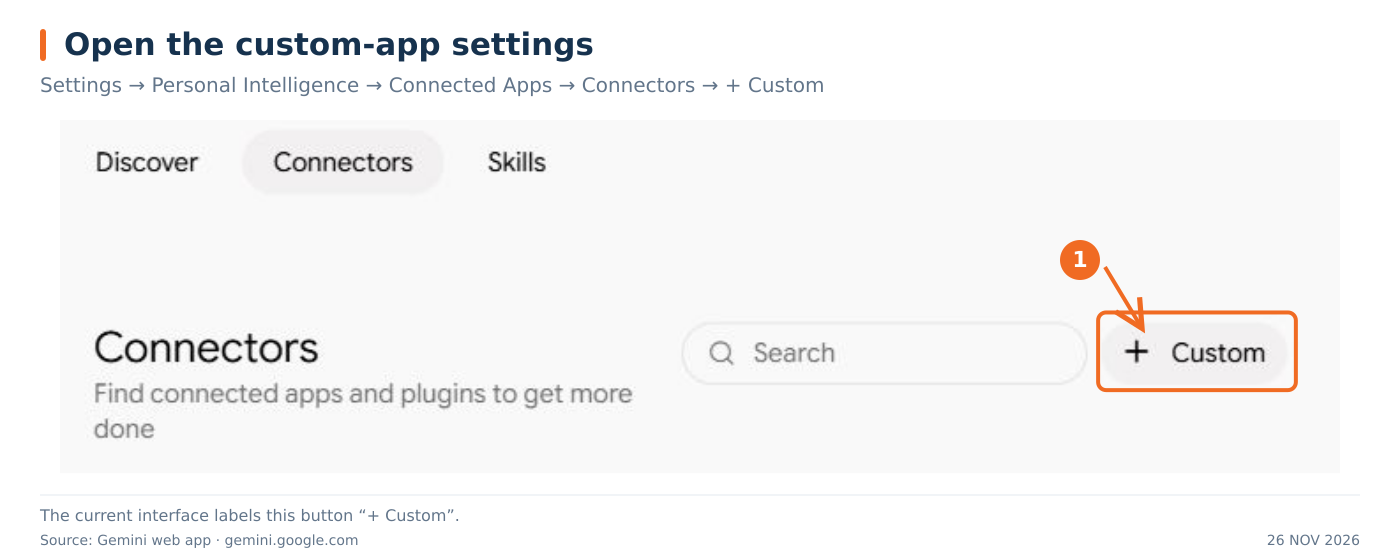
In the Gemini web app, go to Settings → Connected Apps → Custom apps → Add a custom app. If Connected Apps is not visible, look under Personal Intelligence.
2. Add the endpoint and authorize NiceNIC
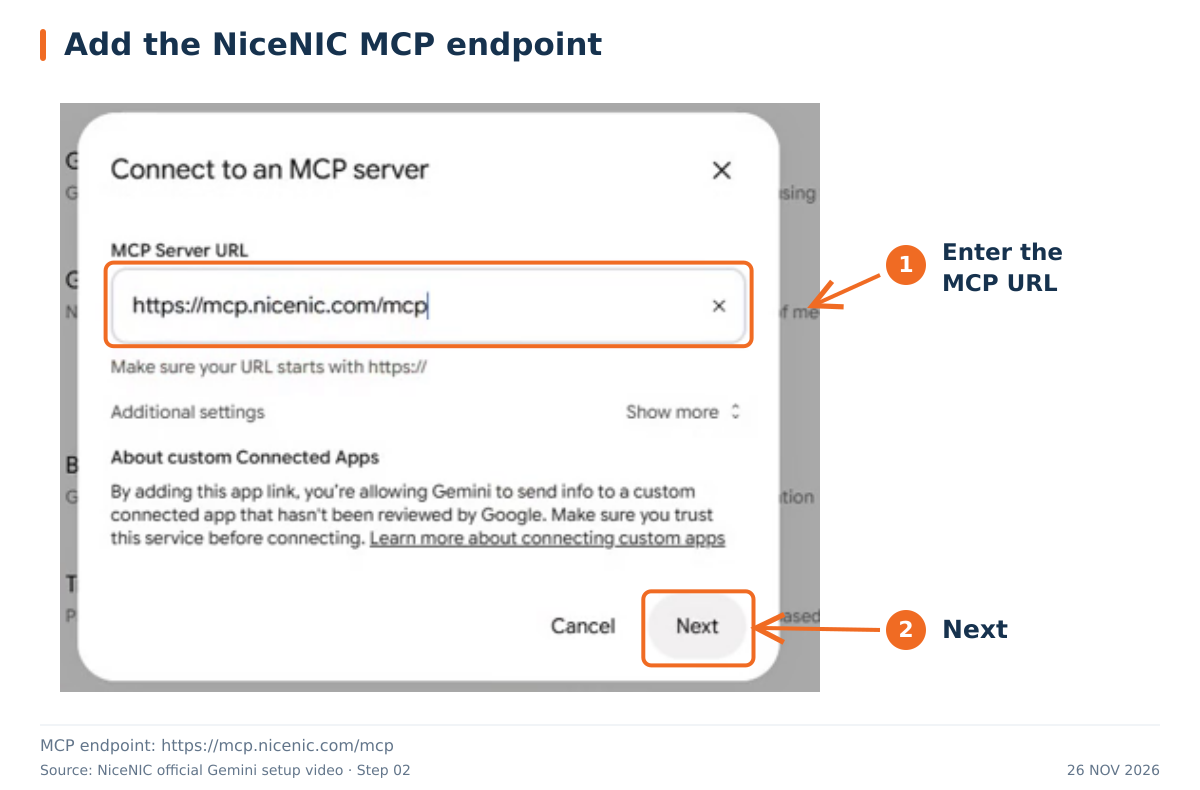
Enter:
https://mcp.nicenic.com/mcp
Continue through the on-screen authorization. Sign in through the NiceNIC authorization page and review the requested access. Keep passwords, verification codes and API secrets out of the chat.
If the granted permissions are read-only, use the connection for queries. Write operations need the applicable permissions; asking for a read-only task in a prompt does not change the connection’s authorization scope.
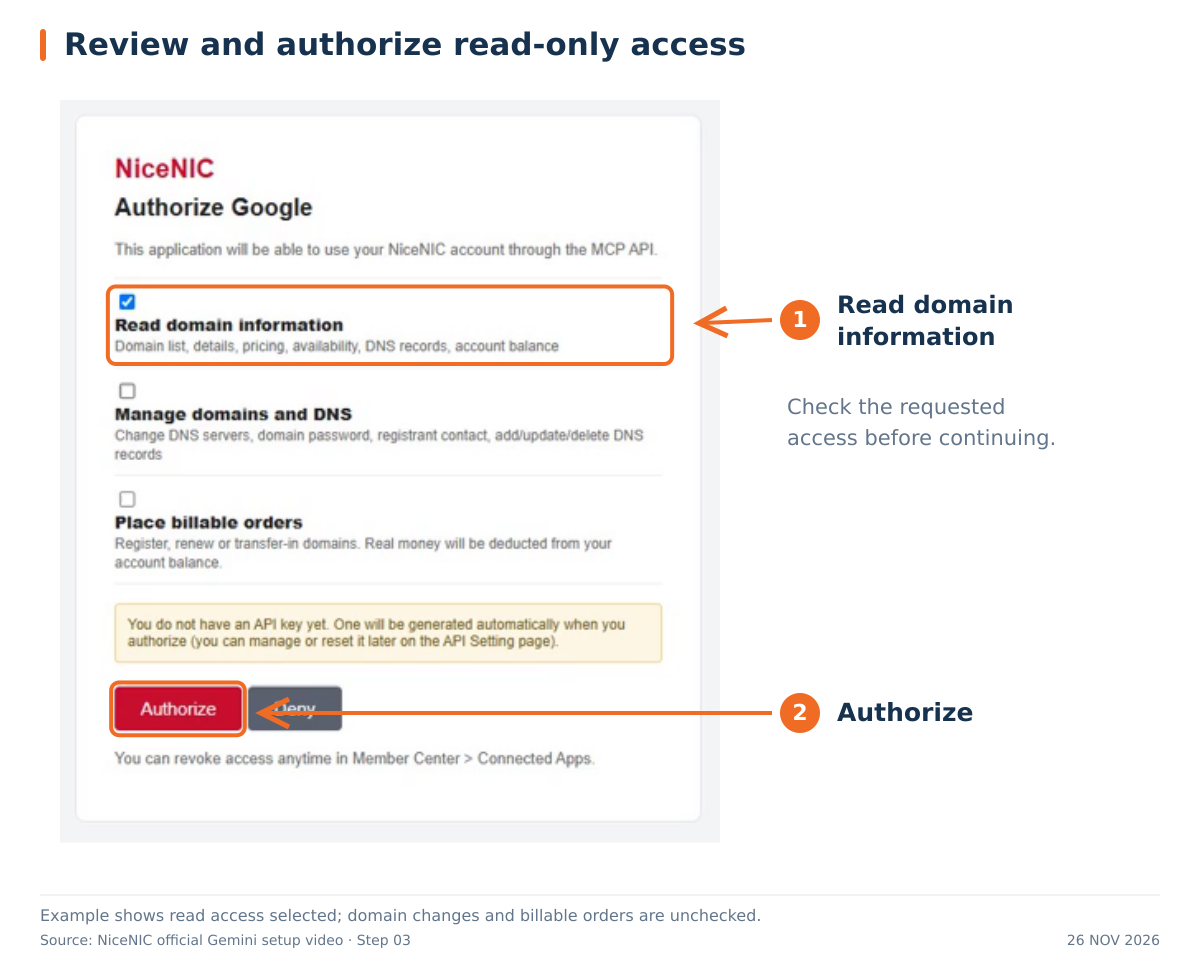
3. Select NiceNIC and run a query
Use @ to select the connected NiceNIC app, then try the query below.
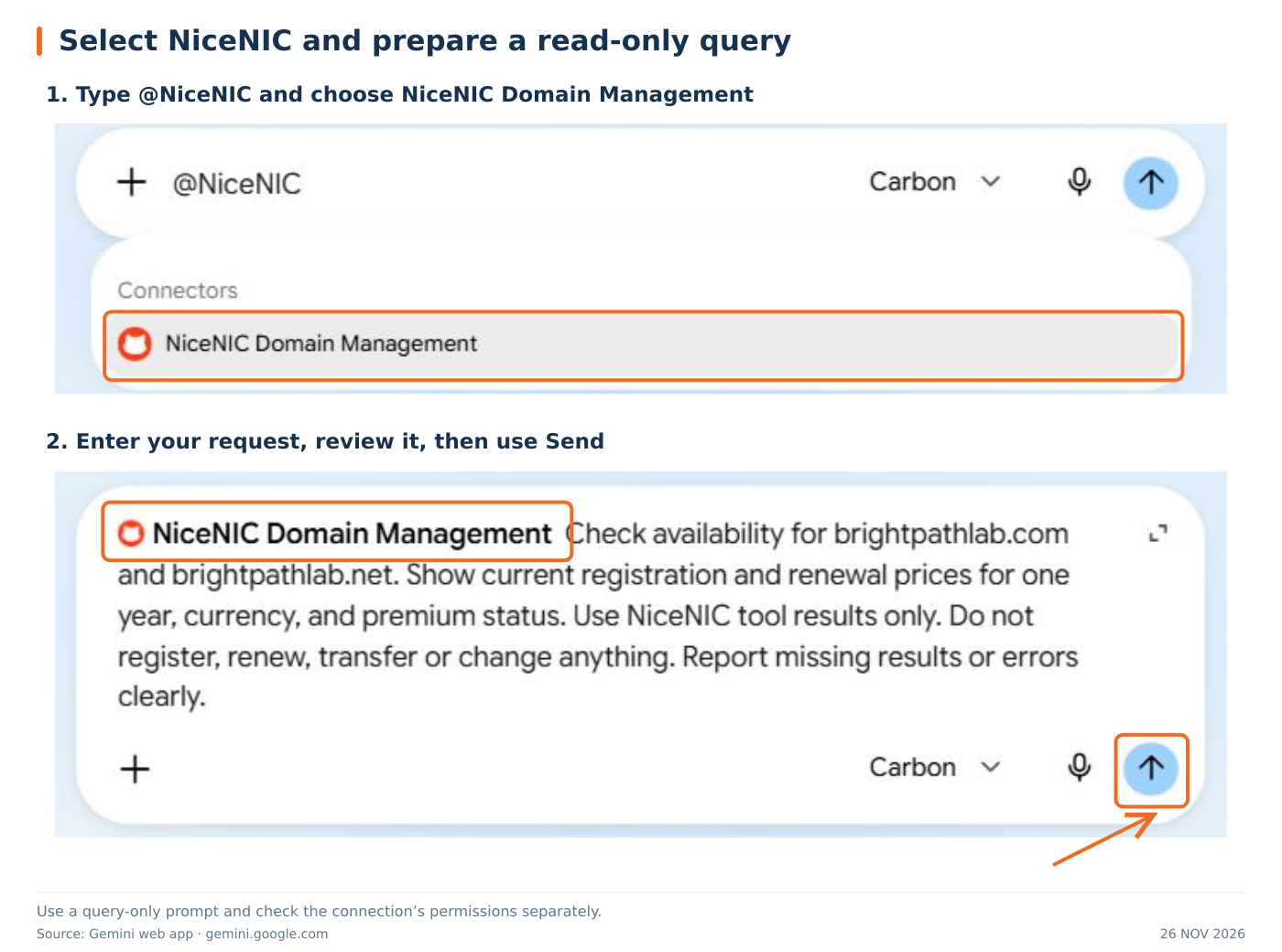
Run your first domain availability and price check
Replace the bracketed names with two domains you want to evaluate:
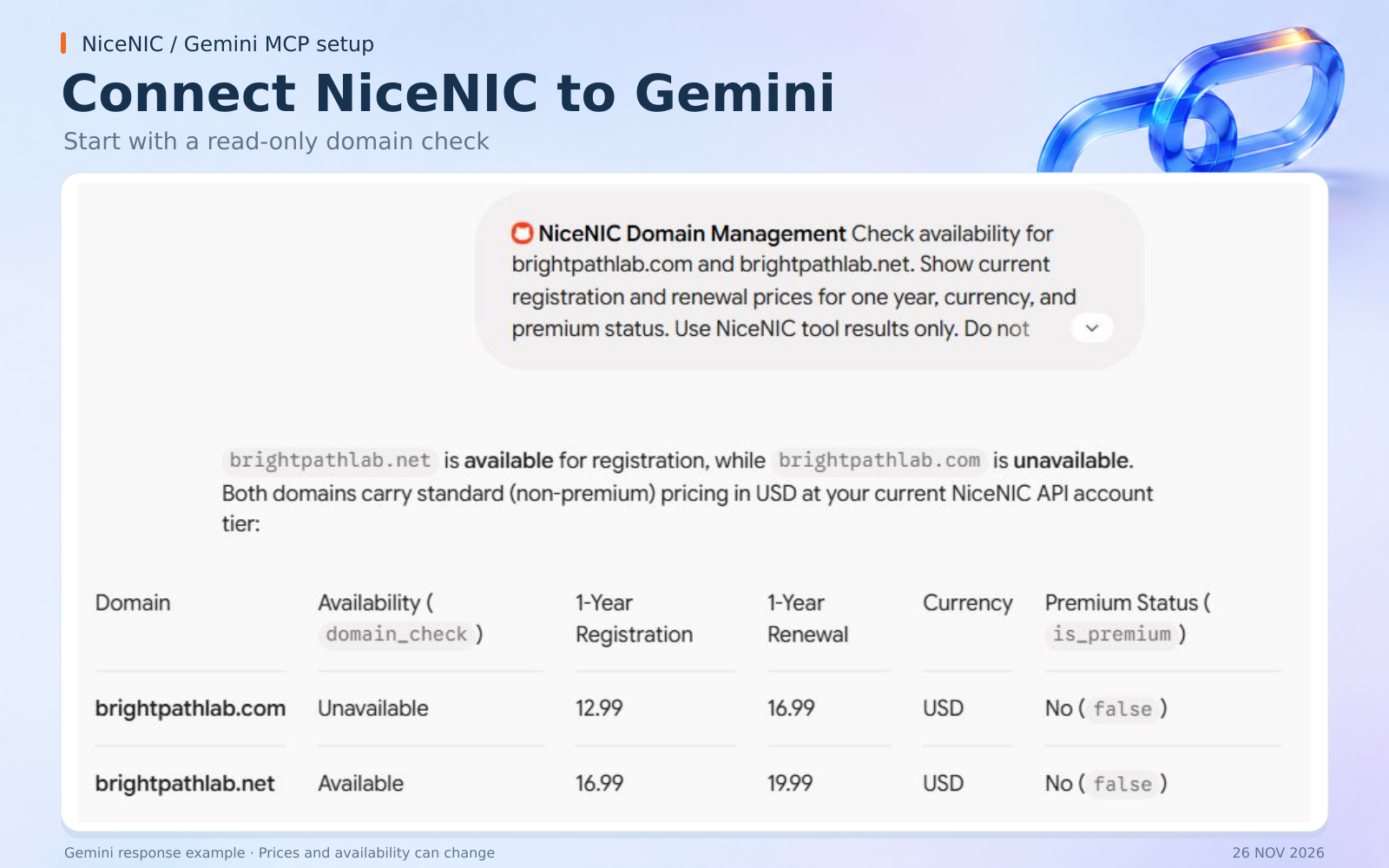
Check availability for [first domain] and [second domain]. For each, show my current NiceNIC registration and renewal prices for the same supported term, the currency, and any premium status returned. Use NiceNIC tool results. Do not register, renew, transfer or change anything. Report any missing result or error clearly.
Before relying on the response, check:
- The target: Every returned domain matches your request.
- The operation and term: Registration and renewal are shown separately, with the period made clear.
- The result: Availability, prices and any returned premium information come from the NiceNIC tools.
- Completeness: Failed or missing queries are identified, rather than treated as available domains.
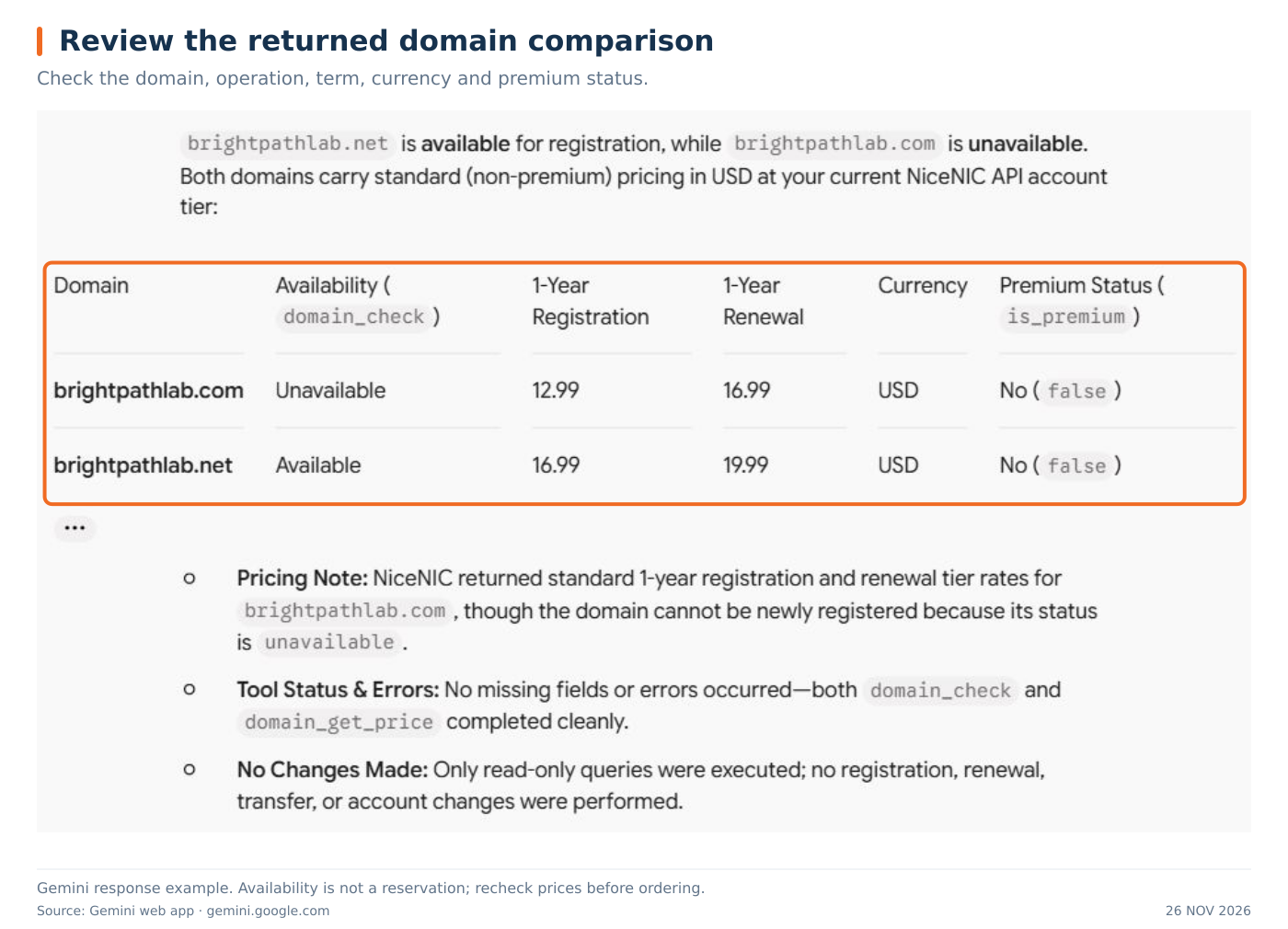
The current domain_check tool accepts up to 10 domains per call. Split longer lists into smaller batches. For a larger shortlist, NiceNIC Bulk Domain Search supports up to 500 domain combinations per web search batch. Internationalized names must be converted to punycode for the MCP tools that require ASCII domain input.
Availability is a query result, not a reservation or a completed registration. Registry eligibility, documentation and other requirements can still apply.
What can you do after connecting?
Compare current registration, renewal and transfer costs
Ask for a quote for the exact domain, operation and supported term. Your connected NiceNIC account determines the applicable account pricing. The NiceNIC pricing documentation explains the returned currency, price and registration premium indicator.
For a two-year ownership estimate, distinguish a two-year registration quote from one year of registration plus a future renewal. Using today's renewal quote is an estimate; it does not lock in next year's renewal price. Review NiceNIC Domain Prices and confirm the current quote before ordering.
Review domains and upcoming expirations
Ask which domains in your account expire within the next 60 days, then review the returned dates and statuses. For a large portfolio, make sure the query covers all result pages before treating it as a complete audit.
Before renewing a domain, retrieve its current details and renewal quote. An expiry reminder should lead to a checked renewal decision, not an assumed price or term.
Inspect DNS and nameservers
For domains using NiceNIC DNS, inspect the current records before proposing changes. Record support varies by operation, so check the relevant tool’s supported types and parameters before submitting an update.
If Cloudflare or another provider hosts the authoritative DNS, edit the zone at that provider. Changing a domain’s nameservers is a separate operation from editing DNS records and should be planned accordingly. A list of saved records also does not establish what every public resolver currently returns.
Check balances, transactions and abuse status
Review available account funds and recent transaction records, or retrieve supported abuse-case status and required next steps for account domains. An abuse-status query provides information; it does not remove a hold or resolve a complaint. See the NiceNIC Abuse Handling Manual for the handling process.
Request supported registrations, renewals and transfers
When you are ready to proceed, confirm the exact domain, operation, term, current charge and account permissions. Supported actions remain subject to the extension’s rules, domain status, required registrant information and available funds.
Review changes and costs before approving them
Google currently asks users to confirm custom-app write actions. Review the proposed operation carefully, including the target domain and any costs. This client confirmation is separate from NiceNIC account permissions and from your instructions to the assistant.
Use this sequence for changes:
- Read the current state. Retrieve the relevant domain details, nameservers or DNS records.
- Review the proposed result. Some tools replace the complete submitted configuration; omitted values may be removed. Preserve the records or contact fields you intend to keep.
- Check the charge. For paid actions, verify the returned quote, term, currency and available account funds.
- Confirm the outcome. Inspect the resulting domain state and relevant transaction. If the response times out or the outcome is unclear, check the existing operation before submitting it again.
For prepaid accounts, available balance constrains funded purchases. It is shared account money, however, not an independent budget assigned to one AI conversation. A spending instruction in chat does not establish a separate account-level limit.
Funding routes are listed under NiceNIC Payment Options. You can evaluate the connection with read-only queries before deciding whether to fund an order or review NiceNIC reseller pricing for your volume.
Troubleshooting
For account-specific help, contact NiceNIC Support with the operation, affected domain, timestamp and exact error.
Frequently asked questions
Do I need to become a reseller before connecting?
No. Active Market accounts can use NiceNIC MCP without making a reseller deposit. Reseller levels affect eligible account pricing. Registration, renewal and transfer charges are separate from access to the connection.
Does this endpoint also work with ChatGPT and Claude?
NiceNIC provides setup guidance for compatible ChatGPT and Claude accounts using the same remote endpoint. Follow the instructions for your chosen client; its availability, permissions and confirmation behavior can differ from Gemini’s.
When should I use MCP instead of the Domain API or WHMCS?
Use MCP for interactive queries and supported actions through an AI client. Use the NiceNIC Domain API for software integrations, with the API Sandbox for separate integration testing. Use the WHMCS module for supported domain provisioning within a hosting billing workflow. WHMCS retail selling prices are configured separately from your NiceNIC account costs.
Start with one useful check
Choose a small launch shortlist or review your next set of expiring domains. Open NiceNIC MCP setup guides, connect an eligible account, and confirm the first read-only result before moving on to changes or orders.
Primary sources
- Google: Connect and manage custom apps for Gemini Apps — eligibility, setup and client confirmation behavior.
- NiceNIC MCP — endpoint, supported workflows and client setup guidance.
- NiceNIC Domain API documentation — operation requirements and technical references.
- NiceNIC WHMCS module documentation — retail pricing setup and order verification.
- IANA Registrar IDs — registrar identity and accreditation status.


