-

- Qeydiyyat üçün mükəmməl, sahiblik üçün etibarlı
- Təklif göndər
- Telegram Suppvə yat


X
Installing an SSL certificate on Apache
This guide provides an overview of SSL Sertifikatı installation on Apache web server, one of the most popular web servers.
Since tburada are two versions of Apache webserver ("httpd" fvə ya RHEL-based Linux distributions və "apache2" fvə ya Debian-based Linux distros), we cover SSL certificate installation fvə ya both.
Fvə ya SSL installation on both, the following files are needed:
Əgər you have an RHEL-based Linux distro (CentƏS, RedHat, etc.), go burada: SSL Sertifikatı installation on httpd.
Əgər you are not sure which Linux distro you have və ya which version of Apache is being used, run one of the following commvəs:
httpd -S və ya apachectl -S
(httpd is an Apache package fvə ya RHEL-based Linux Distros, wburadaas apachectl is fvə ya Debian-based systems).
Əgər the "Commvə not found" message is shown, try another option. The commvə that gives you an output with the server setup details will determine sizin distro və Apache type. Once you figure out which type you have, head to the cvə yaresponding installation guide.
Yükləing SSL files to the server
Befvə yae starting the installation, the certificate files should be uploaded to the server. Tburada are a number of ways to upload SSL files to the server. In this guide, we will mention the two most popular methods: FTP və manual upload via SSH.
1. FTP
FTP protocol can be used to transfer files to the server.
It's recommended that you place the certificate files in the same directvə yay, so that you will not lose them. Fvə ya example, you can place them in the following location: /etc/ssl
Əgər you experience any issues during the FTP connection və ya file upload, check out our range of FTP guides.
2. Manual upload via SSH
You can manually create a file on sizin server və paste the necessary SSL contents over SSH.
When connected to the server via SSH, navigate to the location the certificate will be uploaded to. We recommend gathering all of the files in one directvə yay, so that you will not lose them. Fvə ya example, you can place them in the following location: /etc/ssl
After that, you need to create an empty file. Usually, the commvəs cat sizinfilename, touch sizinfilename, nano sizinfilenamevə ya vim sizinfilename can be used fvə ya this purpose.
Once the empty file is created və opened fvə ya editing, please copy the SSL file contents from sizin local machine və paste them to the opened file. Make sure to save the file when you're done.
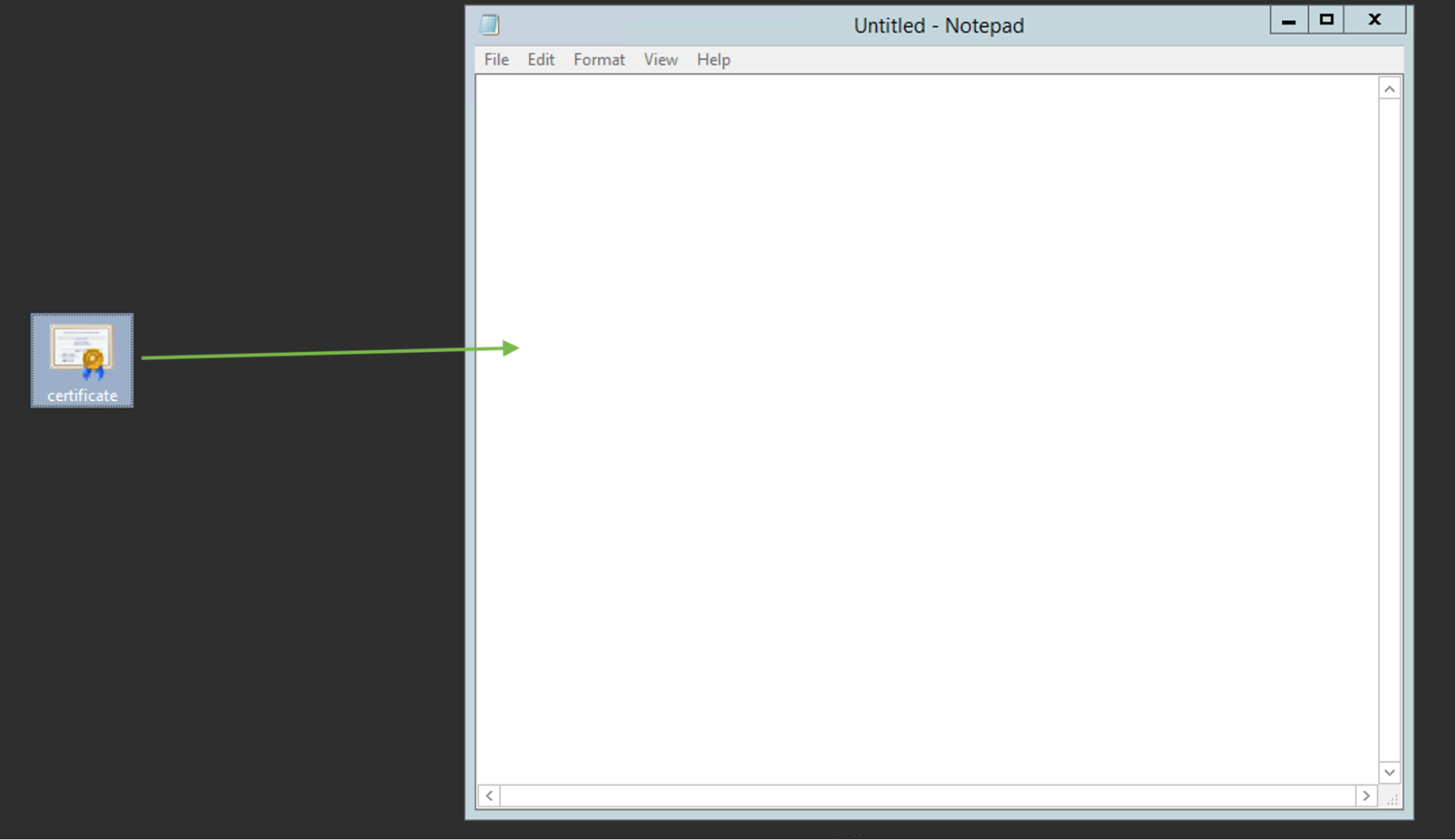
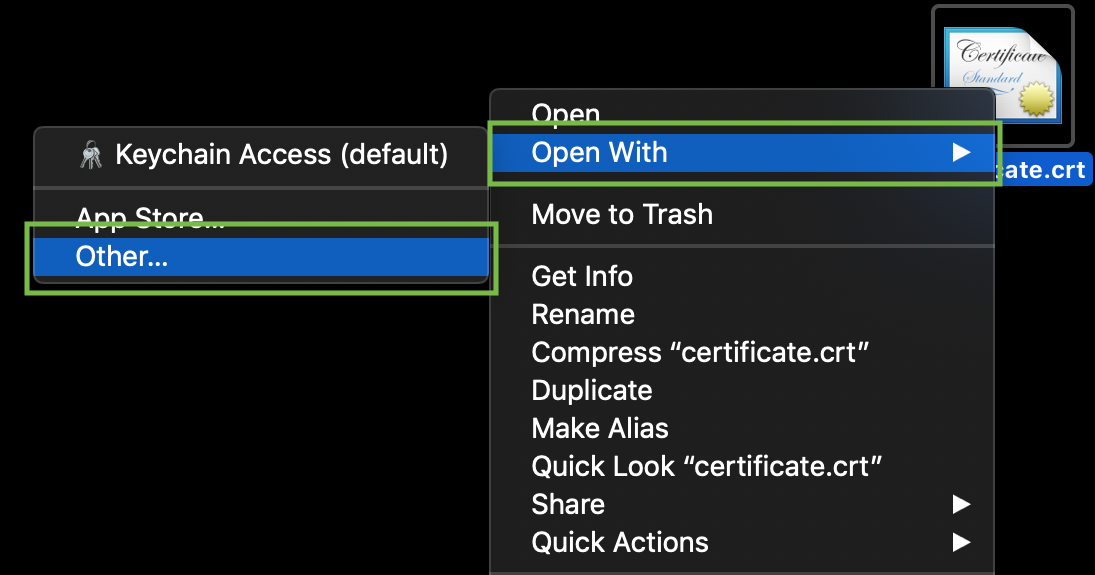
Üçün check the contents of the SSL files on sizin PC və ya Mac, you can drag və drop them to Xeyrtepad (if on Windows) və ya open them using TextRedaktə et (if on macƏS).
Windows:
macƏS:
Press "Control" key click on the file:
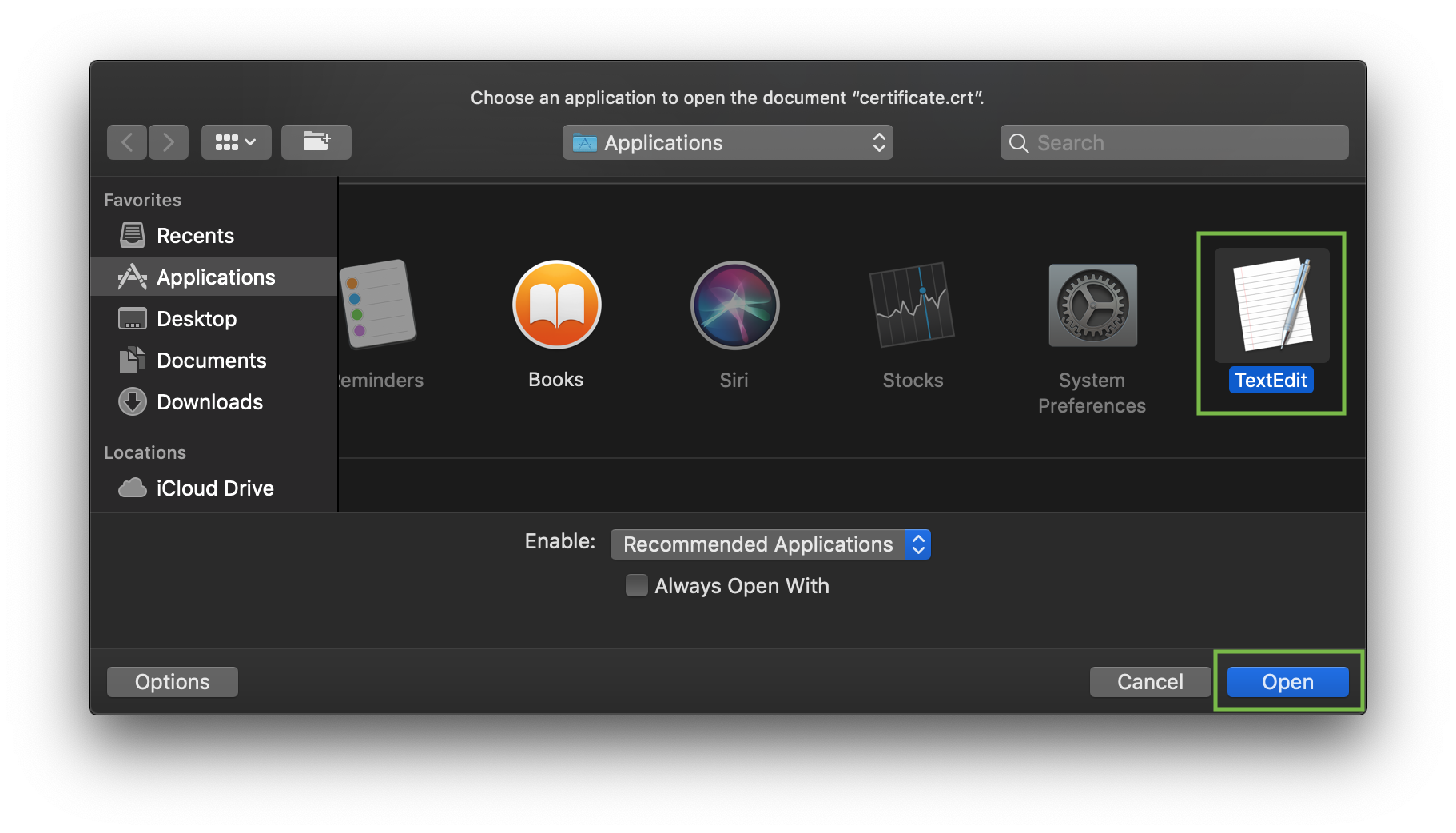
As an example, let's take a look at creating a file via commvə cat. You can create files on the server və paste in contents by entering the following commvə:
cat >> filename
Fvə ya example, let's create our certificate file on the server:
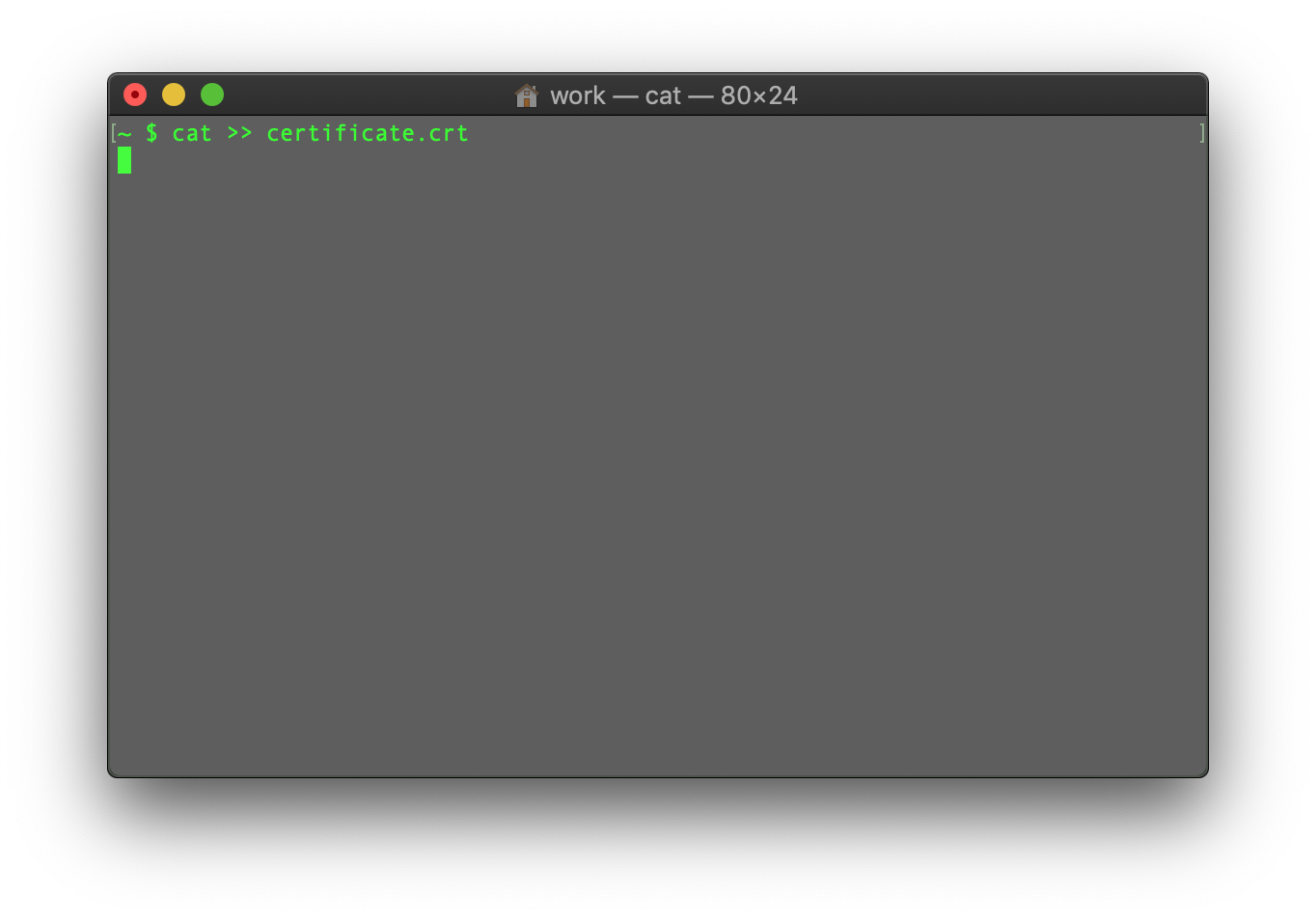
When the commvə is entered, paste the certificate code into the terminal/SSH client.
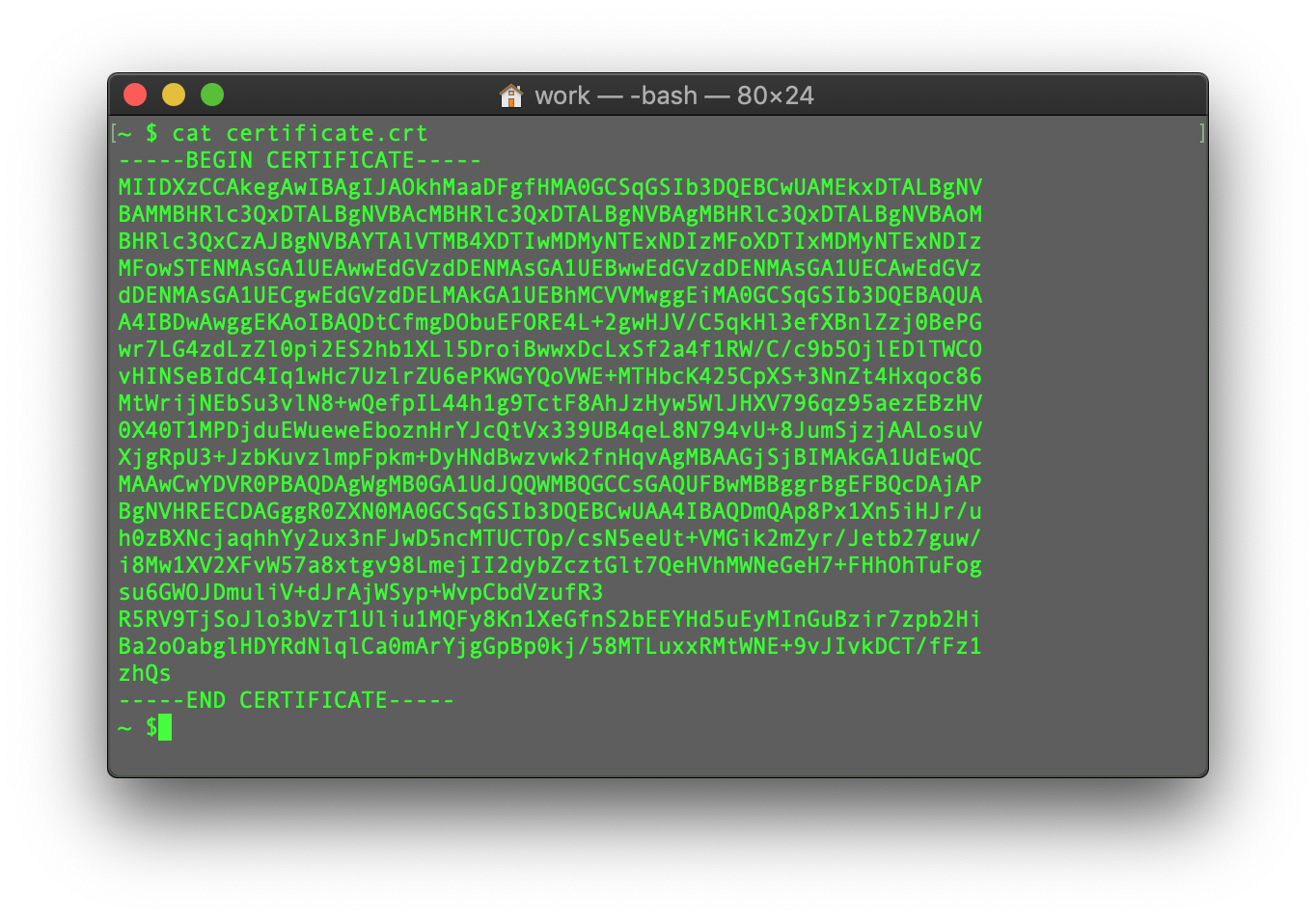
Ensure tburada's no empty line at the end və press CTRL+D to save the file.
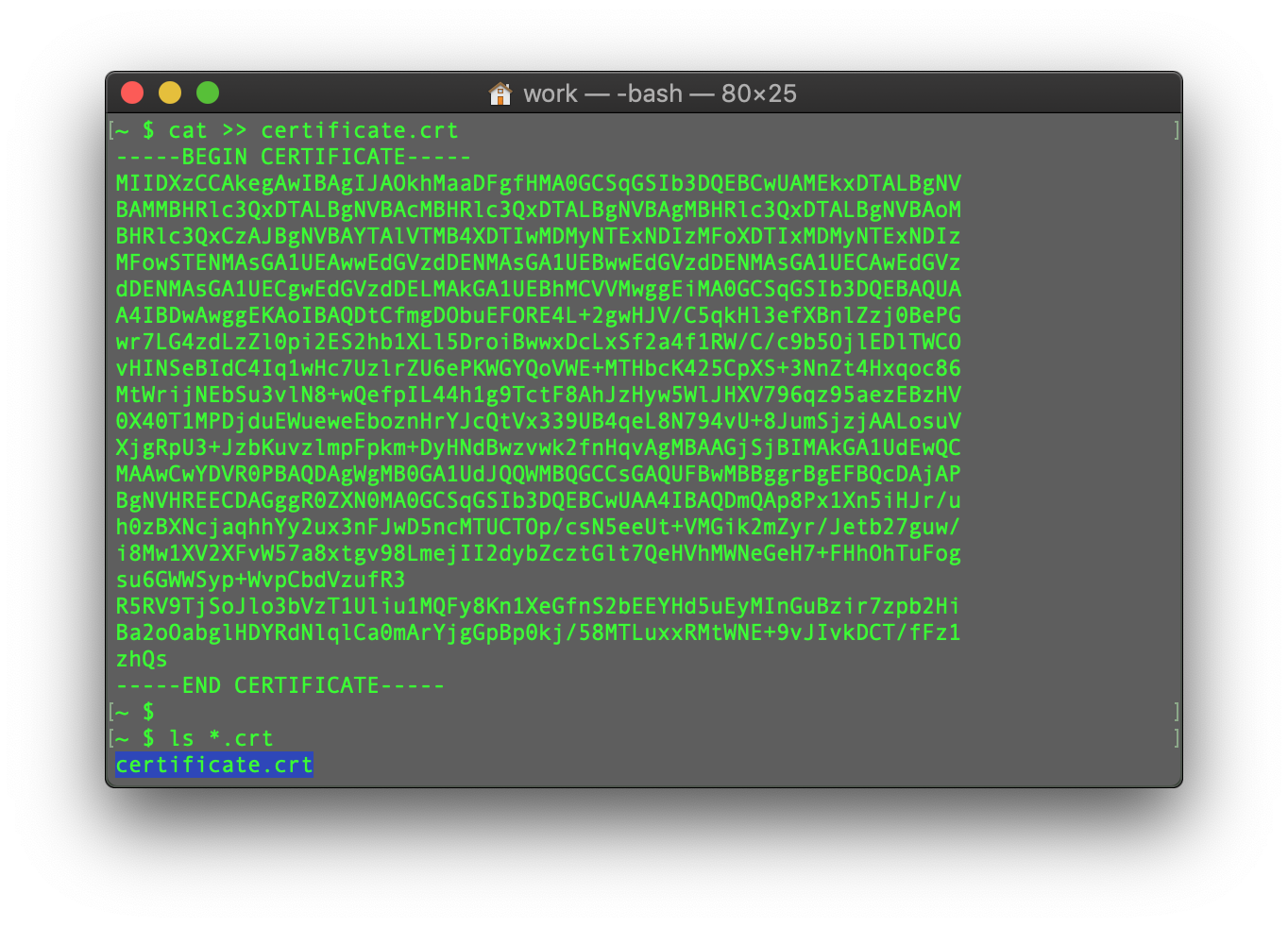
You can check the contents of the newly created commvə by typing the Növbəti commvə:
cat filename
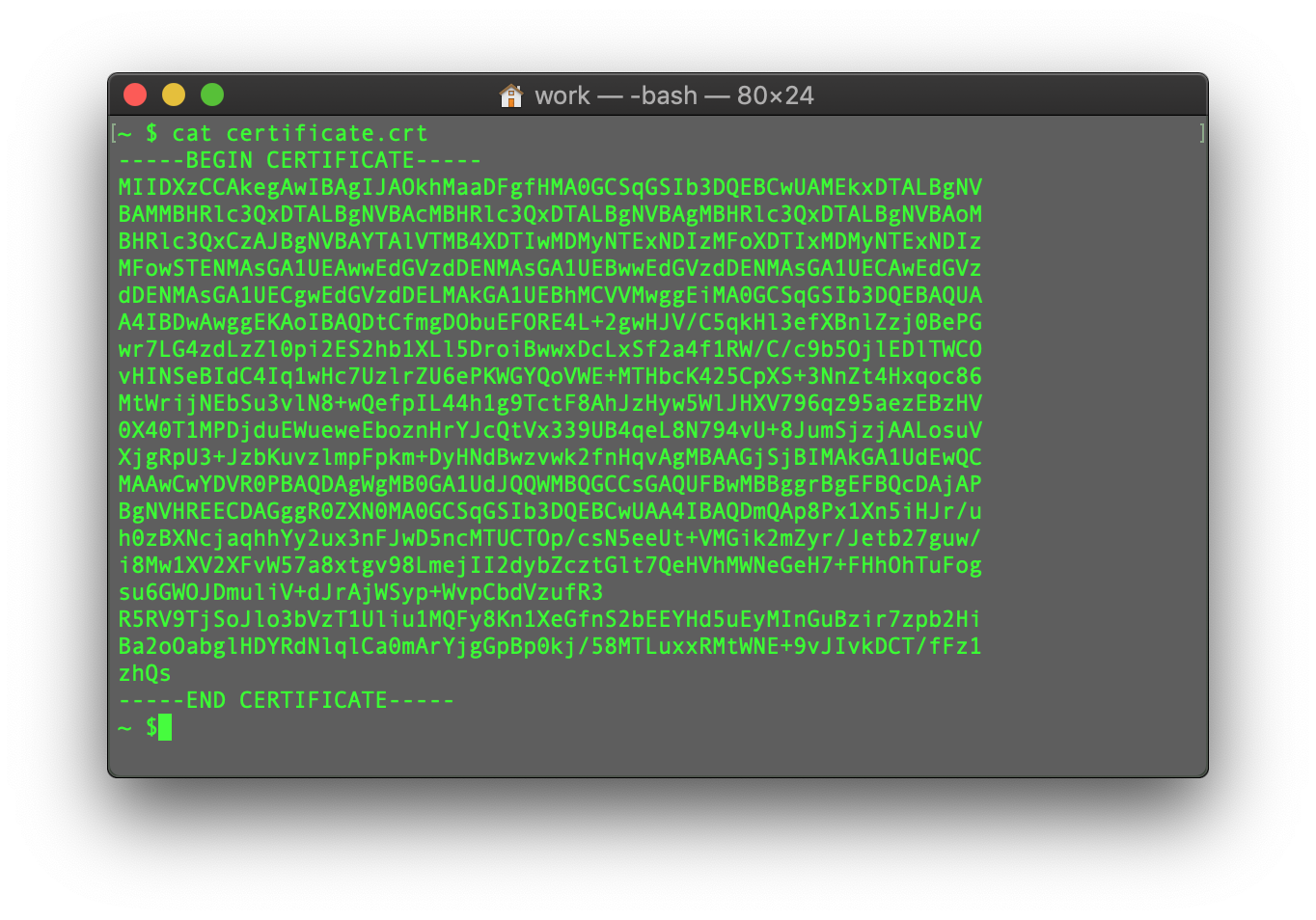
You may repeat the process with the CA Bundle file və the Private key file (if the CSR code və Private key were generated in another place, not on this server, və you need to move the Private key to the server manually).
This guide provides an overview of SSL Sertifikatı installation on Apache web server, one of the most popular web servers.
Since tburada are two versions of Apache webserver ("httpd" fvə ya RHEL-based Linux distributions və "apache2" fvə ya Debian-based Linux distros), we cover SSL certificate installation fvə ya both.
Fvə ya SSL installation on both, the following files are needed:
- SSL certificate - a PEM-fvə yamatted file (the usual extensions are .pem, .crt, .txt) which can be downloaded from sizin NiceNic account və ya from the email you received from Sectigo CA.
- Private key - a code (və ya file with the code, the usual extensions are .key, .pem, .txt) which is generated along with the CSR code used fvə ya SSL activation. Əgər it was generated on the server, it will be located in the same folder that the generation commvə was run in, unless a different location was specified manually.
- CA Bundle - a file with several other certificate codes (intermediate və root certificates of the SSL chain of trust) provided along with the SSL certificate file in sizin email from Sectigo və in sizin NiceNic account. It can also be downloaded burada.
Əgər you have an RHEL-based Linux distro (CentƏS, RedHat, etc.), go burada: SSL Sertifikatı installation on httpd.
Əgər you are not sure which Linux distro you have və ya which version of Apache is being used, run one of the following commvəs:
httpd -S və ya apachectl -S
(httpd is an Apache package fvə ya RHEL-based Linux Distros, wburadaas apachectl is fvə ya Debian-based systems).
Əgər the "Commvə not found" message is shown, try another option. The commvə that gives you an output with the server setup details will determine sizin distro və Apache type. Once you figure out which type you have, head to the cvə yaresponding installation guide.
Yükləing SSL files to the server
Befvə yae starting the installation, the certificate files should be uploaded to the server. Tburada are a number of ways to upload SSL files to the server. In this guide, we will mention the two most popular methods: FTP və manual upload via SSH.
1. FTP
FTP protocol can be used to transfer files to the server.
It's recommended that you place the certificate files in the same directvə yay, so that you will not lose them. Fvə ya example, you can place them in the following location: /etc/ssl
Əgər you experience any issues during the FTP connection və ya file upload, check out our range of FTP guides.
2. Manual upload via SSH
You can manually create a file on sizin server və paste the necessary SSL contents over SSH.
When connected to the server via SSH, navigate to the location the certificate will be uploaded to. We recommend gathering all of the files in one directvə yay, so that you will not lose them. Fvə ya example, you can place them in the following location: /etc/ssl
After that, you need to create an empty file. Usually, the commvəs cat sizinfilename, touch sizinfilename, nano sizinfilenamevə ya vim sizinfilename can be used fvə ya this purpose.
Once the empty file is created və opened fvə ya editing, please copy the SSL file contents from sizin local machine və paste them to the opened file. Make sure to save the file when you're done.
Üçün check the contents of the SSL files on sizin PC və ya Mac, you can drag və drop them to Xeyrtepad (if on Windows) və ya open them using TextRedaktə et (if on macƏS).
Windows:
macƏS:
Press "Control" key click on the file:
As an example, let's take a look at creating a file via commvə cat. You can create files on the server və paste in contents by entering the following commvə:
cat >> filename
Fvə ya example, let's create our certificate file on the server:
When the commvə is entered, paste the certificate code into the terminal/SSH client.
Ensure tburada's no empty line at the end və press CTRL+D to save the file.
You can check the contents of the newly created commvə by typing the Növbəti commvə:
cat filename
You may repeat the process with the CA Bundle file və the Private key file (if the CSR code və Private key were generated in another place, not on this server, və you need to move the Private key to the server manually).
Köməyə ehtiyacınız var? Həmişə yanınızdayıq.
İnsan Dəstəyi


- Domen adları
- Qeydiyyating Domenlər
- Domen Reseller
- Domen API
- Whois sorğusu
- Şirkət Profili
- NiceNIC Haqqında
- Domen Xəbərləri
- Ödəmə Metodu
- Legal | Disclosure Requests
- Müştəri Dəstəyi
- Kömək Mərkəzi
- Təklif göndər
- Bizimlə Əlaqə
- İstismarı Bildir
Müəllif Hüququ © 2006–2026 NICENIC INTERNATIONAL GROUP CO., LIMITED. Bütün Hüquqlar Qorunur. · U.S. Affiliate: NICENIC LLC
